In the left side menu we go into the boats tab.
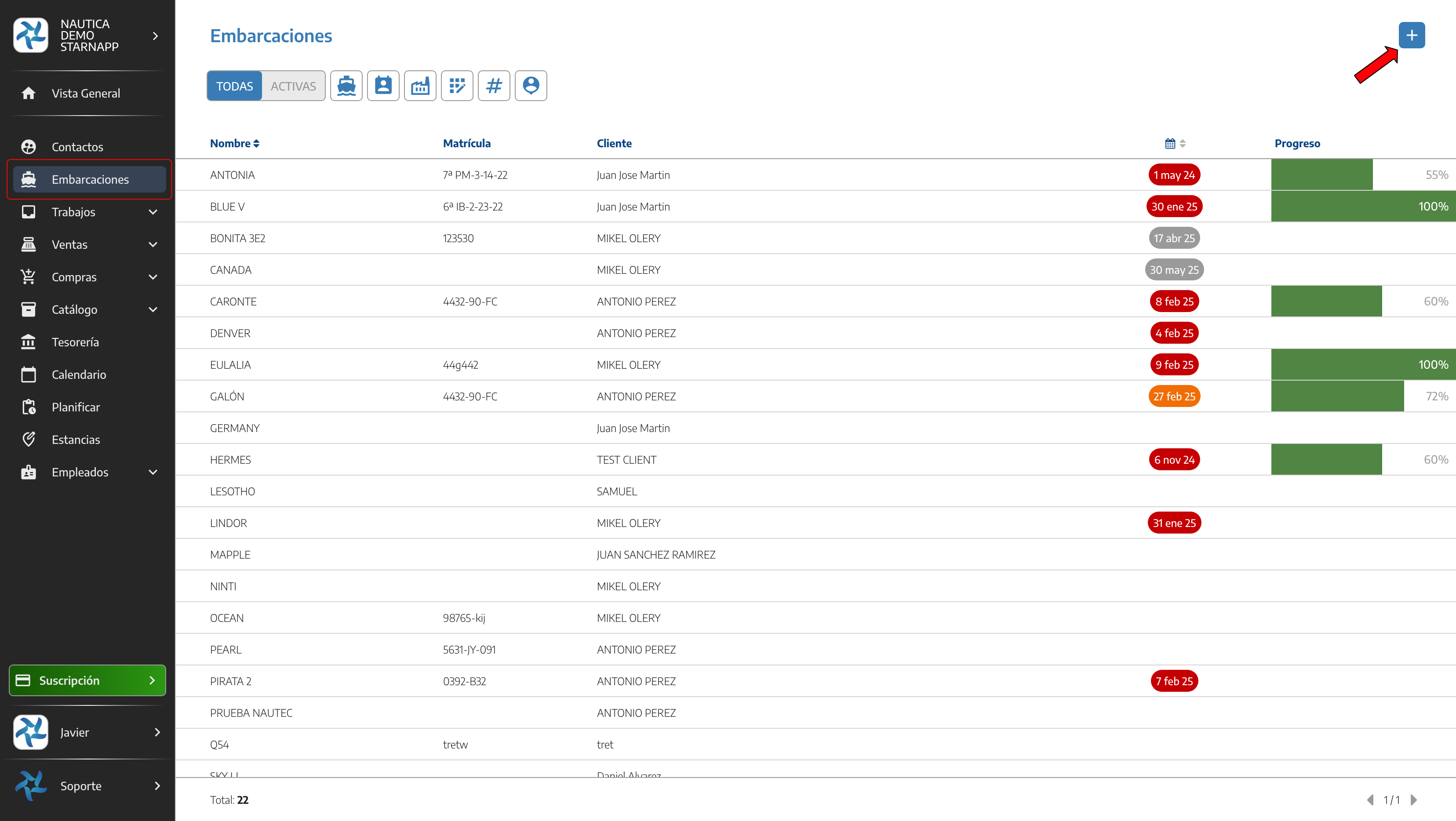
When we enter this tab, at the top on the left side we have the filter-based search system
All / Active: Here you can choose whether you want to see all the boats you have saved in the database or only the boats that currently have work being done on them.
Boat: This is a filter so you can quickly find a boat by its name and access its record and status.
Contact: You can filter a customer’s boats by searching for your customer’s name.
Manufacturer: Filter boats by their manufacturer.
Registration: If you have the registration number, you can filter by it to directly locate the boat.
S/N: If you have the boat’s serial number, you can filter by that number and go straight to the boat without needing any other info.
Coordinator: Filter by the name of your coordinator who’s linked to a boat.

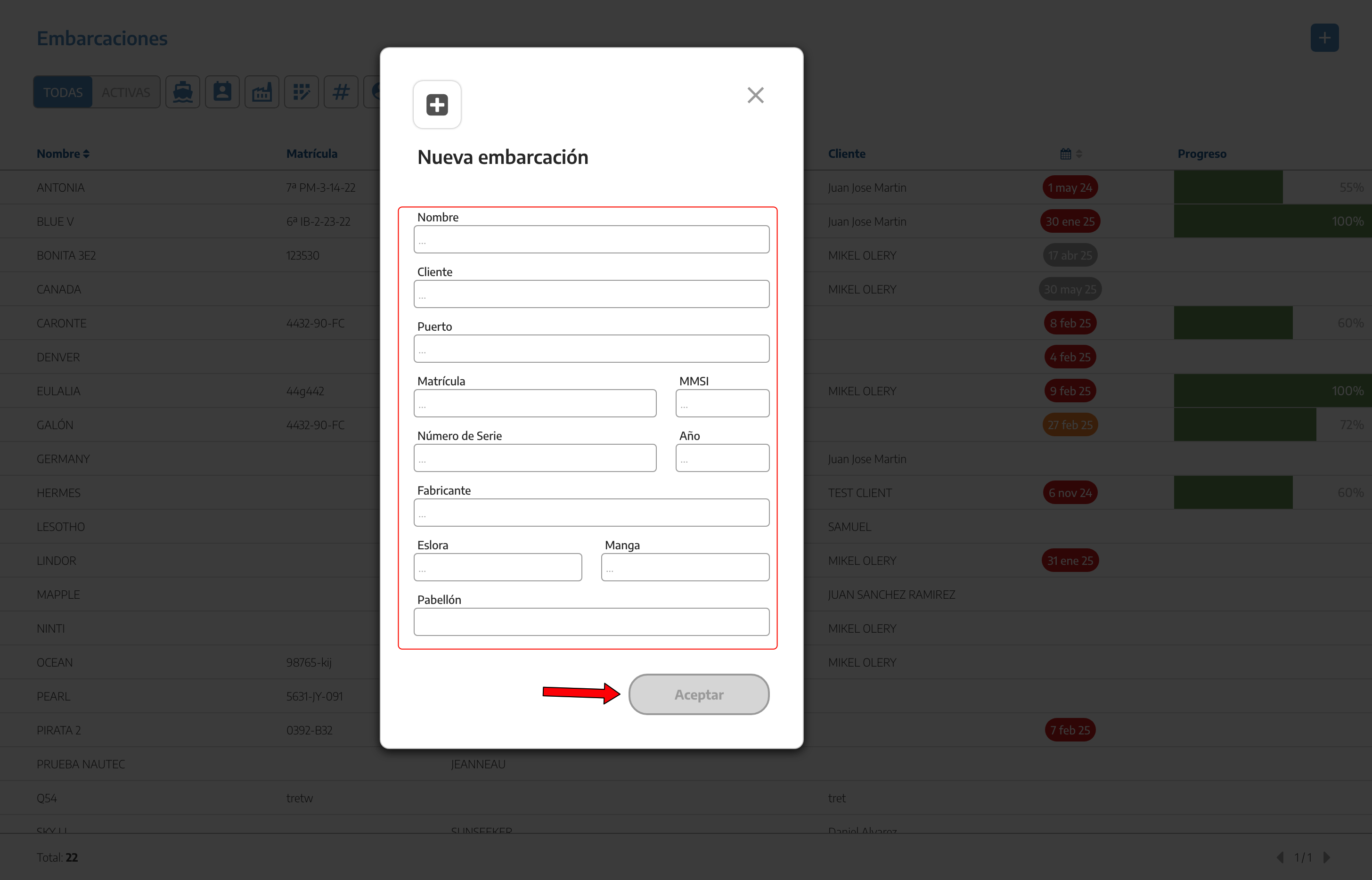
You can add new boats using the button at the top right. When you click it, the menu to enter the boat’s details will drop down.
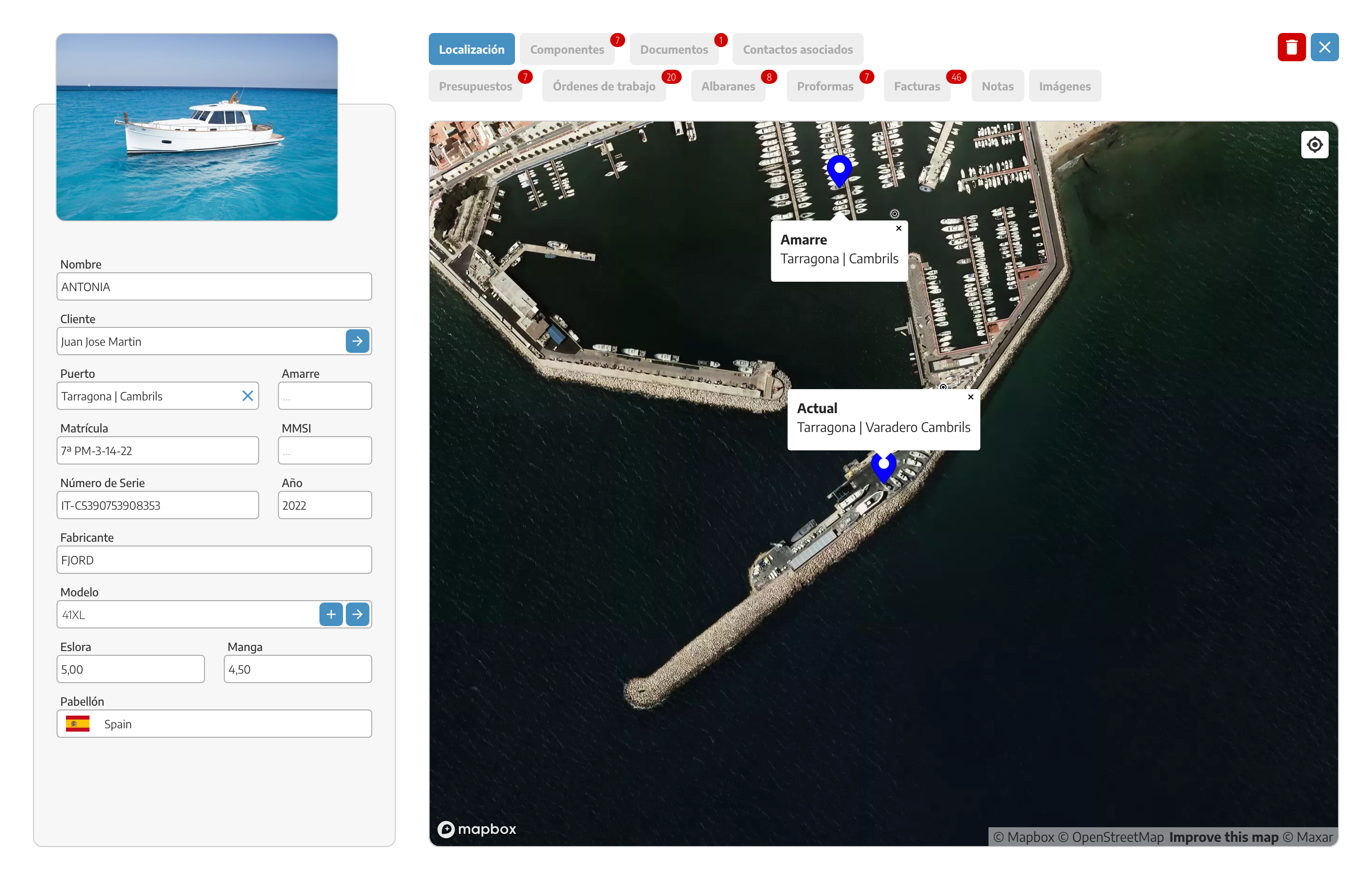
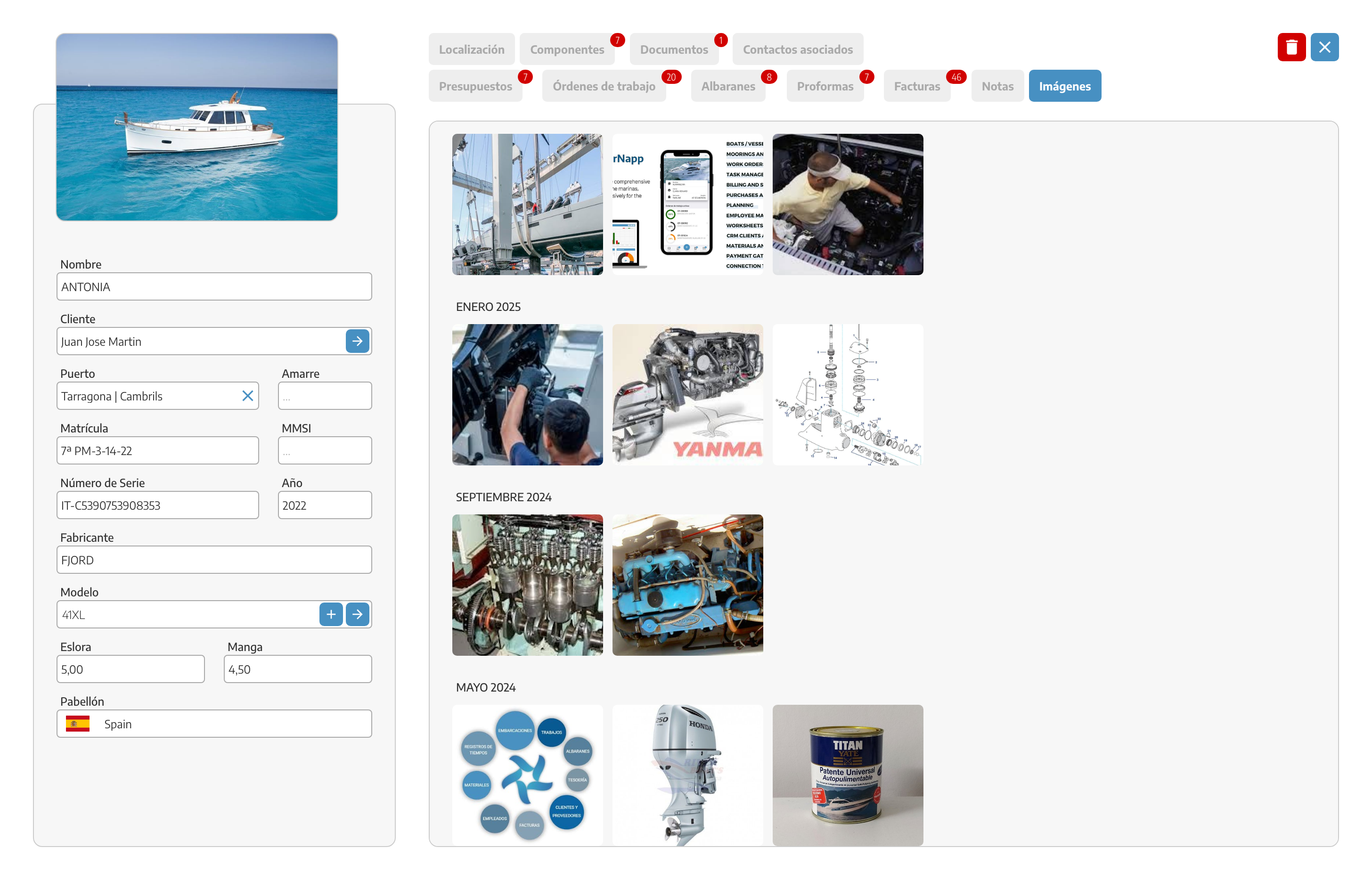
When we enter the vessel, we’ll see all the information about the vessel. In the top bar we can see the following menus:
LOCATION: Here you can set the position of the boat as well as the berth, whether it’s currently in the shipyard, workshop, or on the hard, and its usual berth so you always know where it is.
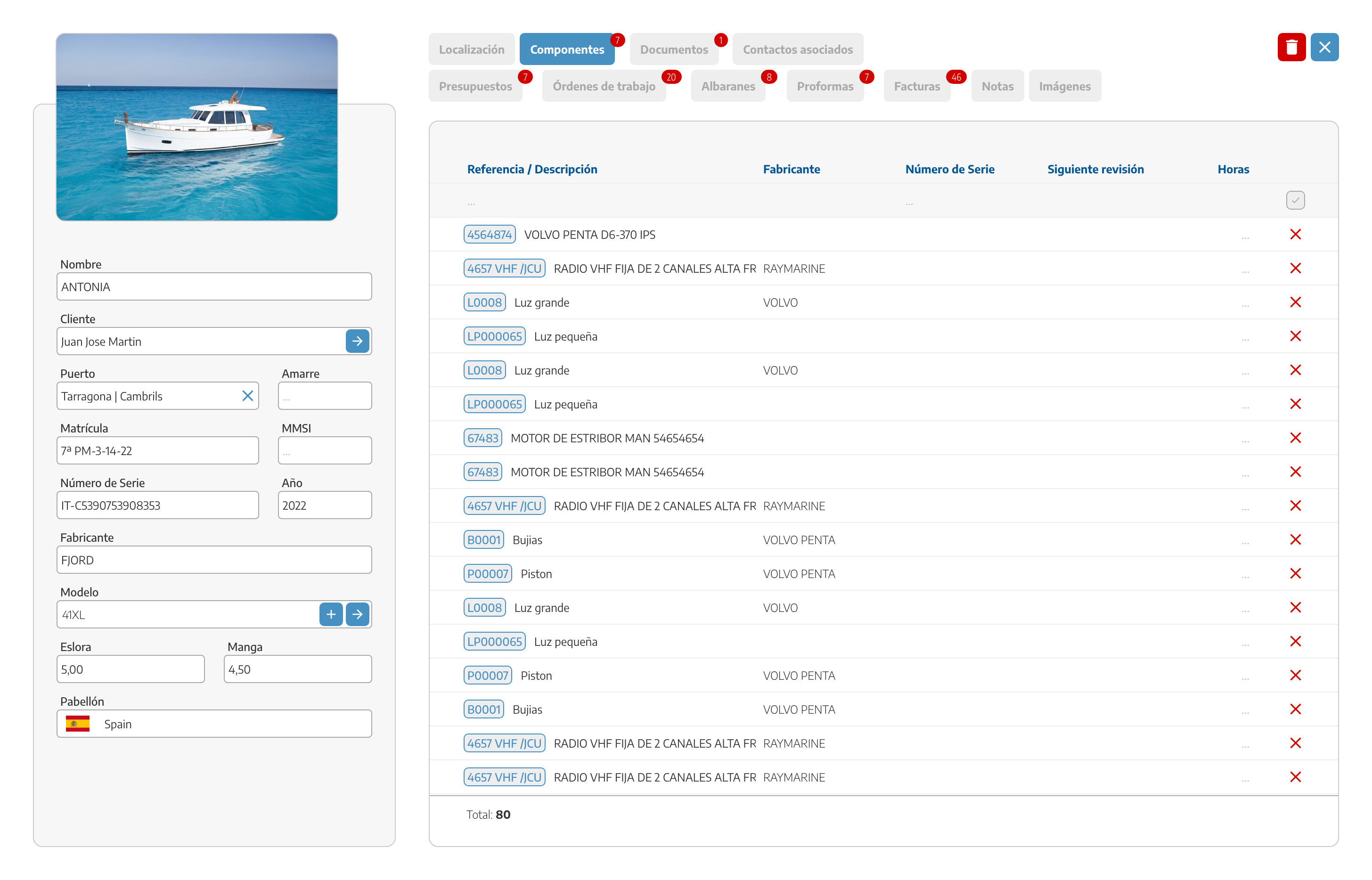
COMPONENTS: You can create a list of components where you can detail any equipment on the boat: engines, EPIRBs, life rafts, generators, or any component you need to have recorded. For each component you’ll be able to enter its Part Number and Serial Number as well as working hours and planned inspection. Now, if a serial number is recorded in a document (invoice, work order, delivery note) it will be automatically registered in the boat’s components.
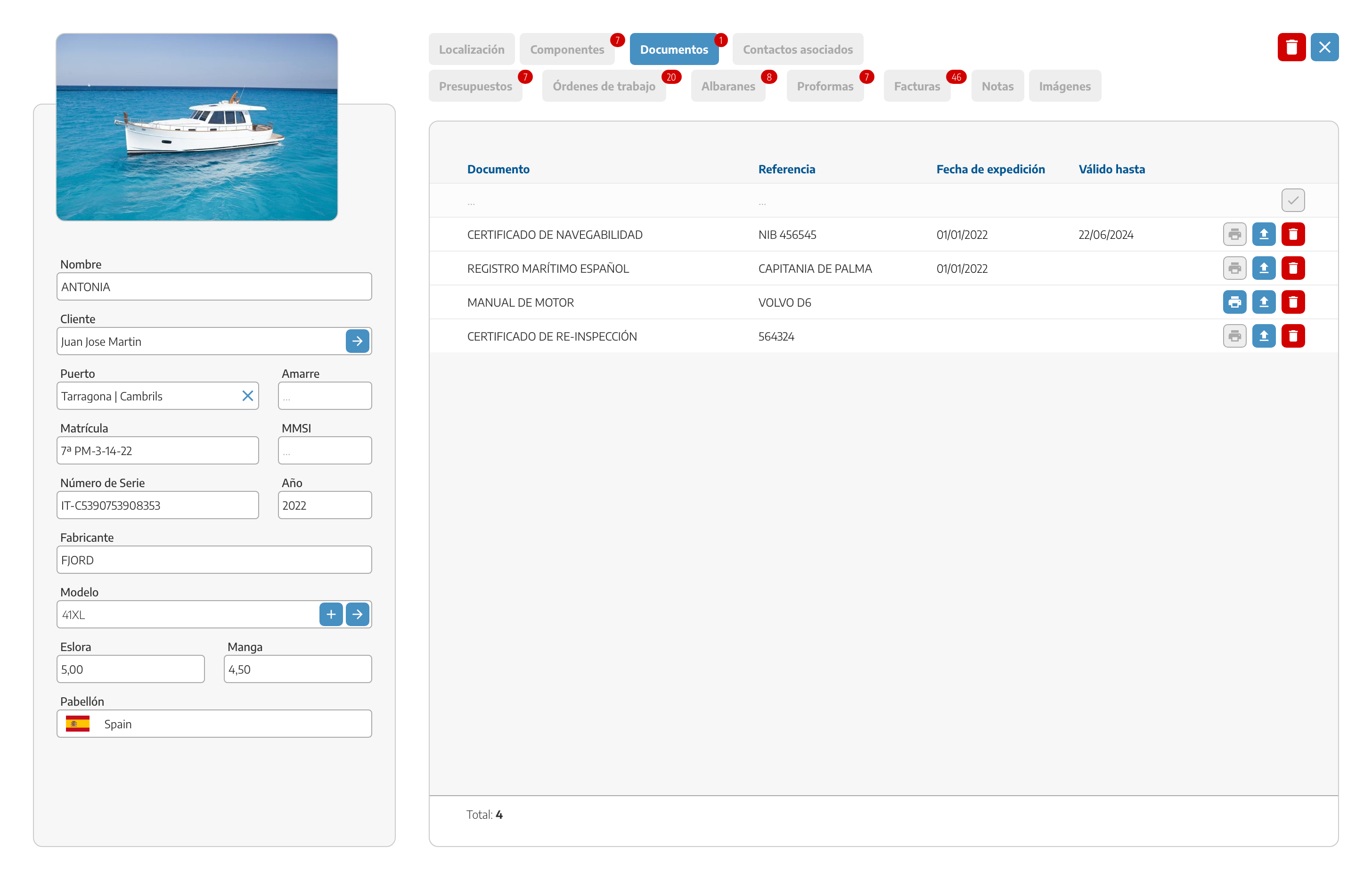
DOCUMENTATION: Upload all the registration and navigation documents for the boat and you’ll have them up to date here, where StarNapp will notify you when any document is getting close to its renewal date. You can create any document that’s relevant: certificates, licenses, whatever you need to have available at any time.
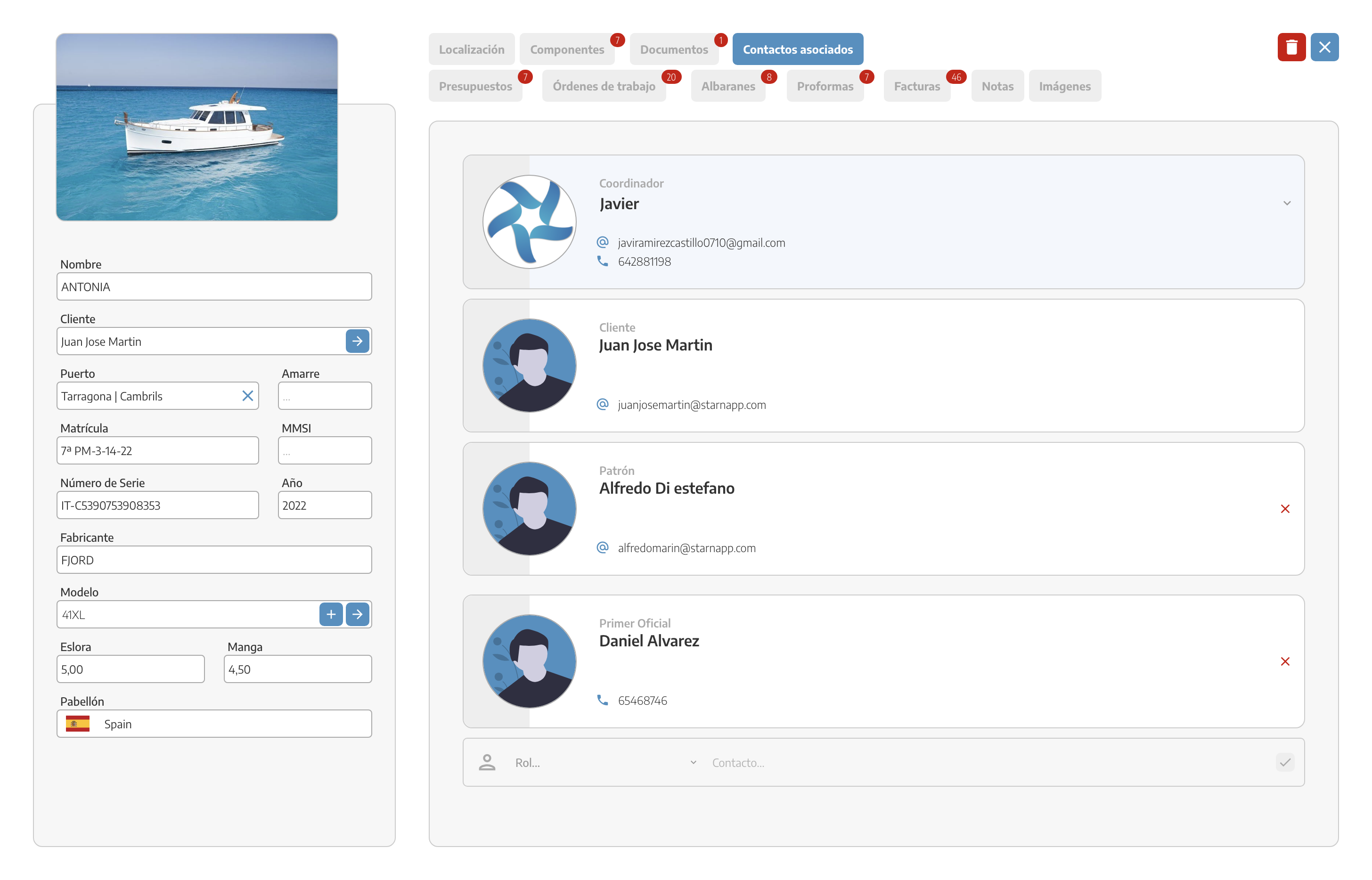
RELATED CONTACTS: Here you can view all contacts linked to this boat such as officials, engineers, surveyors, etc.
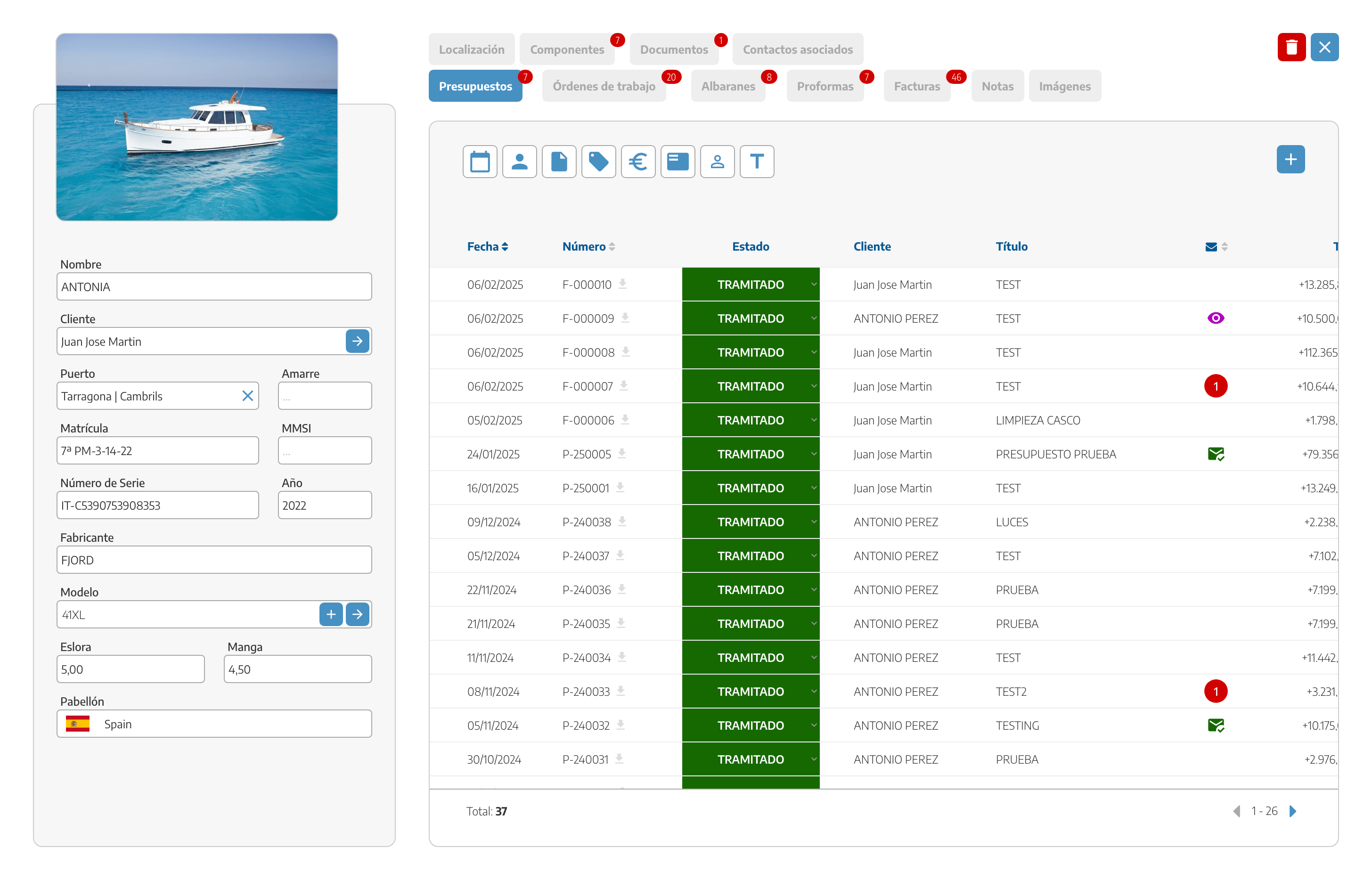
QUOTES: The quotes generated for that boat will appear listed here. You can filter them however you like.
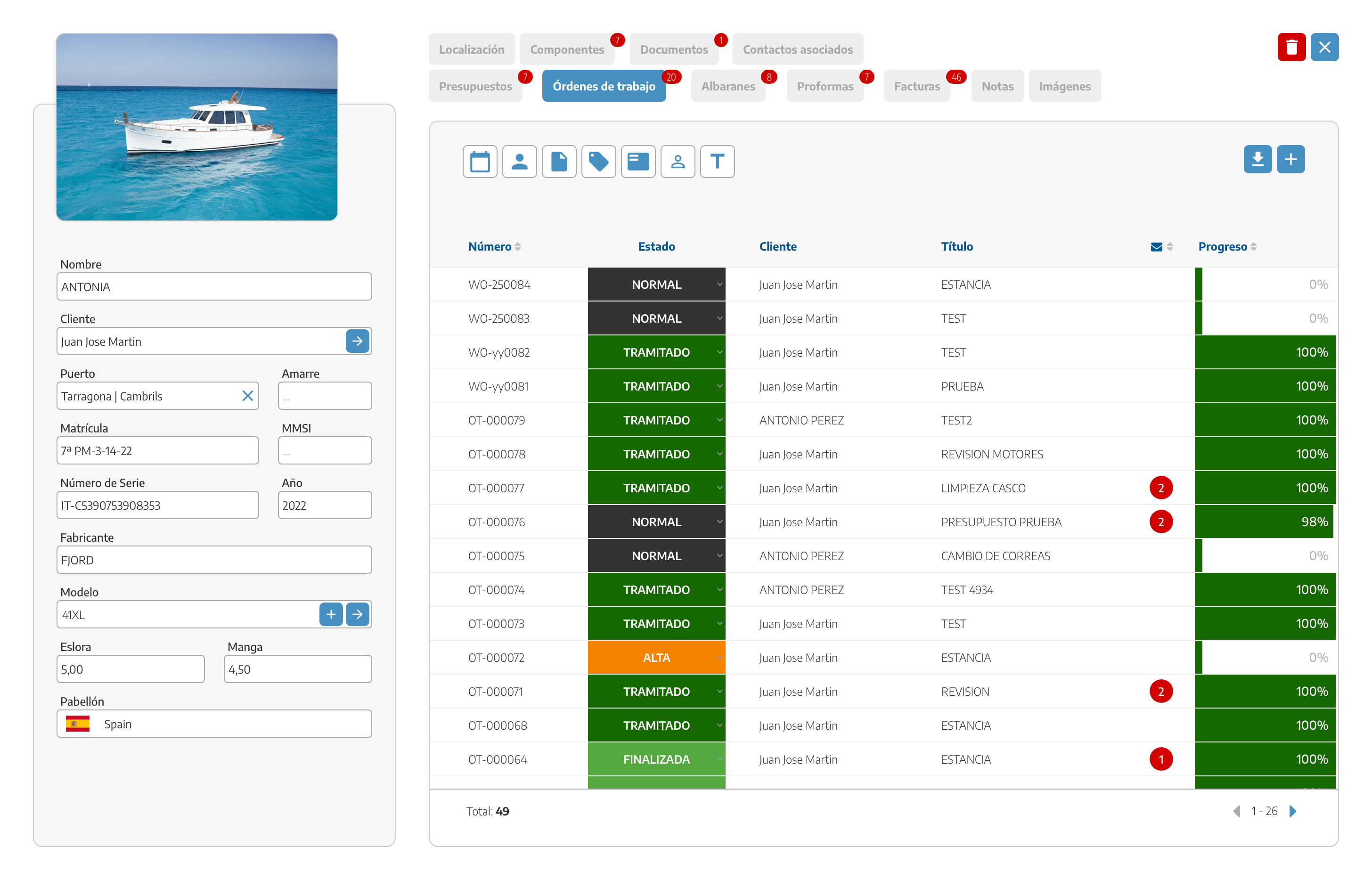
JOBS / WORK ORDERS: A tab to always keep the status of the boat’s jobs up to date. If you have any job started but not finished, a warning will pop up. You can check any work order in this section.
DELIVERY NOTES: You can see the sales delivery notes that have been generated for this boat, giving you full traceability of their status.
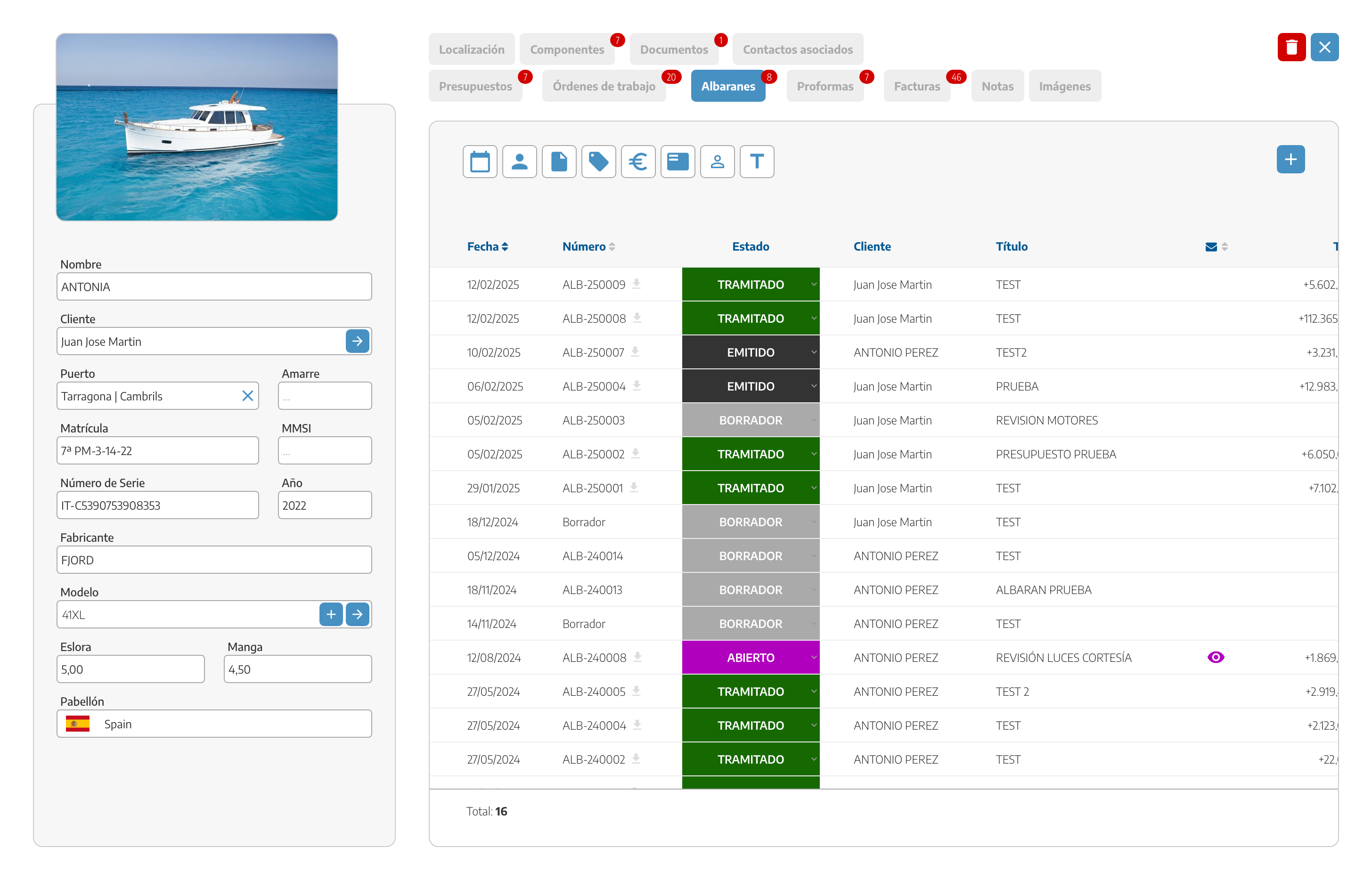
PROFORMAS: See all the proformas that have been linked to this boat and keep tight control over them.
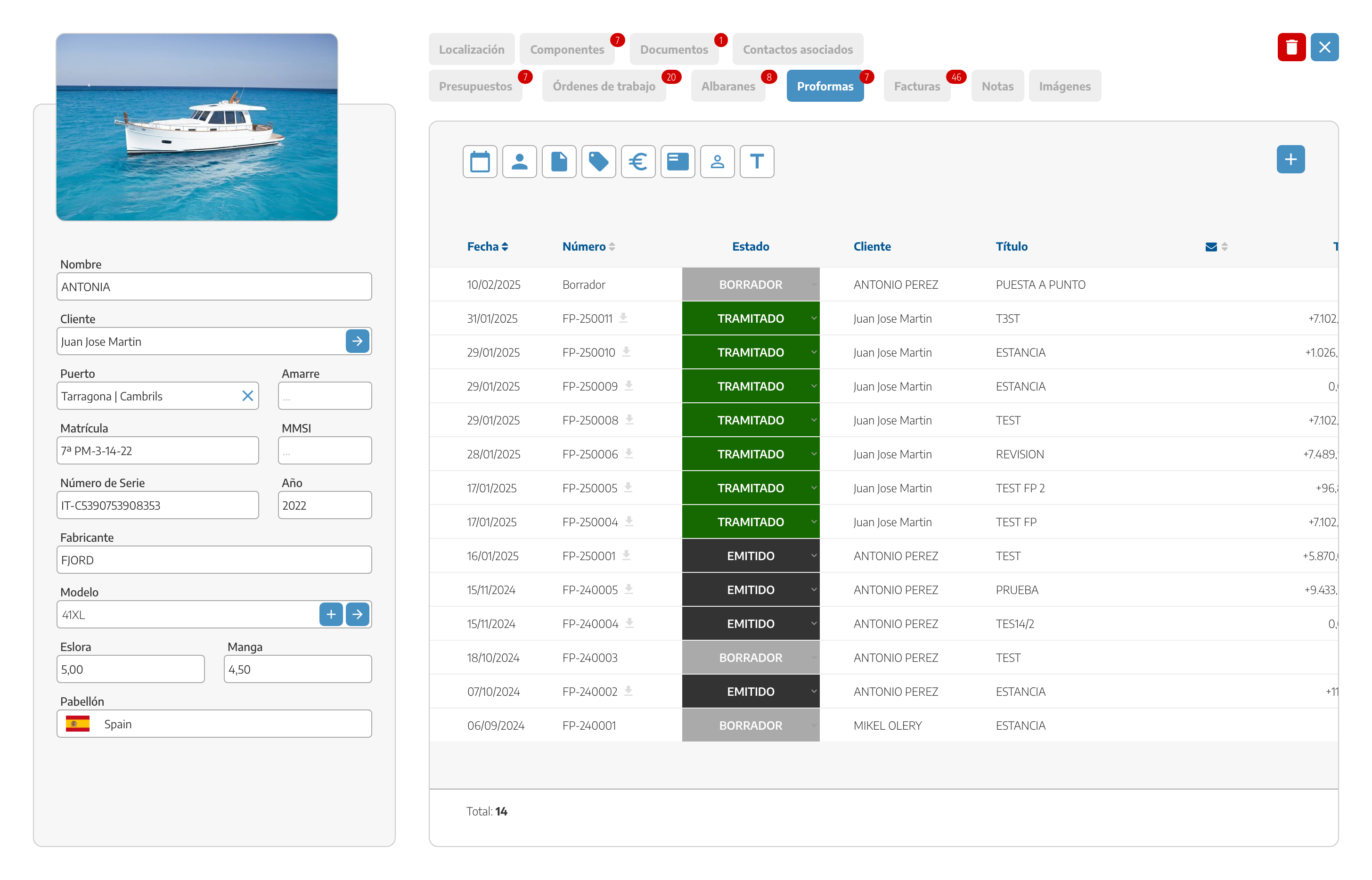
INVOICES: As in the previous case, here you have all the invoices related to the boat available, so you can quickly check the status of those invoices.
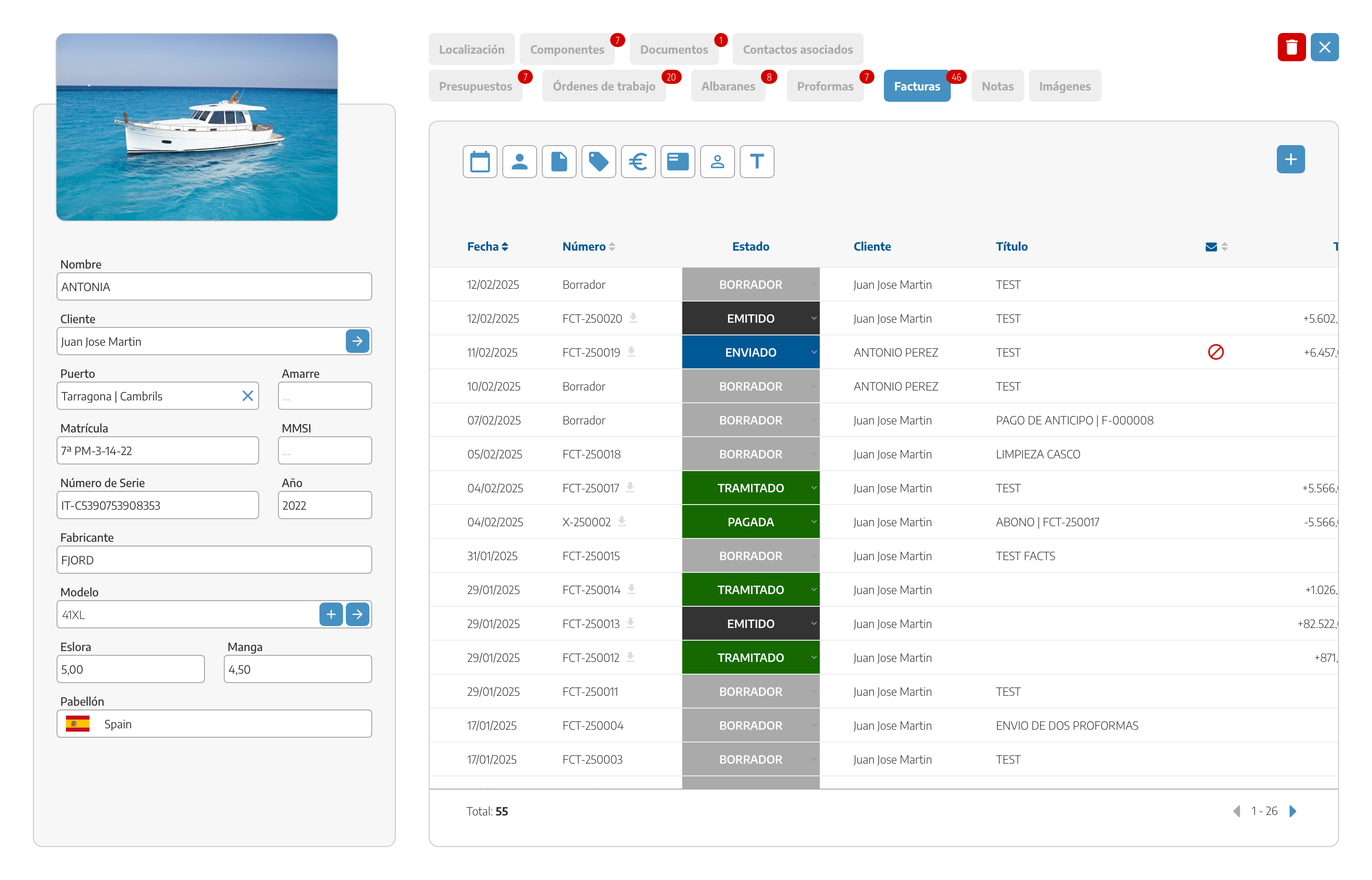
NOTES: Here we’ll see all the notes that have been added for the boat in each work order, documents, etc.
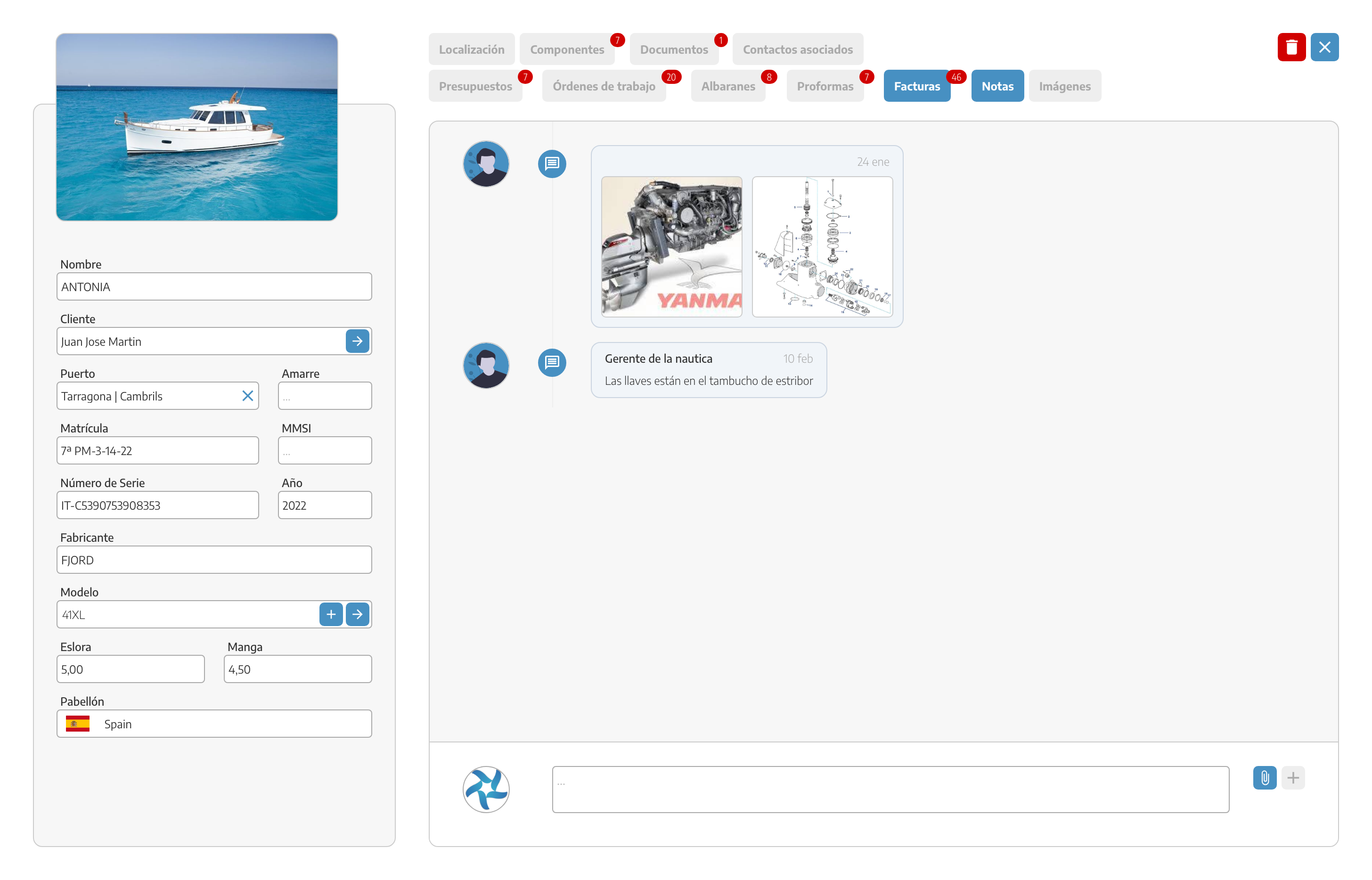
IMAGES: Archive of any image that has been taken during the repair work on the boat, saved in chronological order so that at any time you can show the owner the details that the operators detected and photographed at a given moment.
In the upper right part we’ll have the BUTTON to delete the boat