Not everyone in the business needs to see the same thing: a technician needs work orders and hours; they shouldn't see margins, invoices or balances. In SETTINGS → EMPLOYEES → PERMISSIONS we'll define once what each role can see and do, and we'll assign that role to each employee.
We'll go to SETTINGS → EMPLOYEES → PERMISSIONS. On the left is the list of roles; when we select one, we edit its permissions by area on the right. At the top of the role, TYPE appears (for example ADMIN on the management role).
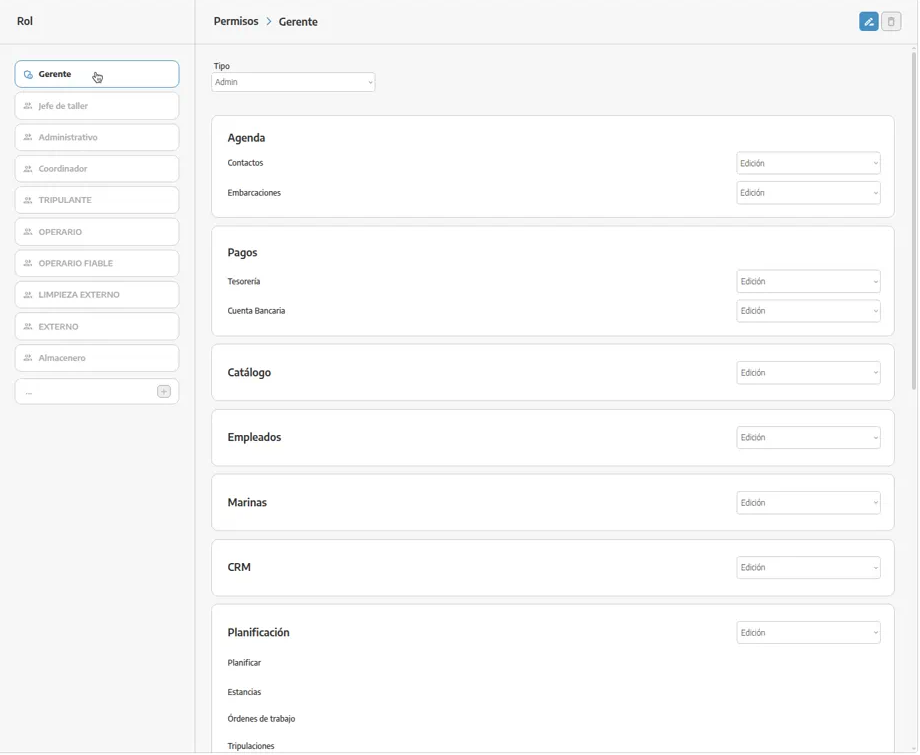
The role belongs to the job, not the person. We'll create “Yard technician”, “Admin”, “Yard manager”, “Dockhand”. When someone new joins, we only assign their job's role; when we change a permission on the role, it changes for everyone who has it.
Permissions of a user with a role assigned are not edited on their record: they are edited here. On the employee record we only choose which role they have.
For each area we'll pick NO ACCESS, VIEW or EDIT. With no permission, that section stays hidden. The three CRM levels are detailed in Set up CRM permissions:
NO ACCESS: they don't see that feature.
VIEW: they can look things up (and, in CRM, see their own items and create opportunities assigned to themselves).
EDIT: they create, change and delete.
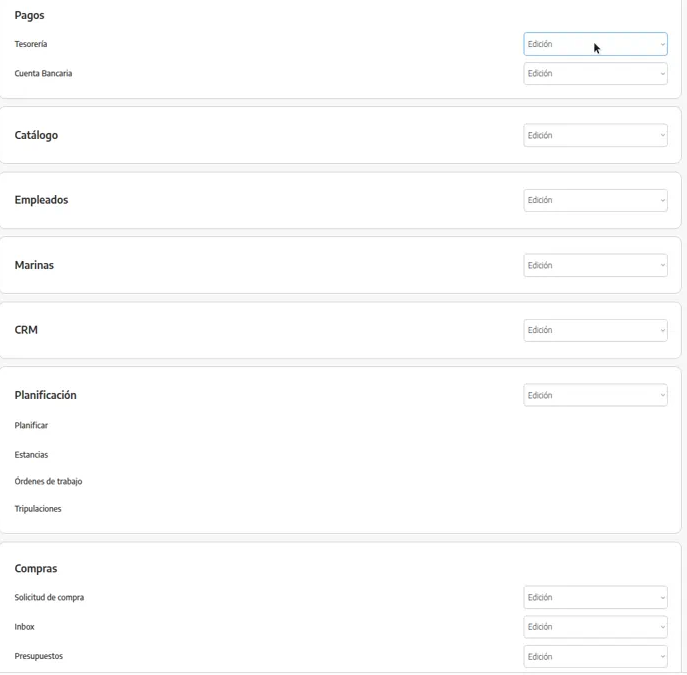
When we edit a role we'll walk through the blocks on the screen. The names are the ones in Settings; there are no extra ones to hunt for:
AGENDA: CONTACTS and VESSELS, each with its own level. That is not the same as CRM.
PAYMENTS: TREASURY and BANK ACCOUNT.
CATALOG: items, stock and rates.
EMPLOYEES: profiles and time logs. Anyone with edit can create, change and delete time logs for any employee. By default, each person can log their hours from the phone in MY TIME.
MARINAS: berths, stays and rounds, if the account uses that module.
CRM: opportunities, sales tasks and boat sale records. It is configured separately from contacts and vessels.
PLANNING: planner, stays, work orders and crew.
PURCHASING: purchase request, inbox, quotes, orders, delivery notes and invoices, each with its own level.
SALES: quotes, delivery notes, proformas, invoices and bookings. Sales is not a single switch: it is controlled type by type.
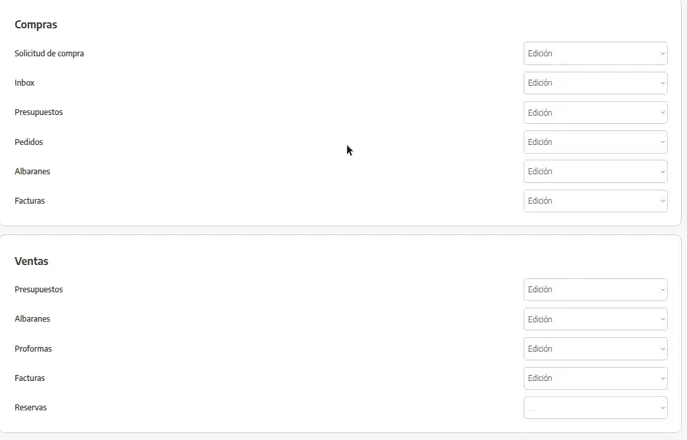
We'll go to SETTINGS → EMPLOYEES → PERMISSIONS and press + (or duplicate a similar role if the screen allows it).
We'll put a NAME of a job, not of a person.
We'll walk through each block and leave NO ACCESS / VIEW / EDIT.
We'll save the role.
On the employee record (or when we add them) we'll assign that role.
The full hire process is in Add a user / employee.
⚠ Important: A role cannot be deleted while it is assigned to employees: we'll remove it from all of them first. And permissions of a user with a role are changed on the role, not on their profile.
If someone “doesn't see Sales” or “doesn't see CRM”, the fix is this role, not a one-off permission on their record.
If a salesperson should only see their own opportunities, we'll use the CRM VIEW level, not take the whole module away. See Set up CRM permissions.
We'll need at least one management role (TYPE ADMIN) so the account is never left without someone who can fix permissions, series or tax details.
