Set up your Náutica step by step
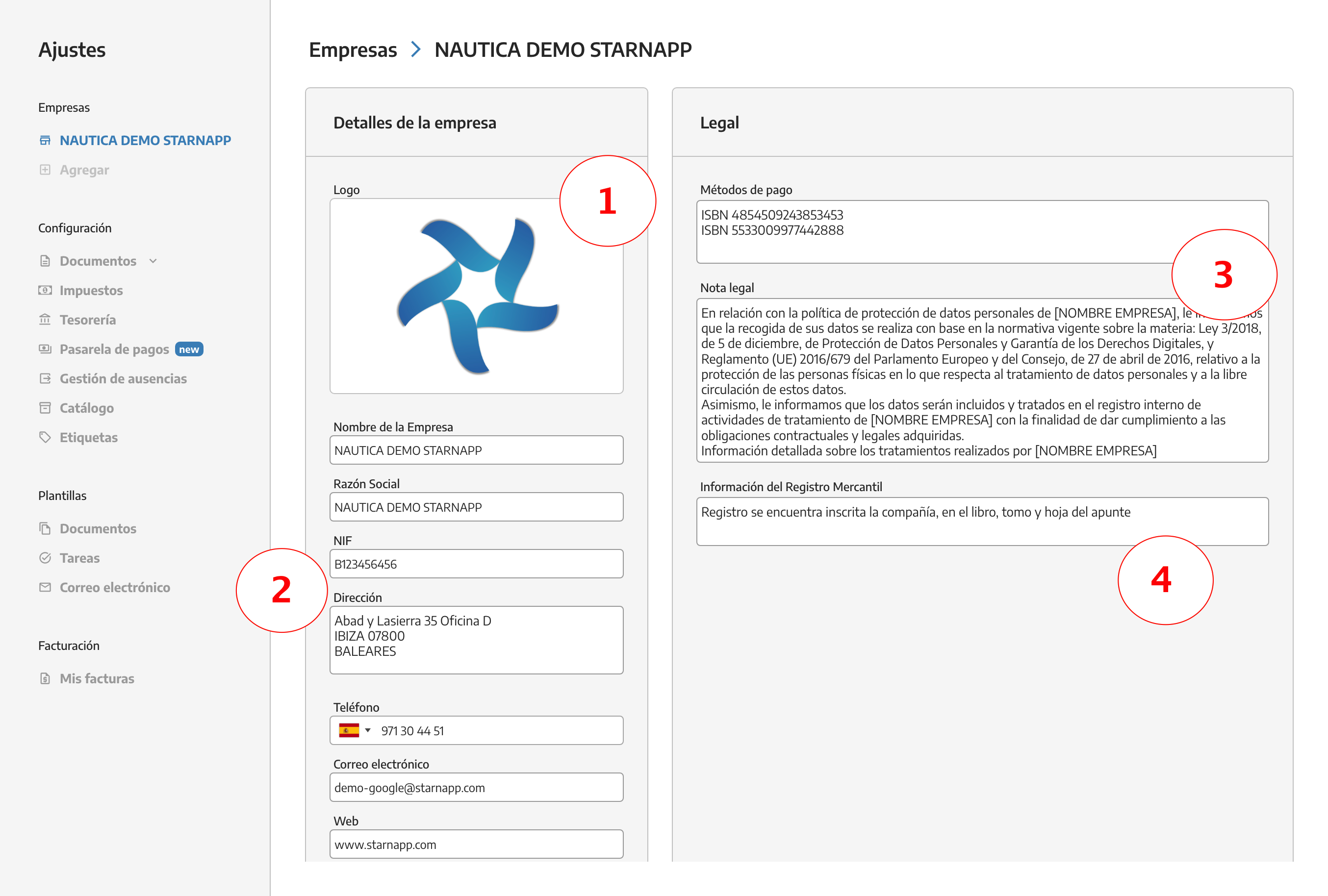
Upload your company logo. Try to upload the file in PNG if possible or make sure the image has a white background so that it looks clean on invoices without borders in a different background shade.
Fill in all the details of your boating company.
When creating or setting up the series we’ll be able to edit the following details of your company.
Company logo
Company name
Tax ID (NIF)
Address
Phone
Website
We can have one series with one LOGO for example and the next series with different details and a different LOGO so that we can choose which one to use based on the series.
Data Protection Act clause: in this section we can add the data protection law clause, which will be shown on the last page of the document.
Commercial Registry information: Current legislation requires invoices to show the Commercial Registry data, so in this section we’ve added a space for it to be visible on each billing document, complying with current law.
Quotes, delivery notes, work orders, proformas, invoices:
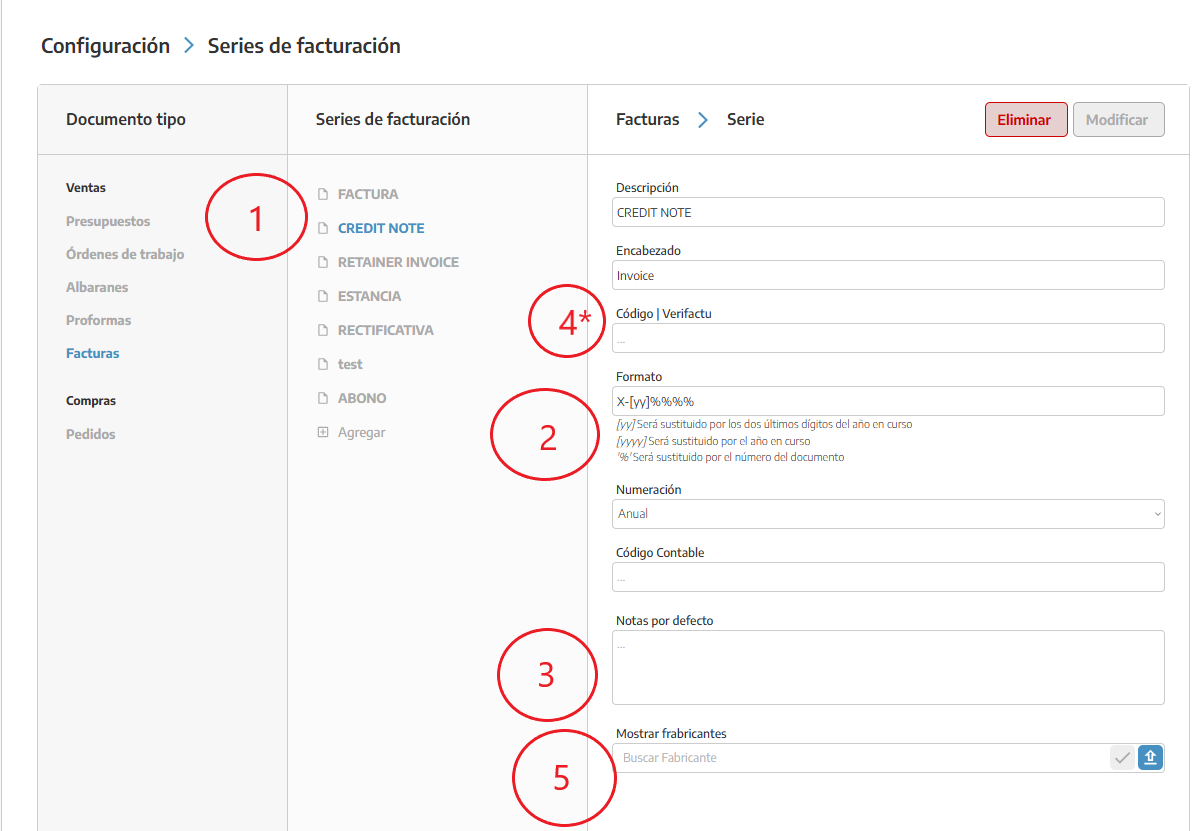
we’ll select the option Documents / Billing series, here we choose the option we’re going to configure or we can add new billing series.
Format and numbering: The format we’ll use for each document is determined by the digits we want to have. In this case the prefix will be P- and each % corresponds to a number. In this case we would have P-000000. If we want to include the year in the quote number we’ll use the following configuration P-%%%[yyyy] where the result will be P-0002025. If we only want to use the year’s digits we’ll set P-%%%[25], P-00025.
Default notes: Default notes are those you want to appear on your quotes, such as, this quote must be paid 50% at the start of the work, the issued quote may be subject to changes once repairs begin, etc.
Our quote numbering can be CONTINUOUS or ANNUAL.
Verifactu code *(invoices only, corrective, credit, etc.): The Verifactu code is required so that we as software can identify the different invoices that are sent to the tax office; we’ll just enter the first part of the configuration of the series that we use in these documents. For example, for FCT-00045 we’ll need to enter FCT; if it’s a corrective invoice it would be FCT-RECT.
Company logos: in any series you can also add, edit, or delete logos of different companies you provide service for. There can be different companies per document series.
In the bottom right we’ll have this option to add manufacturer logos. We already have a large number of companies loaded; if you need to add a manufacturer that isn’t on the list, send it to us via support and we’ll add it so you can use it. Make sure the logo has the right format (transparent background, png, svg or similar so the logo doesn’t have borders). To remove any logo from the series just click the X next to it and it will be deleted.
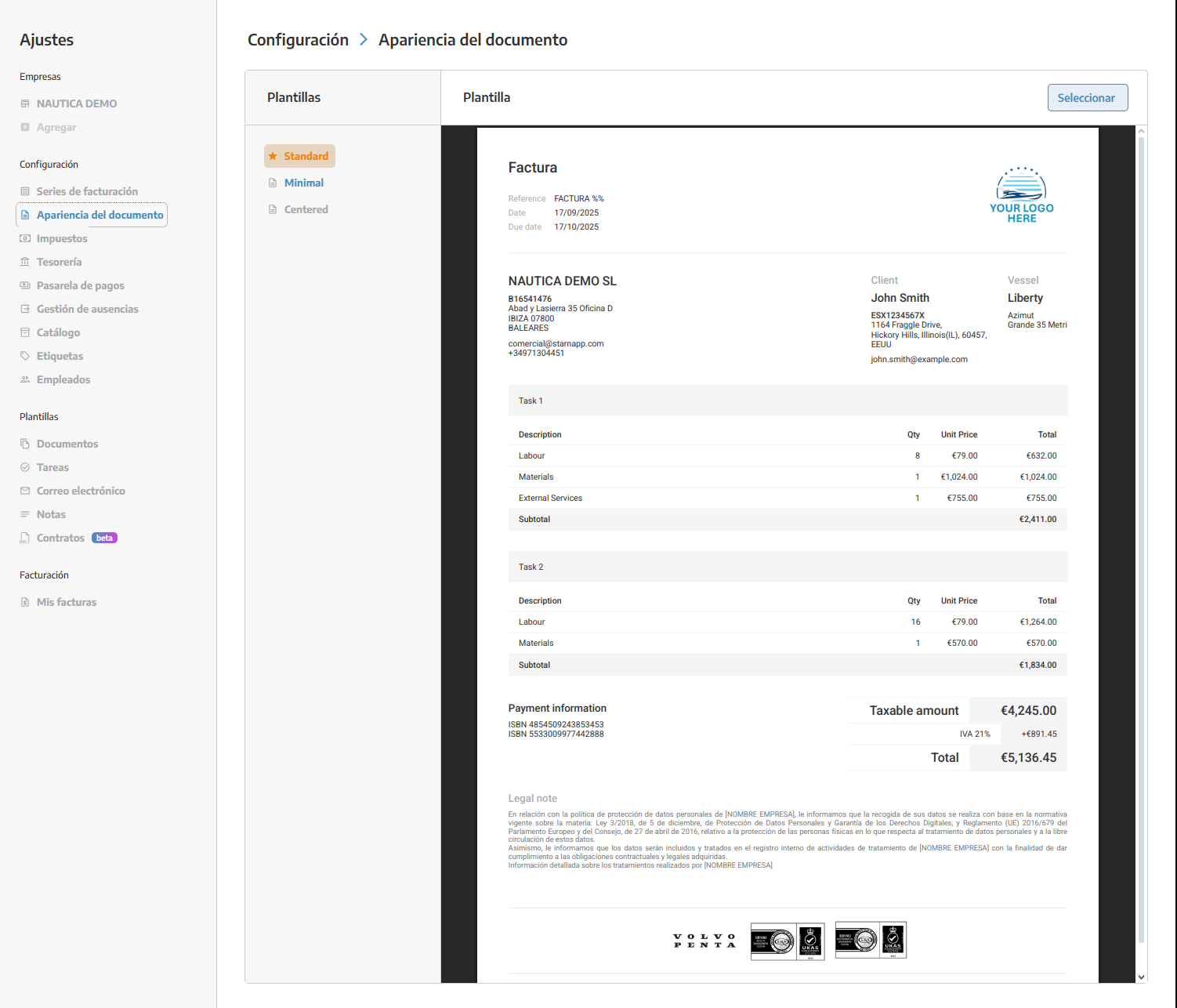
Preview your documents: In the section below this we’ll see the Templates area; here we’ll be able to view them once the document configuration is finished.
Once we’ve configured our series we save it with the checkmark at the top right, or we can delete it with the adjacent button.
Check out our API here.