El apartado Varaderos permite gestionar la distribución de las embarcaciones en las zonas de varada y consultar su planificación.
Desde esta sección podemos registrar estancias, situar los barcos sobre el mapa, modificar su posición y orientación y planificar operaciones con equipos.
Entraremos en Varaderos, desde el menú lateral de StarNapp.
No debemos confundir este apartado con Ajustes → Configuración → Varaderos:
En Ajustes configuramos las áreas que representan nuestros varaderos.
En el menú principal gestionamos las estancias y la distribución de las embarcaciones dentro de esas áreas.
Si necesitamos preparar o modificar las áreas, consultaremos Configurar y gestionar varaderos.
En la parte superior podemos alternar entre tres vistas:
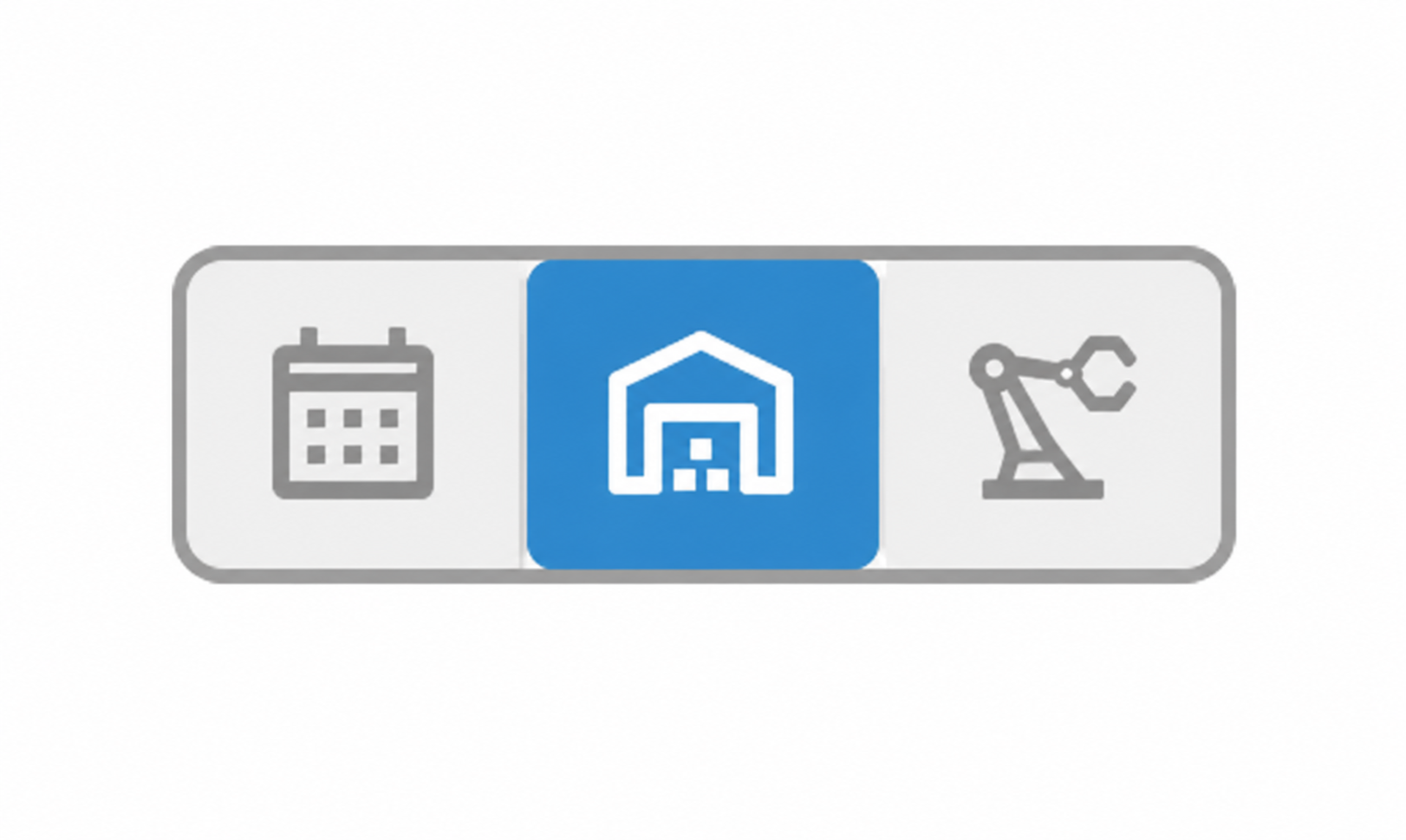
View | Utility |
Calendar | View and plan stays by date. |
Boatyard map | Position vessels and organize their layout. |
Equipment | Plan operations with registered equipment, such as a crane. |
The button + opens the form corresponding to the view: a stay or an operation with a piece of equipment.
Select the calendar icon.
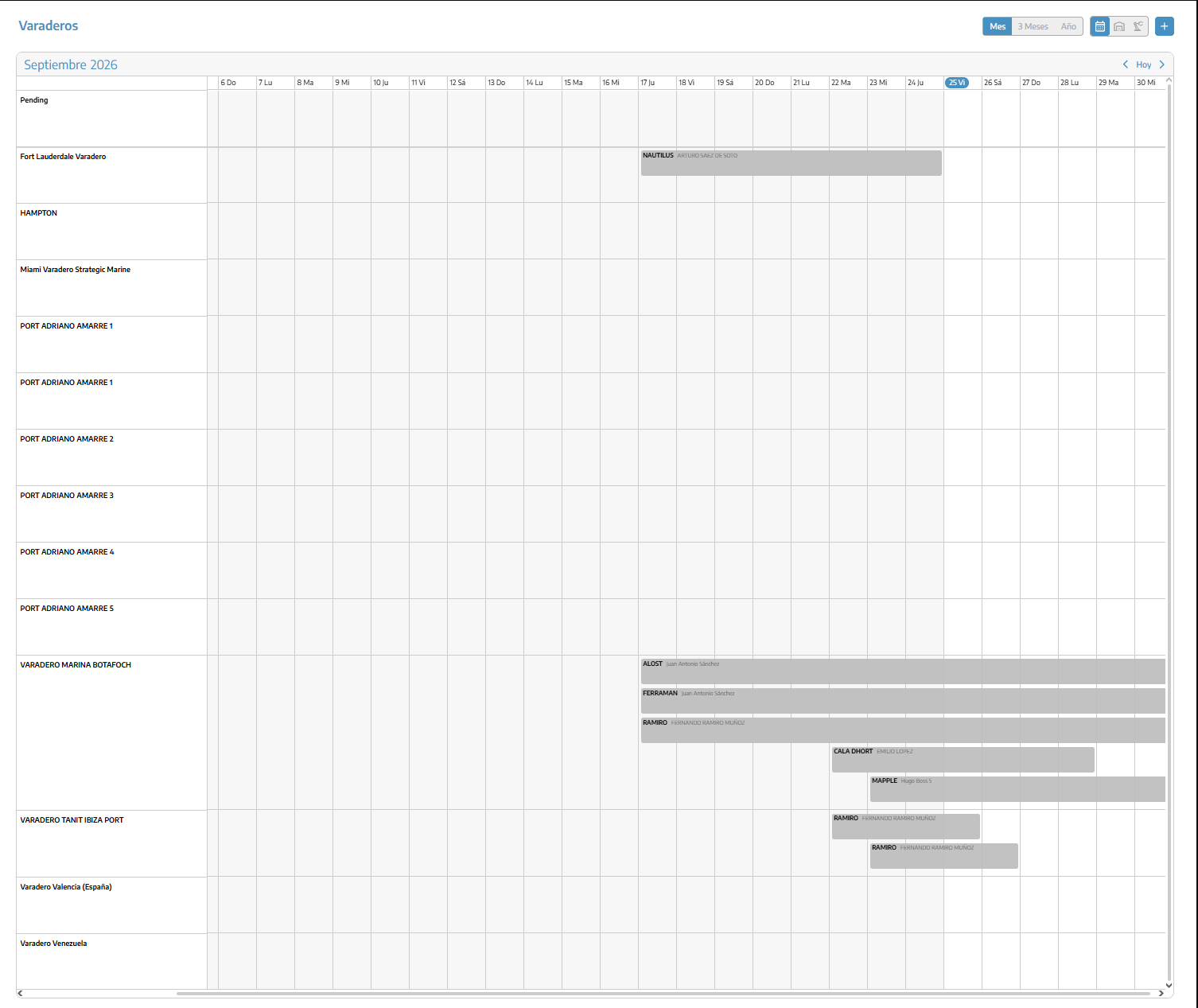
We can display one month, three months, or one year and move through the dates to view the schedule.
From the calendar, we can:
View the recorded stays.
Select a stay to open its details.
Start a new stay by selecting a period in the row for the corresponding location.
Change the dates or location by dragging a stay.
After modifying a stay, check the dates and rate, as changing the duration may affect the recorded amount.
Click + or start creating one from the calendar.
Fill in the form:
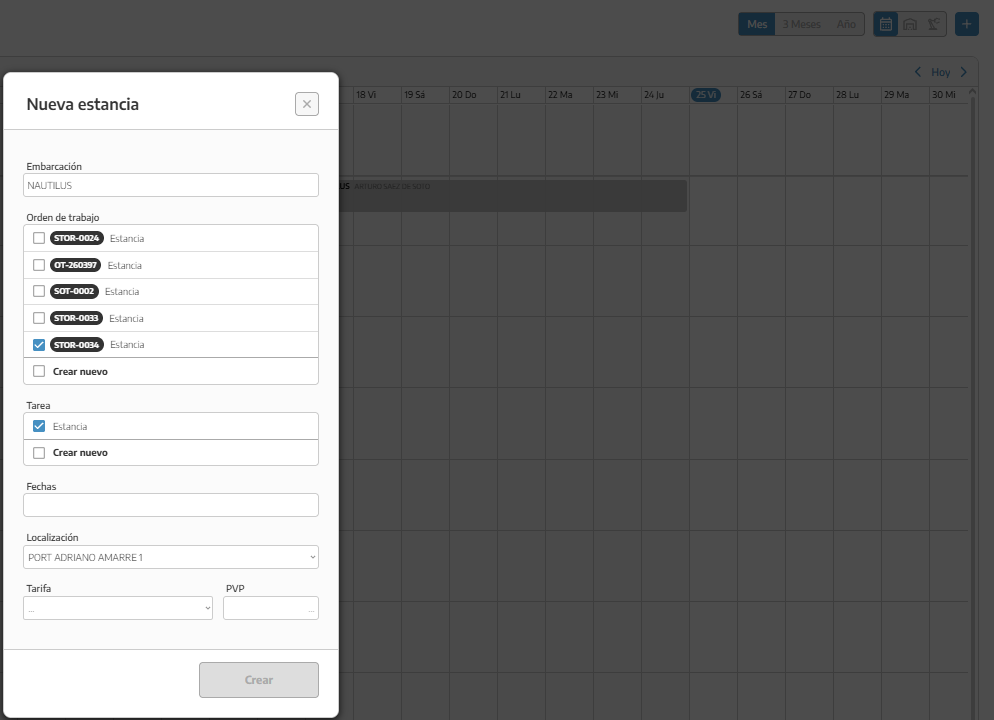
Vessel: we will select the boat.
Work order: we will choose an existing one or select Create new.
Series: if we create an order, we will select the corresponding series.
Task: we will select an existing one or create a new one.
Dates: we will enter the start and end dates.
Location: we will choose the boatyard.
Rate and RRP: we will select the service and check its price.
We will click Create.
The stay will be linked to the work order. If we selected an existing one, another one will not be created.
Asignar un varadero a una estancia no equivale a colocar la embarcación en un punto concreto del mapa. Su posición se establece desde la vista del varadero.
El funcionamiento detallado de las tarifas y su relación con la OT se explica en Crear y gestionar estancias de embarcaciones.
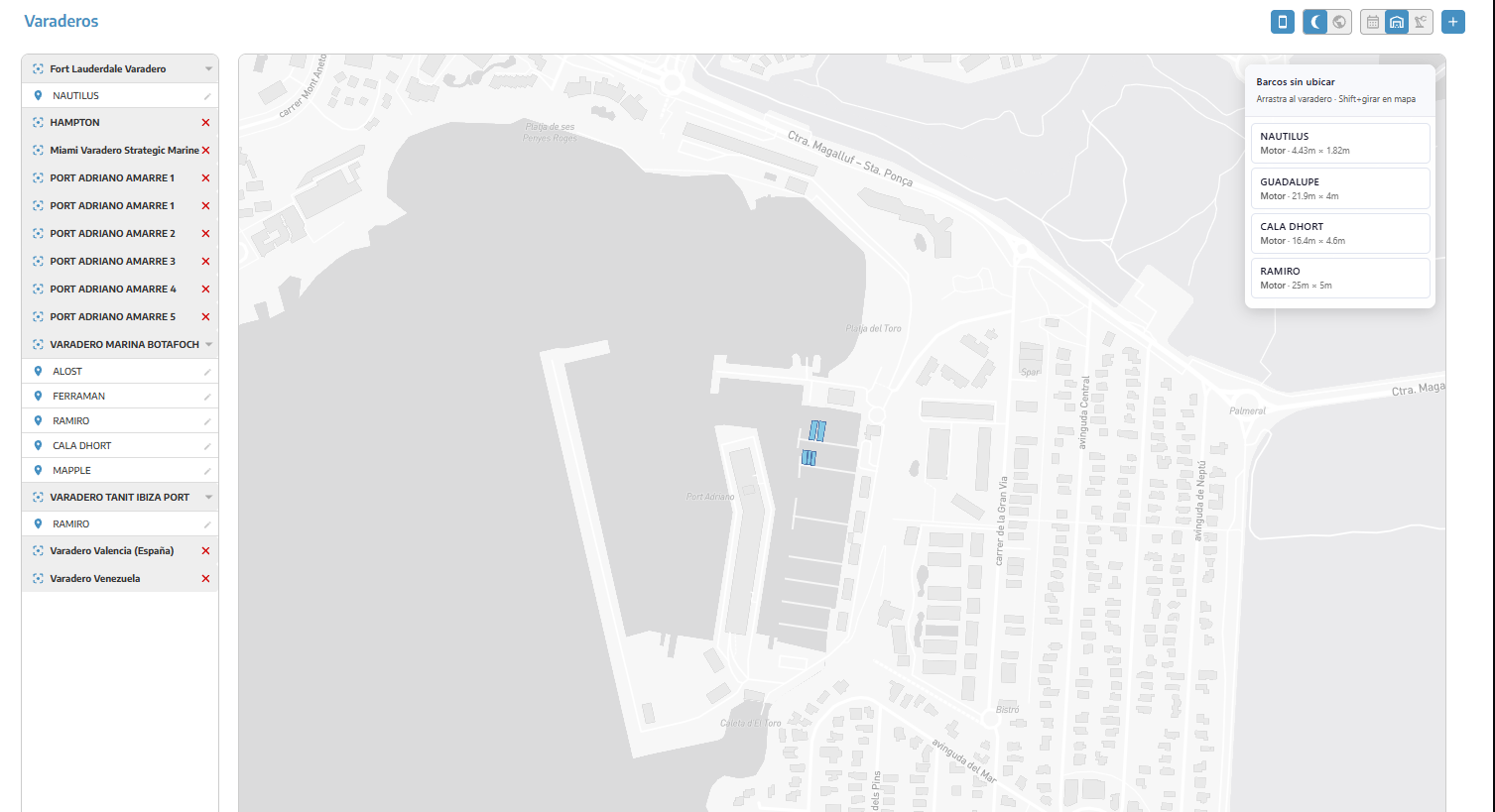
Seleccionaremos el icono de varadero, representado por una nave.
En esta vista encontraremos las áreas configuradas y las embarcaciones correspondientes a las estancias del día.
En el listado lateral podemos:
Desplegar o contraer las embarcaciones de cada varadero mediante la flecha.
Pulsar el icono de ubicación de una embarcación para localizarla en el mapa.
Utilizar el lápiz de su registro para abrir la estancia.
When you select a vessel, it is highlighted on the map and information related to it and its assigned area is displayed.
There are two styles:

Moon icon: light map, which makes it easier to distinguish areas and vessels.
Globe icon: satellite imagery, which makes it possible to identify facilities.
These buttons change the display, not the position of the boats.
The button shaped like a vertical rectangle lets you show or hide the vessel footprint outline.
The display uses the dimensions recorded in each vessel's details. It is a good idea to check the length and beam before using it to organize the space.
Once the stay has been registered:
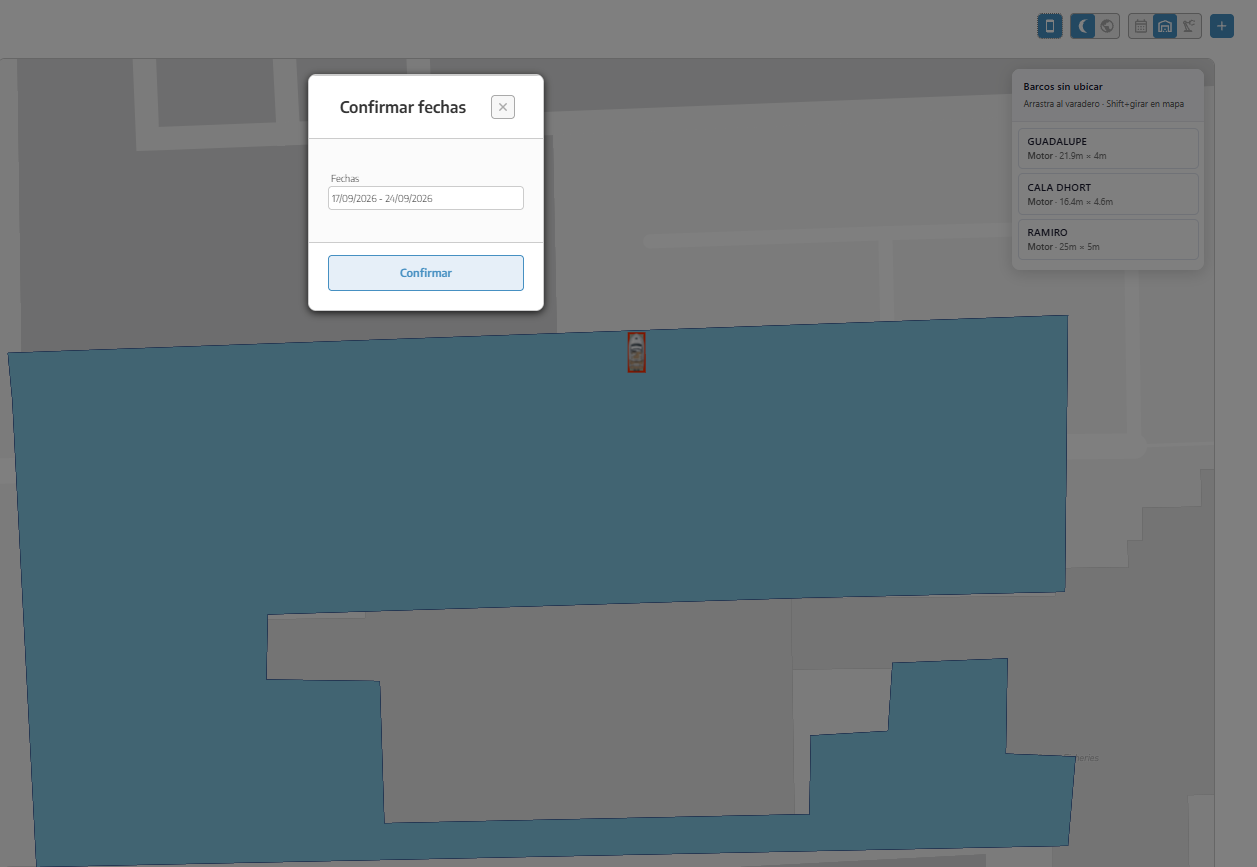
We will open the boatyard view.
We will locate the boat that is waiting to be positioned (the one we created using +, that is, the new stay).
We will place it in the corresponding area using the map positioning control (by dragging the boat’s name in the Unplaced Boats window to the desired position in the boatyard).
In the Confirm dates window, we will review the period.
We will click Confirm.
The position will be associated with the specified period.
We will check:
That the stay has been created.
That its dates correspond to the day we are viewing.
That it has the correct vessel and boatyard.
That we are in the right view.
Future stays are viewed in the calendar; we should not expect to see them already shown as current occupancy.
A vessel that has been placed can be adjusted from the map:
Move it: drag its representation to the new position.
Rotate: use the SHIFT key to rotate its orientation.
The changes update the recorded location or orientation.
The boatyard panel includes information such as:
Total area of the site.
Number of vessels.
Occupied area.
Occupancy percentage and bar.
The area estimate uses the vessels’ measurements. It does not replace checking aisles, safety distances, and maneuvering space.
Before assigning a new boat, we will also check the map and calendar; we will not rely solely on the percentage shown.
We can open a stay from the calendar or by clicking the pencil next to the vessel in the side list.
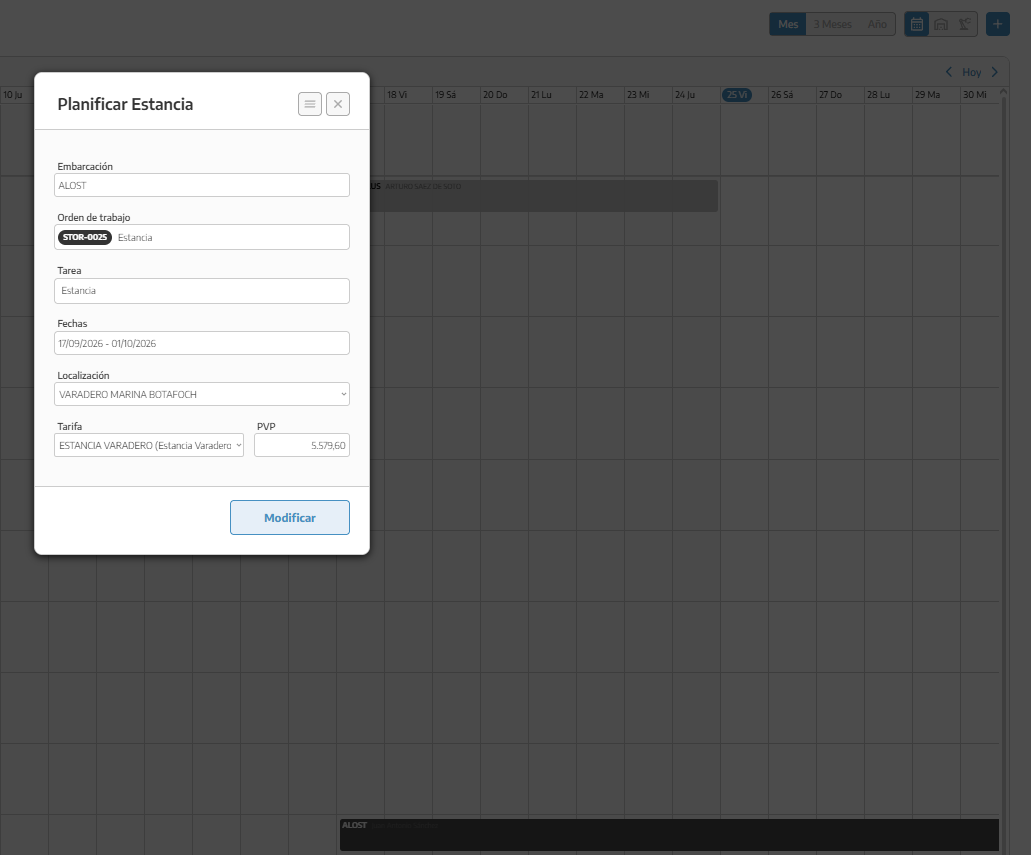
We will modify the necessary details and click Modify.
In the form menu, we need to distinguish between:
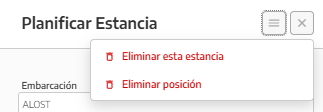
Remove position: removes the assigned location but retains the stay resource.
Delete stay: deletes the stay resource and its associated movement.
If the service already has issued documentation, we will also review those documents. Deleting the stay does not replace correcting them.
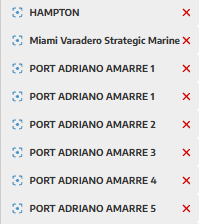
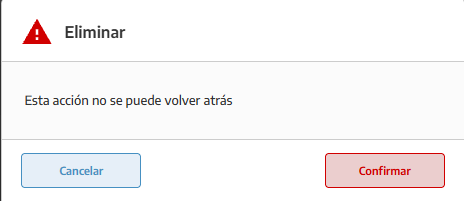
When available, selecting the area's X starts the deletion process and asks for confirmation.
This action affects the area, not just one boat. Before using it, we will review the related current and future stays.
To change the dry dock configuration or limits, we will refer to the Configure and manage dry docks guide.
We will select the crane icon at the top.
This view lets you organize the use of registered equipment. You can switch between:
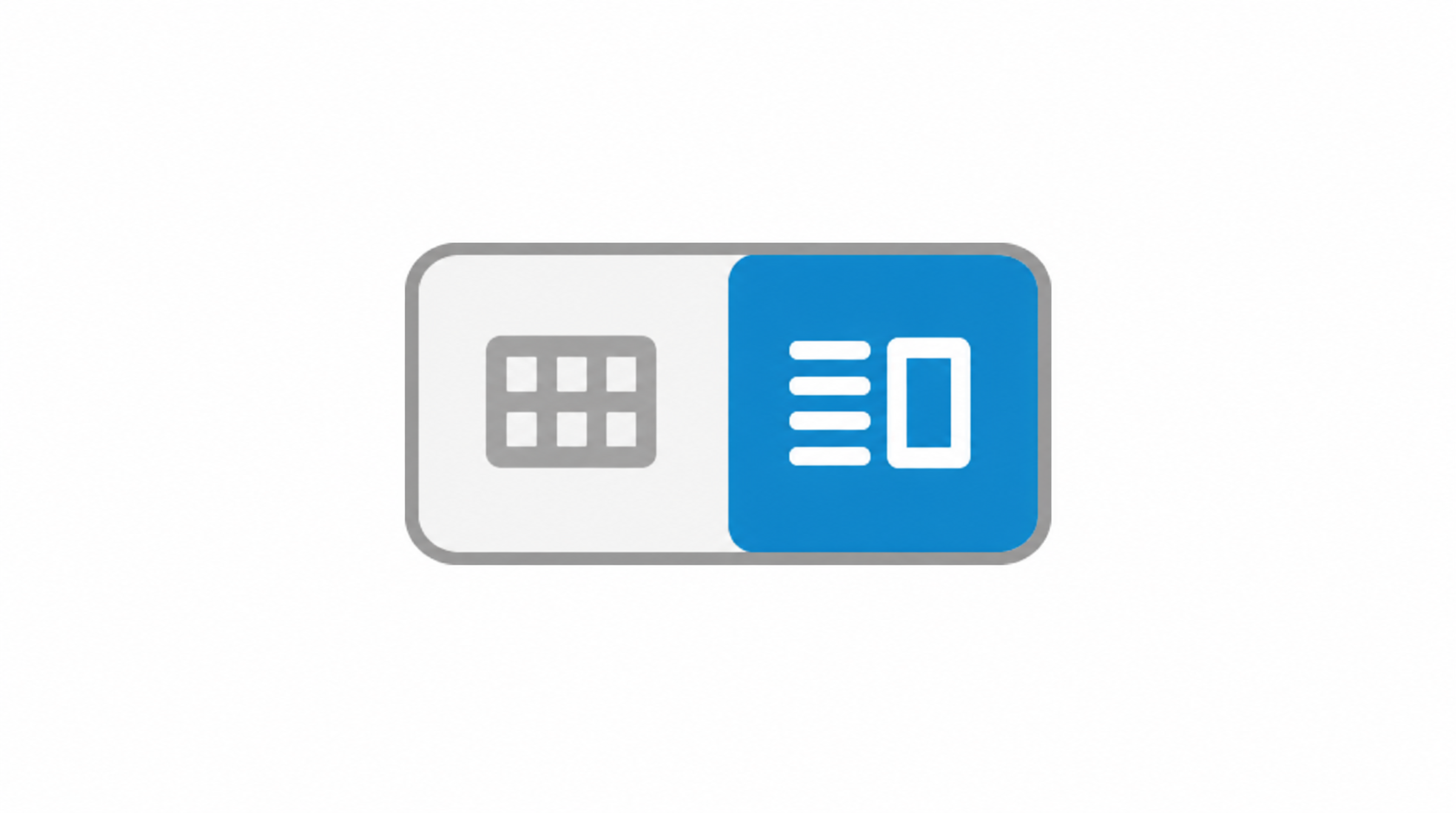
Calendar, to view operations by date.
Equipment planner, to review each piece of equipment's schedule.
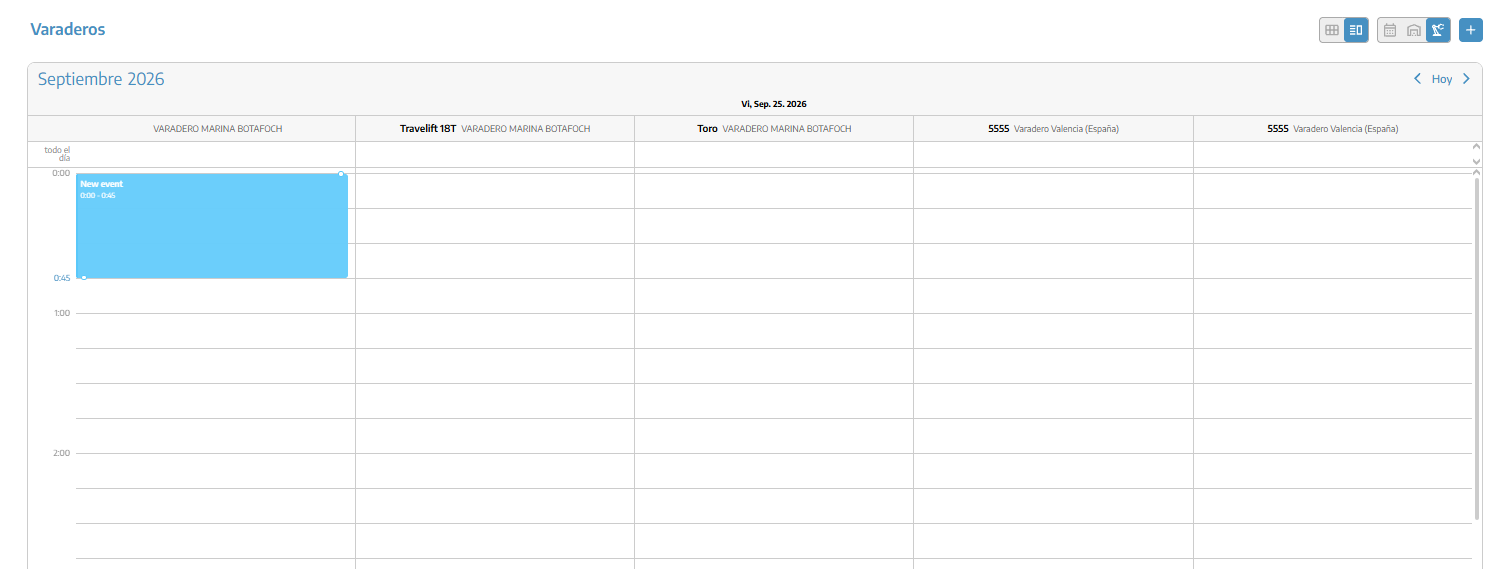
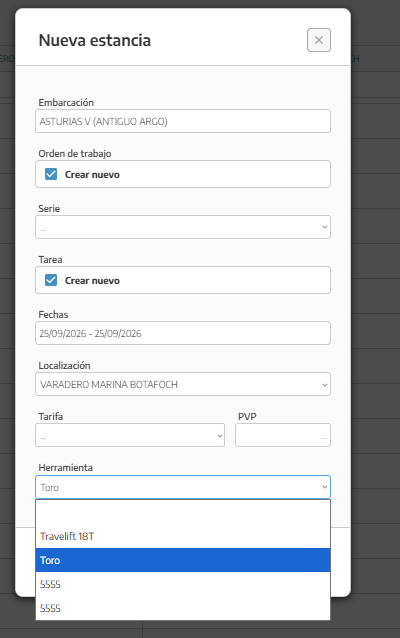
We will click + or select an empty time slot in the team planner.
We will select the vessel.
We will specify the work order and the task.
We will fill in the dates and rate, where applicable.
We will select the Tool.
We will click Create.
When starting an operation from the planner, if the time slot overlaps with another booking for the same team, StarNapp displays a notification that the time slot is unavailable.
We will select the operation to open it and modify its details.
We can also move it in the planner to change its dates or assigned team. Then we will check that the time slot and team are correct.
Creation and editing options depend on our permissions.
Stay, position, and equipment operation are separate records: they plan the period, physical layout, and use of machinery, respectively.
Double-clicking to create a point on the Stays map is not the same as drawing a boatyard area.
We will keep boat positions and dimensions up to date.
Creating or moving a stay does not issue an invoice or confirm a payment.
