A stay records the period during which a vessel occupies a location at our facilities.
We should not confuse the location with the stay: the boatyard or berth is the place; the stay applies to a vessel during specific dates.
We will access Stays from the StarNapp side menu.
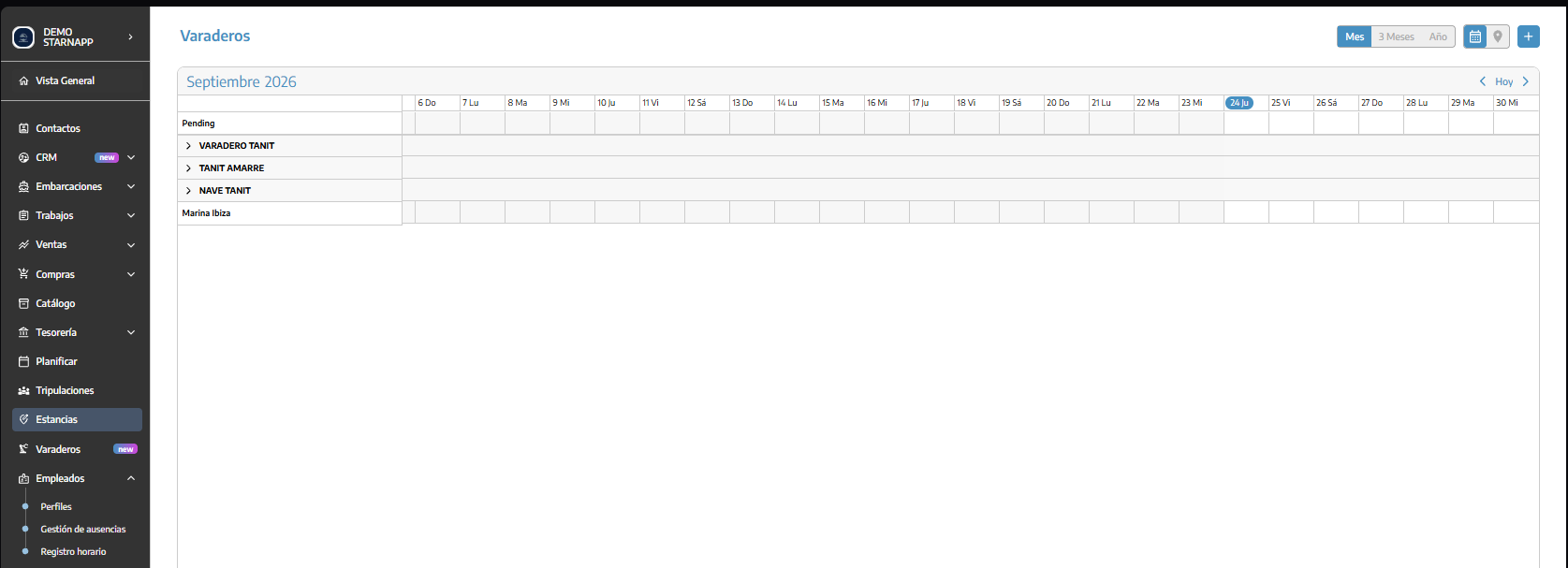
From this section, we can view the schedule and manage vessel stays.
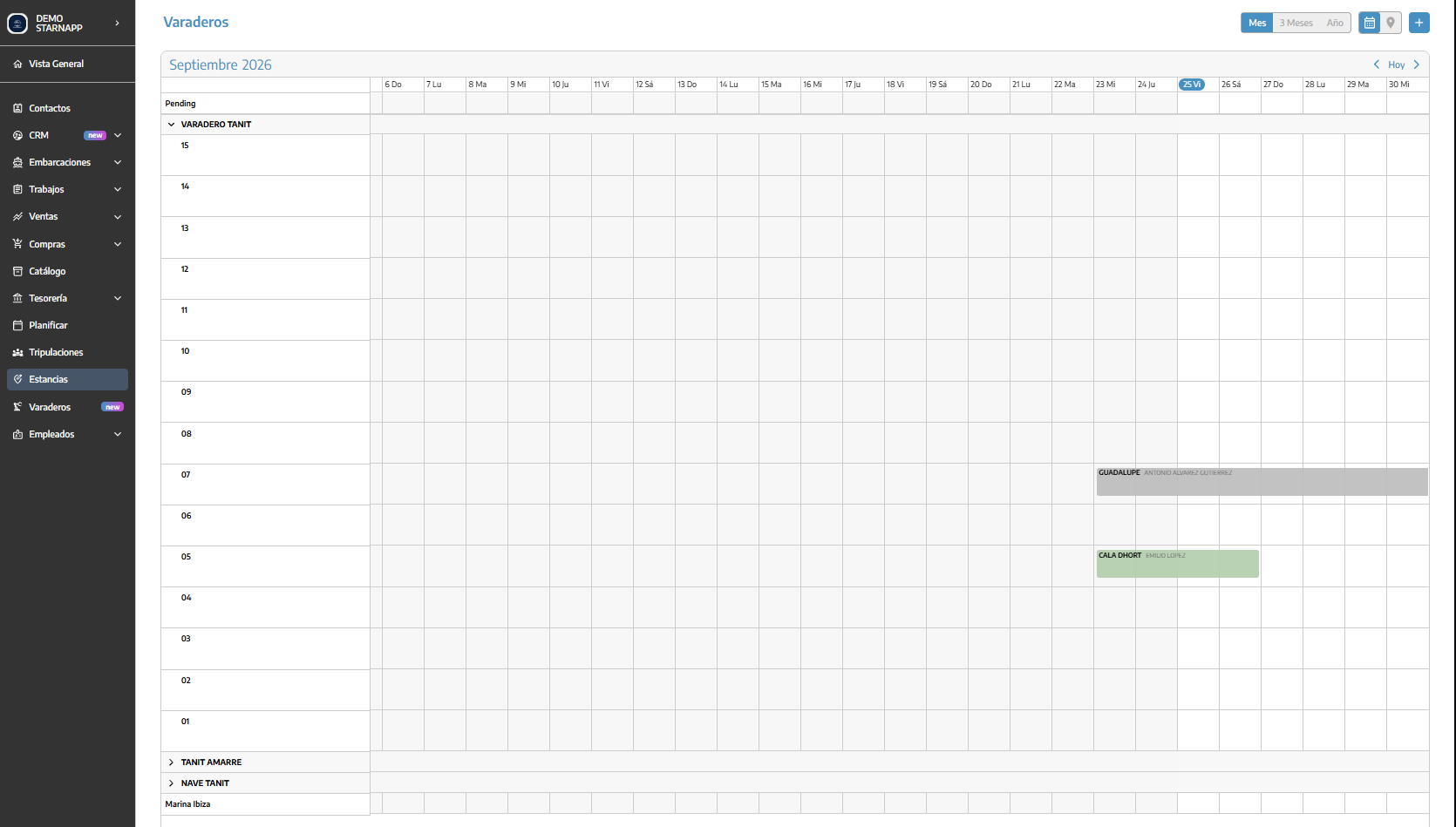
The calendar view lets you view stays during the selected period (one-month, three-month, or one-year view). We will use the controls at the top to change the interval displayed.
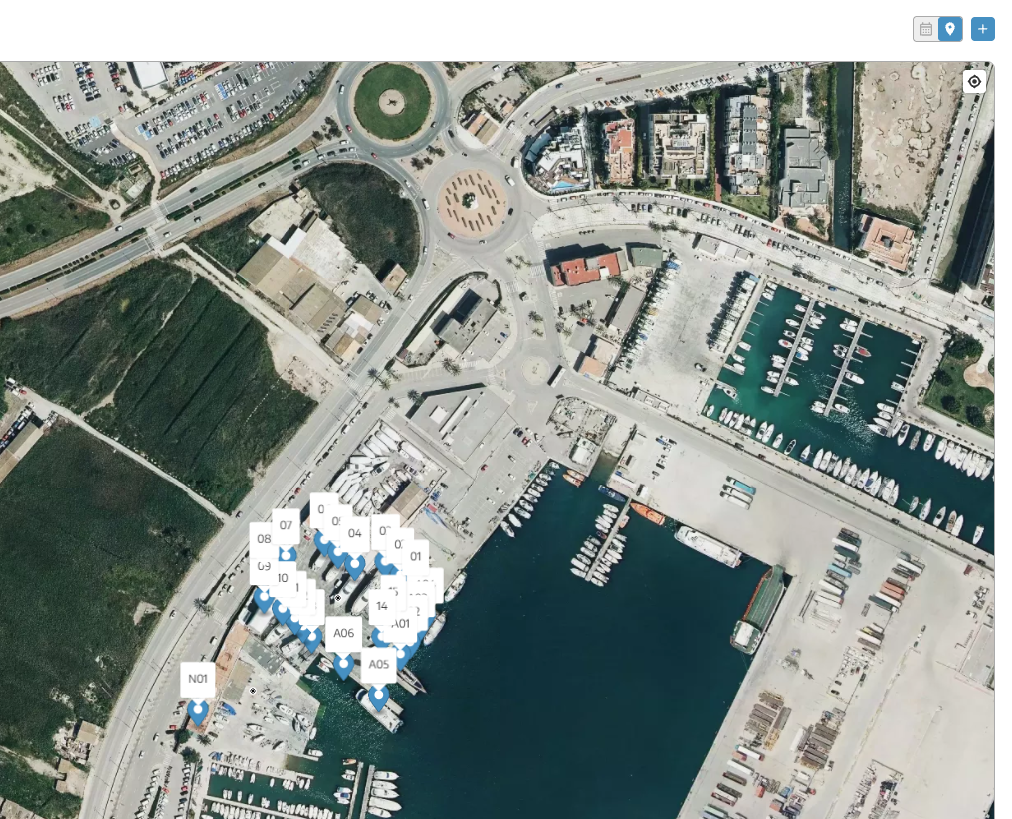
The map view lets you view registered locations.
Before assigning a stay, we need to have the corresponding location available.
Creating and modifying spaces is explained in Configure and manage boatyards. In this article, we’ll focus on registering and managing stays.
Click + to open the creation form.
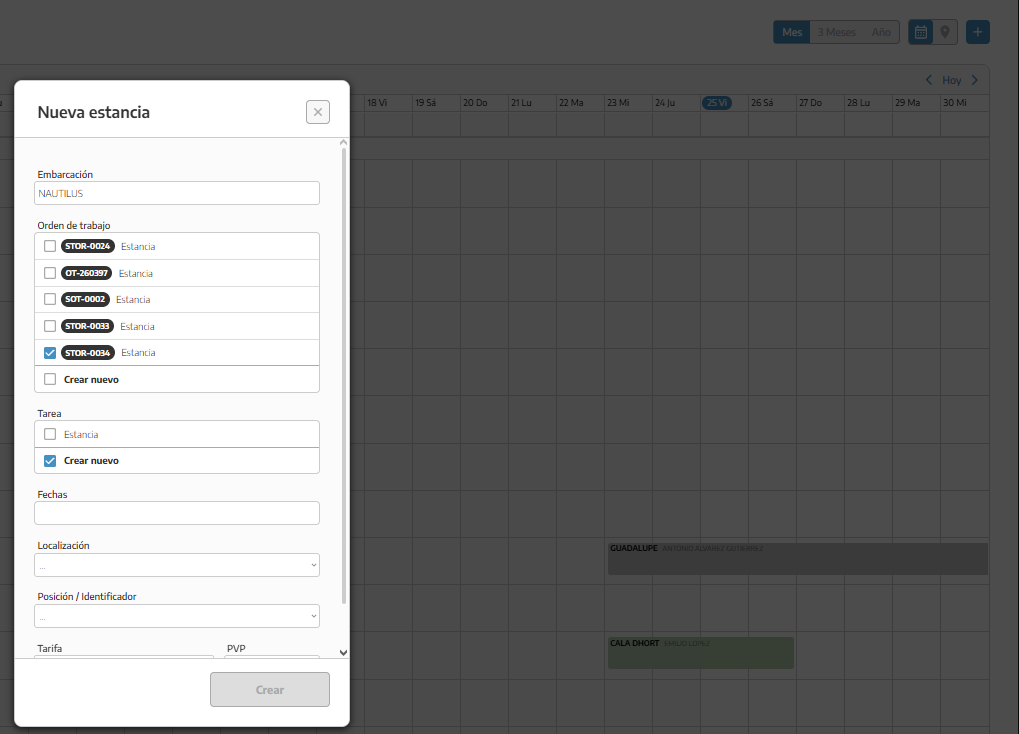
Fill in the following details:
We’ll select the vessel that will be staying.
We can use an existing work order or select Create new.
We’ll choose an existing one if we want to add the stay to a job that is already open.
We’ll create a new one if we want to manage it under a separate work order.
If we create a work order, we’ll select the corresponding series. The series names depend on our company’s configuration.
We’ll select the relevant task or the option to create a new one, depending on what the form displays.
The stay will be linked to that task within the work order.
We’ll enter the start and end dates of the period.
We will select where the vessel will stay. When the form asks us to, we will also choose the specific position or identification.
We will select the rate and check the selling price before saving.
Finally, we will click Create.
[Keep a screenshot of the stay form; update it if it does not show the current options]
The selected rate determines the reference used to record the service. The system calculates the amount for the period based on the time unit configured for that rate.
Therefore, before creating the stay, we will check:
That we have selected the appropriate rate.
That the dates are correct.
That the retail price corresponds to the selected rate.
For example, if we use a daily rate, we must not enter the full monthly amount as the retail price.
The setup of items and their prices is explained in the Catalog guide.
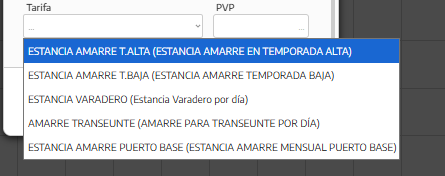
The stay is recorded as a resource linked to a task in the work order.
A new work order is not always created: if we select an existing one, that same work order will be used.
We can organize other work related to the vessel in it. Before invoicing, we will review which items should be charged and which are included in the contracted service to avoid charging for them twice.
We will open the stay we want to review.
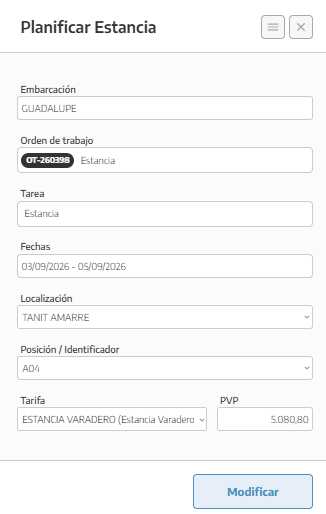
To change your schedule:
We will review the dates, location, and rate.
We will modify the necessary details.
We will click Modify.
If the change affects the vessel's position and StarNapp asks us to reposition it, we will complete that step as well.
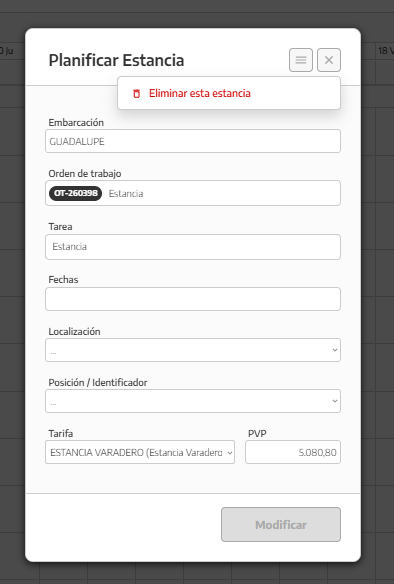
These are different actions:
Delete stay: deletes the stay record and its associated movement.
Delete position: removes the location assigned to the movement without deleting the stay resource.
We should not use these options as a substitute for correcting a document that has already been issued.
Renaming a boatyard or managing its spaces is part of configuring locations, not editing a vessel’s dates.
We’ll return to the calendar and check that the stay appears on the expected dates and at the expected location.
Before marking the process as complete, we’ll review:
The vessel and its location.
The arrival and departure dates.
The rate and retail price.
The associated work order and task.
Recording a stay is not the same as issuing an invoice or confirming a payment. Sales documentation and its payments should be reviewed in their respective sections.
