The Catalog contains the references we regularly use in StarNapp. By correctly registering each reference, we will be able to reuse its description, cost, selling price, supplier and unit without having to enter them again in each document.
From the catalog we can also control product stock, consult their movements, attach manuals and review their purchase and sales history.
We should not confuse these two areas:
CATALOG, in the main menu: allows you to create and manage products, components, services, labor and rates.
SETTINGS → CONFIGURATION → CATALOG: allows you to configure the families or internal categories that we will use to organize those references.
For example, in Settings we can create the family Motors and propulsion. Then, from the Catalog, we will assign references to that family such as filters, belts, pumps or motors.
We will go to:
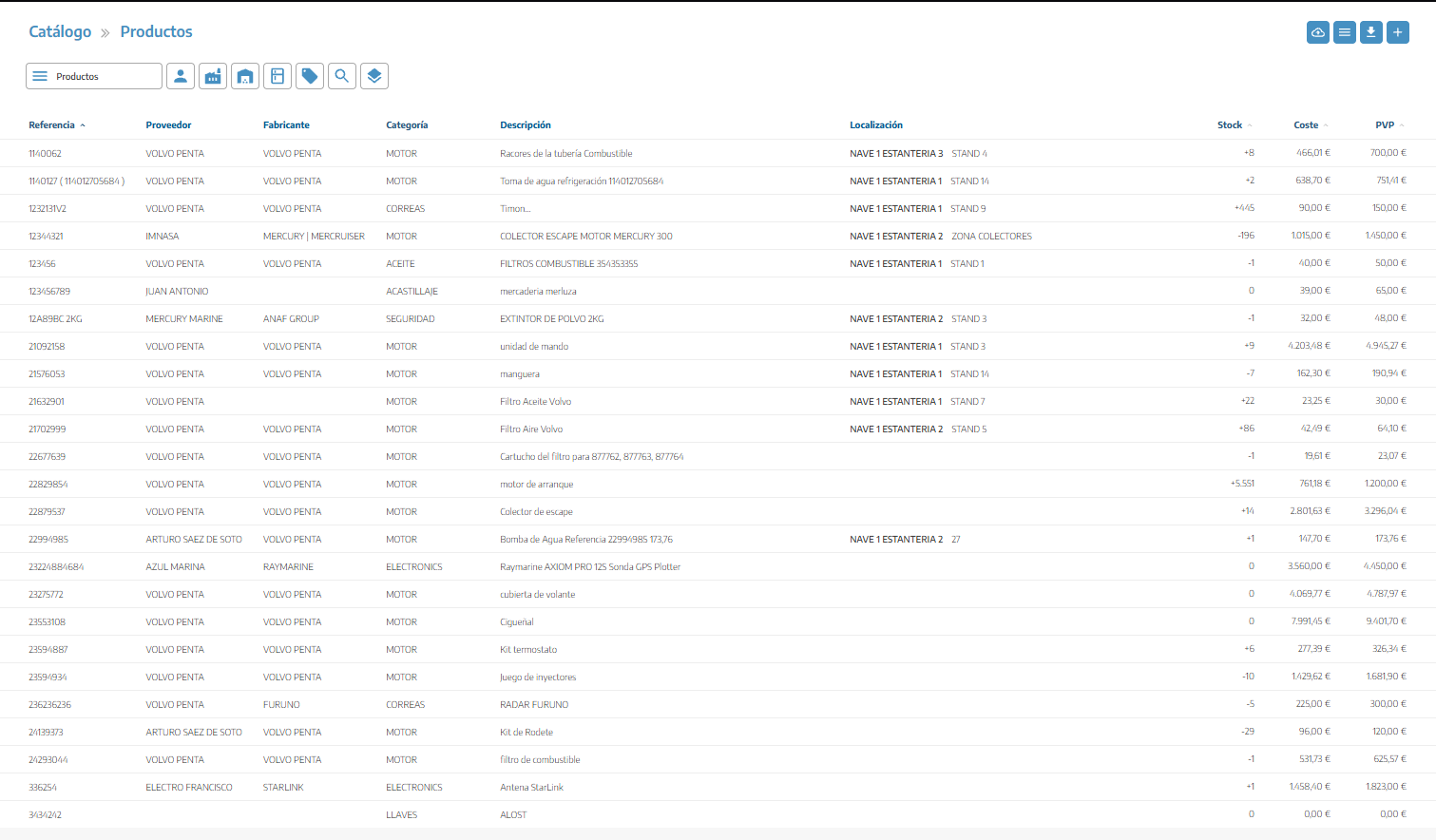
CATALOG
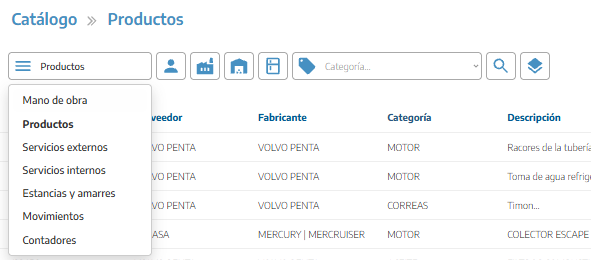
Upon entering, StarNapp will display the list of references corresponding to the selected category.
Represents the work performed by employees.
These references can be used in tasks, time records, and sales documents.
These are materials or physical items that we can purchase, store, use, and sell.
Products allow you to manage supplier, cost, selling price, warehouse, location, and stock.
A component is a product that requires individual traceability, typically through a serial number.
When you create a product and activate Control serial numbers, StarNapp will treat it as a component.
The catalog reference represents the model or type of component. Each physical unit with its own serial number is subsequently registered as an individual component.
For example, Rule 2000 Pump may be a single catalog reference, but we can have three physical units with three different serial numbers.
These are works or services performed by external suppliers that we can transfer to a work order or invoice to the customer.
These are services provided by our own company that do not necessarily correspond to a physical reference or hourly labor.
Contains the rates used to charge for stays, moorings, or storage.
They can be configured by:
Unit.
Day or night.
Week.
Month.
Season.
Length.
Surface area.
Allows you to create rates related to vessel movements.
This category should not be confused with the Movements tab of a product, where its stock entry and exit are consulted.
Contains the references used to invoice electricity or water consumption.
Its availability may depend on the modules used by the company.
At the top of the catalog you will find different filters. The available ones may vary depending on the type of reference selected.
You can filter by:
Type: labor, products, external services, internal services, stays, movements or counters.
Product: search by reference, description, manufacturer or other identifying data.
Supplier: displays the references associated with a supplier.
Manufacturer: allows you to locate products from a specific brand.
Family: displays the references belonging to a configured family.
Warehouse: filters products from a warehouse.
Location: search by the position indicated within the warehouse.
Stock: allows you to set a minimum and maximum quantity.
We can also sort the list by reference, stock, cost or selling price.
To create a new reference:
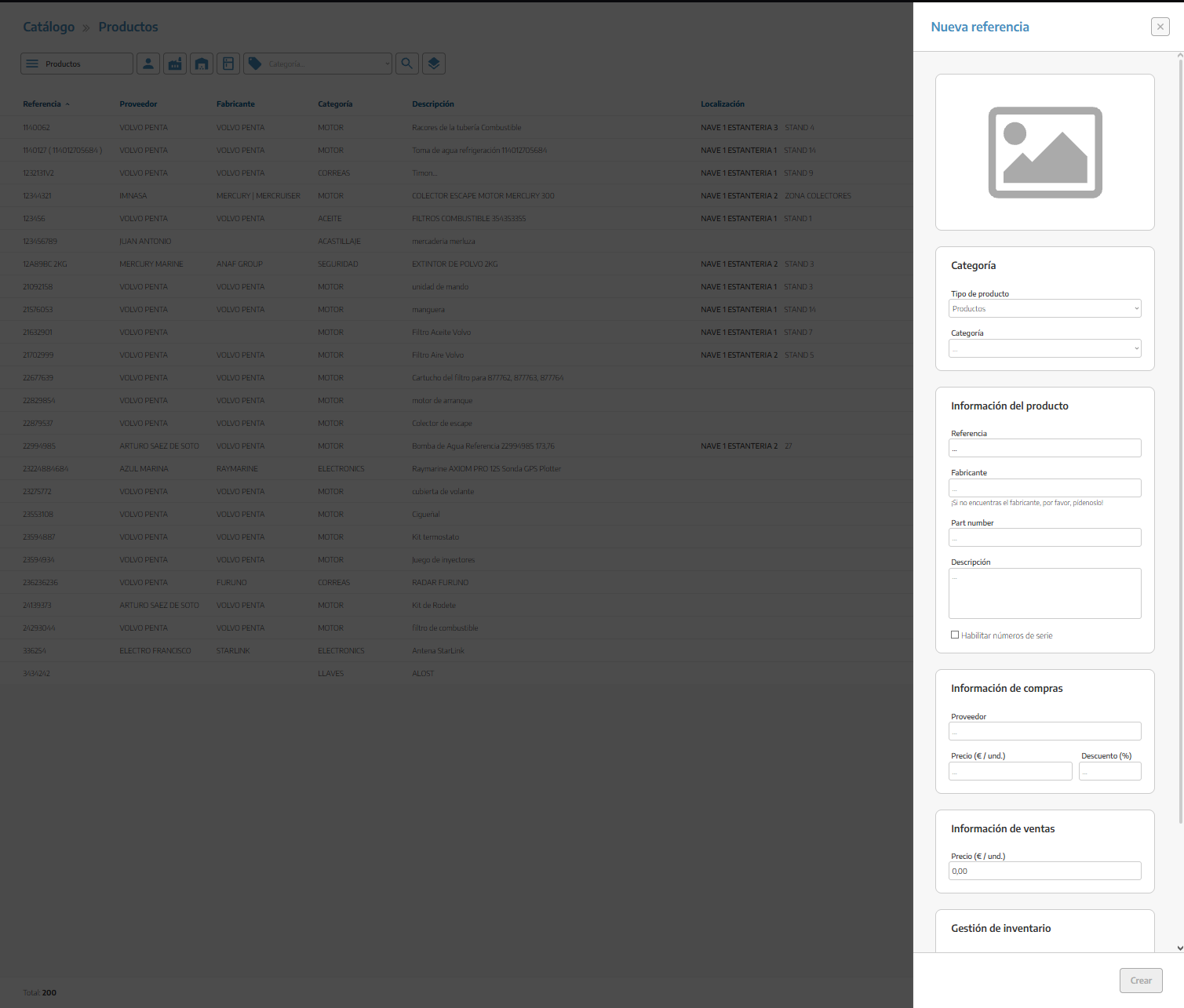
Go to Catalog.
Select the reference type.
Click the + button.
Complete its information.
Click Create.
The available fields will change depending on the type selected.
We can add an image to facilitate product identification.
The image does not modify the operation of the reference, but it is useful when there are similar items.
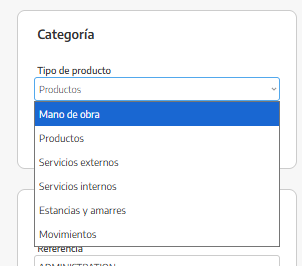
Indicates whether we are creating labor, product, external service, internal service, stay or movement.
The type determines which fields and functionalities will be available.
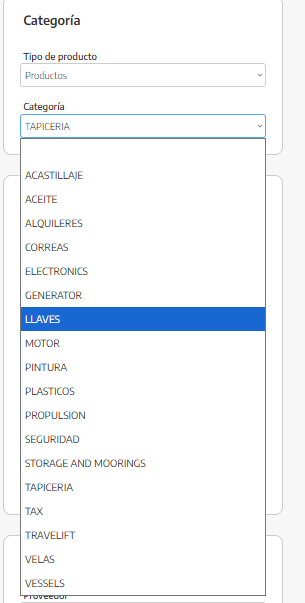
Allows you to organize related references.
Families are configured in advance from the Catalog Settings.
It is the internal code with which we will identify the item.
For example: FIL-00124.
It must be a clear reference and, preferably, unique.
Indicates the brand or manufacturing company of the product.
This field appears in products and components and allows you to filter the catalog later.
It is the commercial reference assigned by the manufacturer.
It does not have to match our internal reference.
For example:
Internal reference: FIL-00124.
Manufacturer Part Number: 8M0123025.
It is the name that will be displayed when selecting the reference and that can be copied to work orders, quotes and other documents.
It is advisable that it allows you to recognize the item without needing to open its record.
For example: Mercury 4T engine oil filter.
When creating a product, we can activate Enable serial numbers.
When you activate this option, the reference starts to function as a component.
We will not activate it for generic materials whose stock is controlled only by quantities, such as screws, oil, or paint.
For references that allow purchases, we can complete:
It is the usual supplier of the reference.
The product may later appear related to other suppliers through its movements, but this field identifies the main or default supplier.
It is the usual unit price we pay to the supplier.
This value will be used as a reference when adding the item to purchase documents and for calculating margins.
It is the usual discount that the supplier applies to the registered price.
The cost and discount from the catalog serve as default values. We can modify them later in each document if the purchase has different conditions.
It is the unit price that we will use when adding the reference to a work order or sales document.
Products and components can include inventory information.
Indicates the default warehouse for the reference.
Available warehouses must be previously registered as locations or warehouse-type sites.
Allows you to indicate its specific position within the warehouse.
It is the quantity below which it is advisable to replenish the product.
This value does not add units to stock or automatically create a purchase. It serves as a reference to detect items that need replenishment.
Completing the warehouse, location, or minimum stock does not set the current stock. Stock is calculated from the entries, exits, and adjustments recorded.
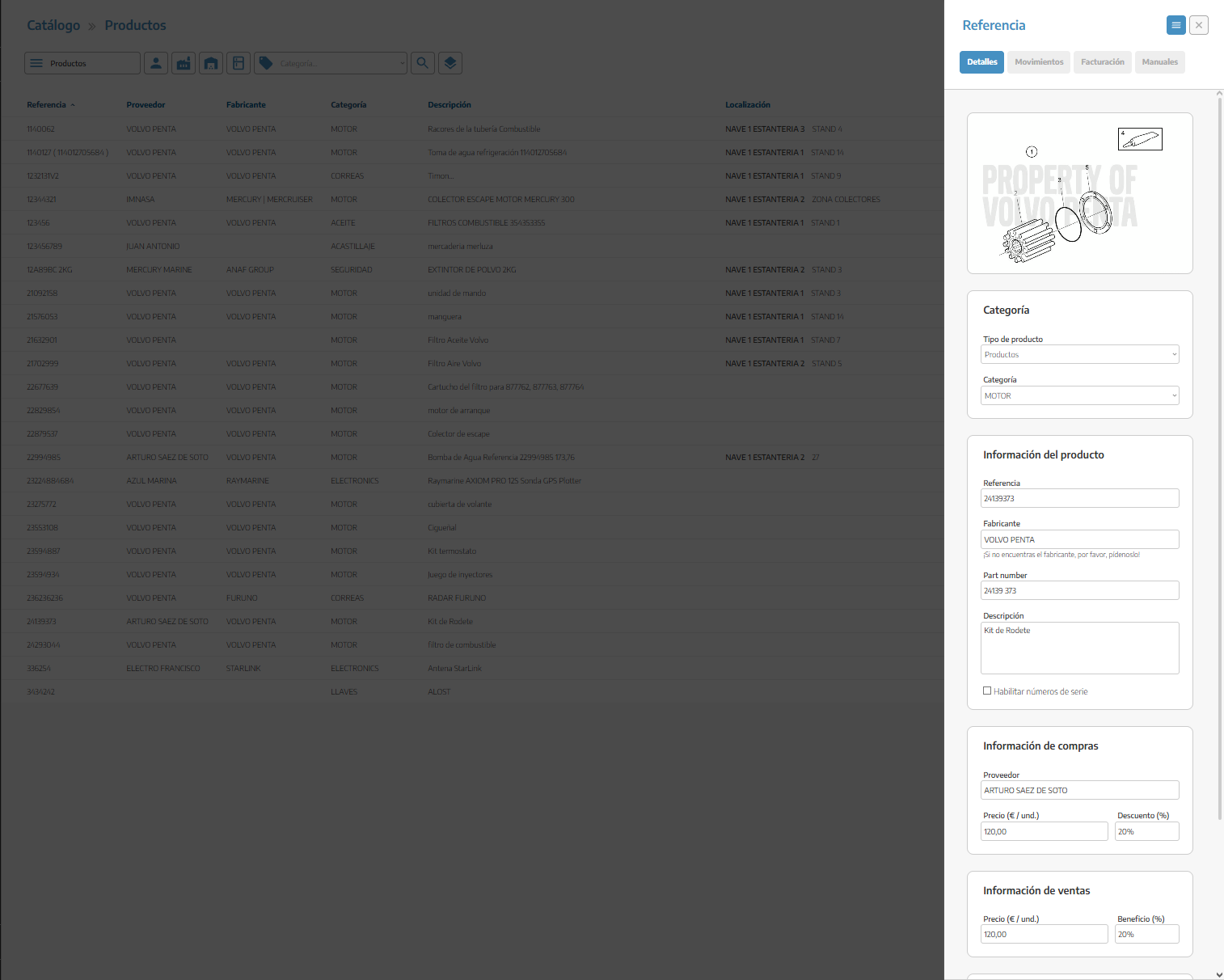
You will click on a reference from the list to open its record.
Depending on its type, you may find the following tabs.
It contains general information, purchase data, selling price, inventory, and accounting code.
From here you can modify the reference as long as your role has editing permissions.
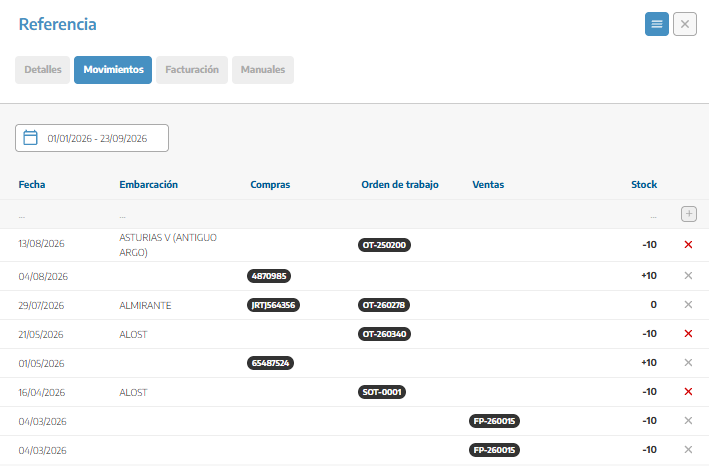
Shows operations related to the reference, such as:
Purchases.
Sales.
Assignments to work orders.
Related shipments.
Stock adjustments.
This tab allows you to understand why the stock has increased or decreased.
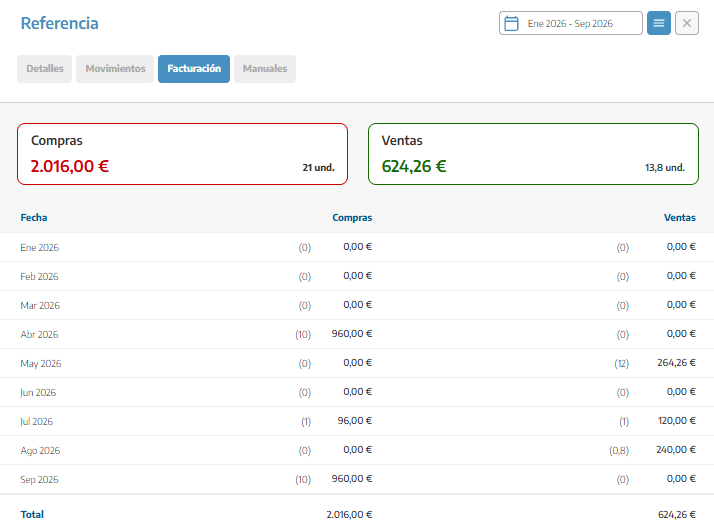
Shows statistical information about purchases, consumption, and sales of the reference during the selected period.
We can use it to analyze:
Amount purchased.
Amount sold.
Consumption.
Evolution by dates.
Profitability of the reference.
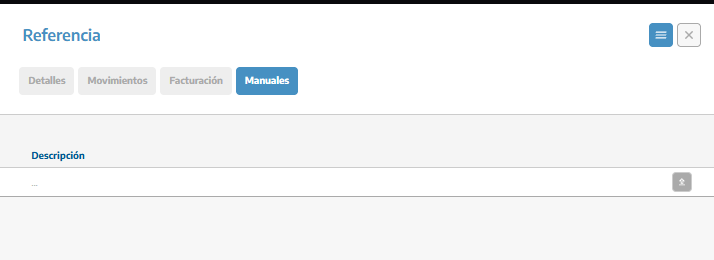
Allows you to attach documentation related to the article:
You will enter a description.
You will select the file.
You will confirm the upload.
You can use it for technical manuals, safety data sheets, installation instructions, or manufacturer documentation.
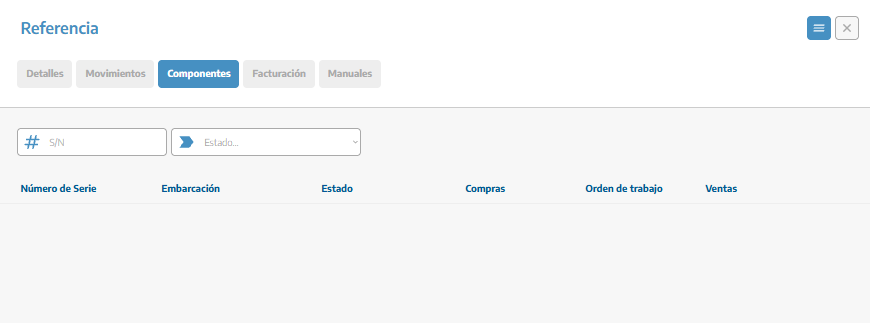
This tab appears in the references that control serial numbers.
It allows you to view the physical units associated with the reference and filter by serial number or status.
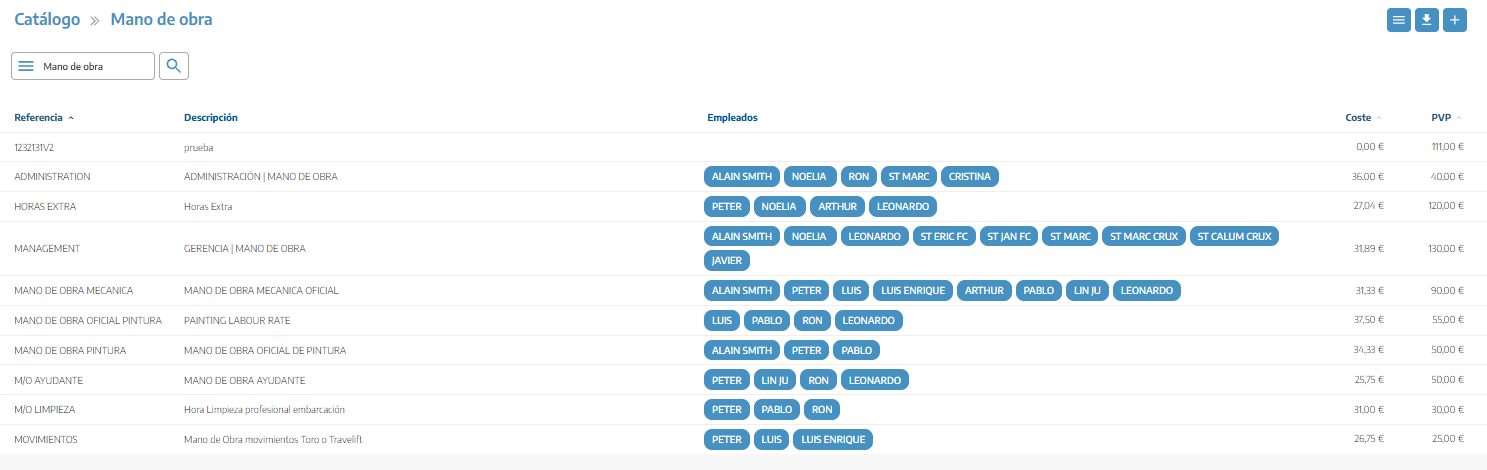
In labor references, it allows you to view or link the employees who use that work category.
If the actual stock does not match the recorded stock, you can create an adjustment from the Movements tab within the product reference to be adjusted.
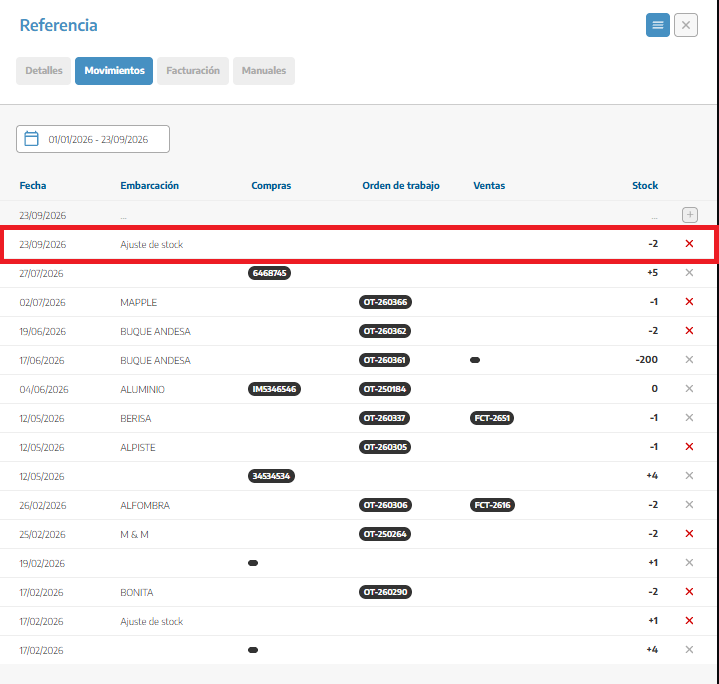
We will use:
A positive quantity to add stock.
A negative quantity to remove stock.
For example, if StarNapp shows ten filters, but during inventory we count eight, we will register an adjustment of −2.
For components with serial numbers, the adjustment is made by individual units. We will indicate the corresponding serial number and normally use 1 for an entry or −1 for an exit or return.
Adjustments should be used to correct actual differences. If the entry comes from a purchase, we will register it through the corresponding delivery note or invoice to maintain traceability.
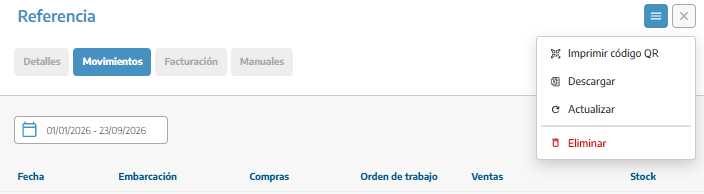
Within the menu of a reference with stock control, the Update option appears.
This action recalculates the stock based on the recorded movements. It does not add or remove units by itself.
We will use it if we have corrected a movement or if the displayed value does not match the recorded information.
From the product catalog menu, the option Inventory Value may appear.
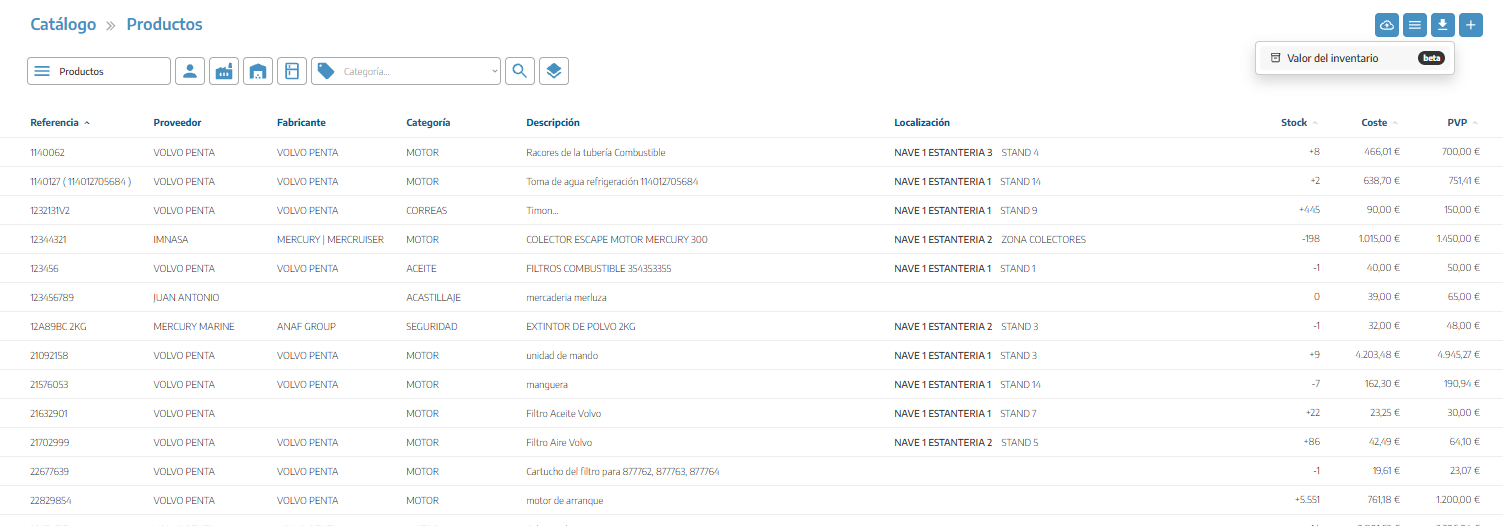
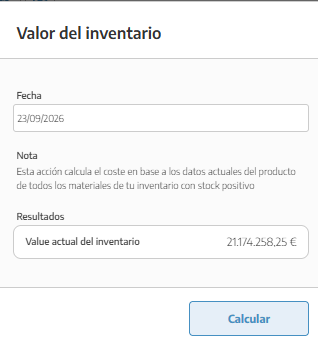
This function calculates the economic value of materials with positive stock using the costs currently recorded in the catalog.
You can select a date and consult:
Current inventory value.
Inventory variation.
Value corresponding to the selected date.
The result depends on costs and movements being correctly recorded. Currently this function may appear identified as beta.
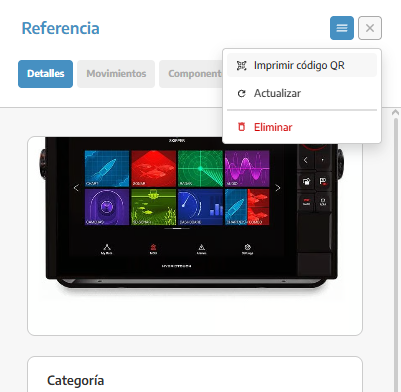
In products and components, you can use the Print QR Code option.
When preparing the label, you can decide whether to include:
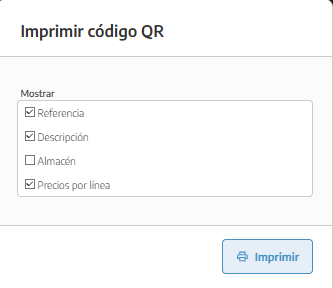
Reference.
Description.
Warehouse.
Price.
The code allows you to identify the reference more quickly using the compatible scanning functions of StarNapp.
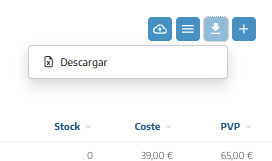
The export option allows you to download the list while respecting the applied filters.
Before exporting, we will select the category and necessary filters to avoid downloading information we do not need.
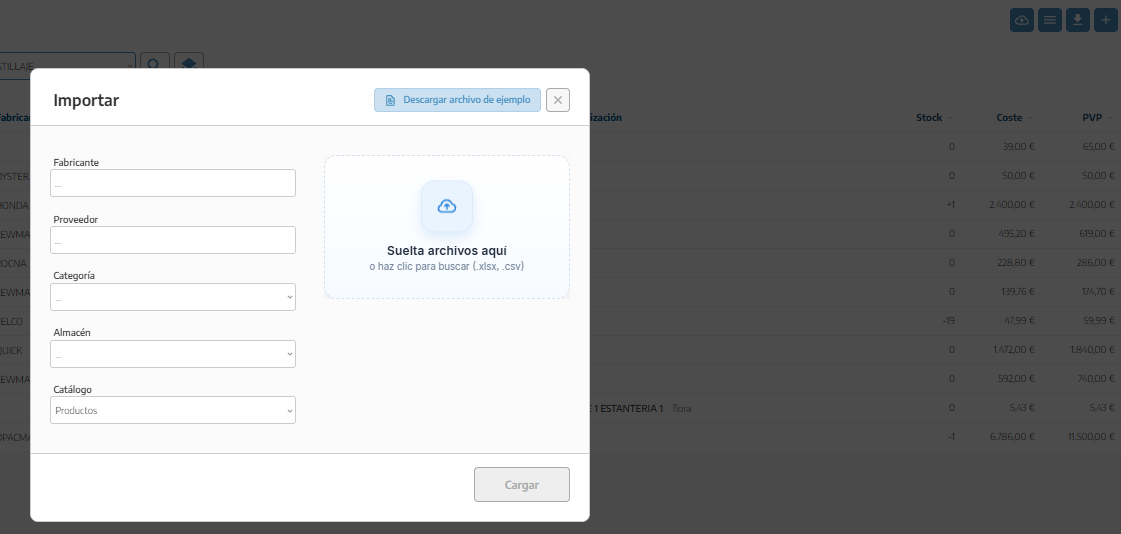
If the company has the data import function enabled, the upload icon will appear at the top of the catalog.
This option allows you to incorporate multiple references using a compatible file, avoiding creating them one by one.
After importing, we will review the references, descriptions, types, prices and other incorporated data.
Manual creation depends on user permissions to create references. It does not require having the import function enabled.
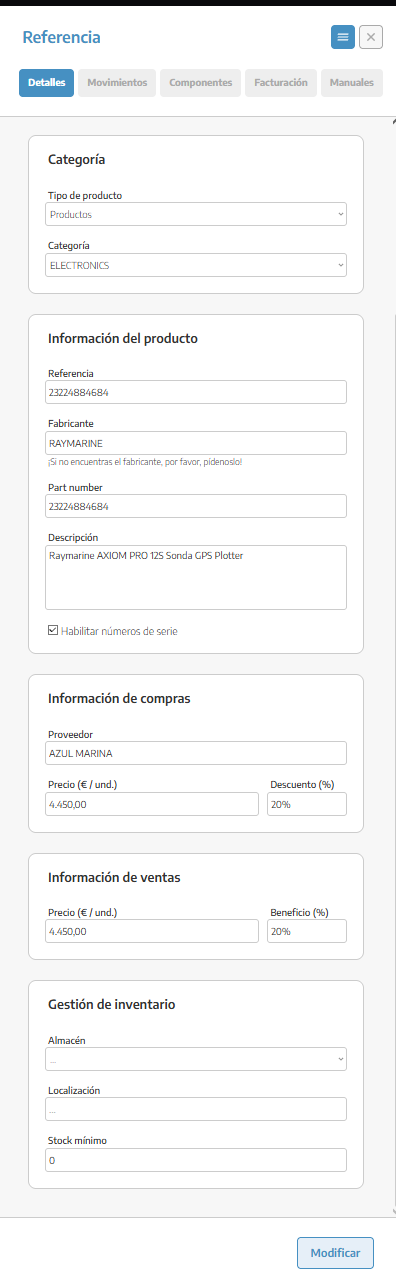
We will open the reference.
We will enter Details.
We will modify the necessary fields.
We will click Modify.
The changes will be used in future operations, but should not alter the historical data of documents already issued.
If we convert a normal product into a component by activating serial number control, related resources may also be treated as components. We will review this modification before confirming it.
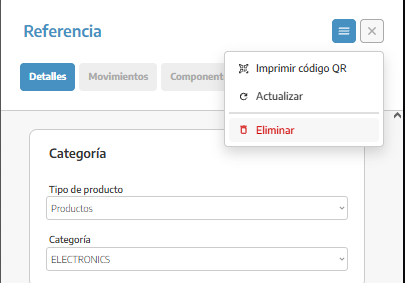
To delete it:
We will open the record.
We will press the options menu.
We will select Delete.
We will confirm the operation.
StarNapp will not allow you to delete a reference that is being used by resources, documents, components or other records.
In that case, we will keep the reference to maintain the history. We should not replace it by creating another one with the same code.
We will use a unique and recognizable reference.
We will differentiate our internal reference from the manufacturer's Part Number.
We will activate serial number control only when we need individual traceability.
We will keep the cost and selling price up to date.
We will record purchases through their documents to correctly update inventory.
We will use adjustments only to correct discrepancies.
We will not create a duplicate reference if an equivalent one already exists.
We will organize the catalog by families to facilitate searches.
We will not confuse a catalog reference with a physical unit installed.
We will review the role permissions if a user cannot create, modify, or delete references.
