A purchase receipt documents the materials or services we have received from a supplier, even if we do not yet have their invoice.
Unlike a purchase order, the receipt represents an actual receipt and affects the stock of materials. We can later convert it into a purchase invoice.
We will go to:
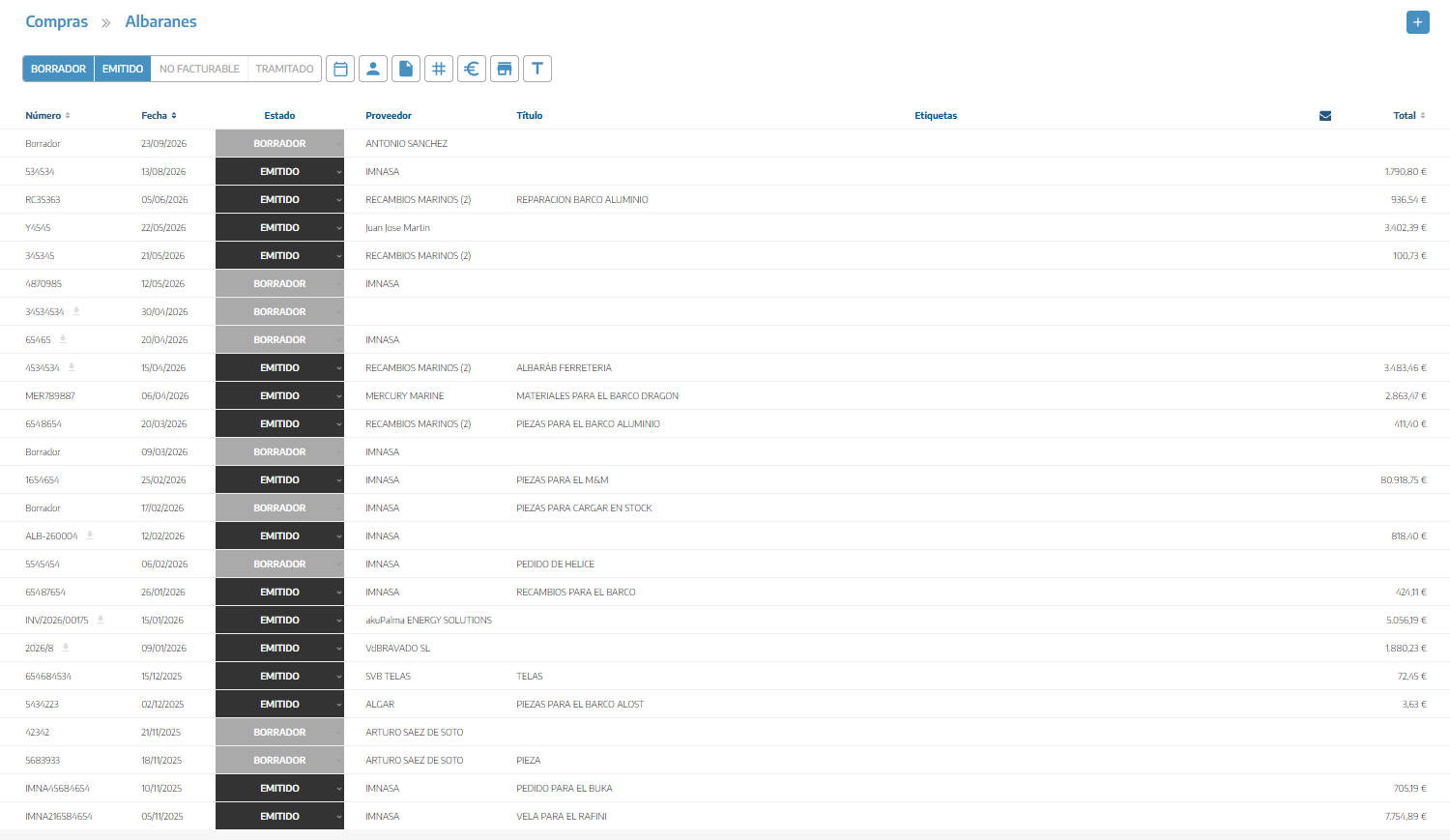
PURCHASES → RECEIPTS
From this section we can view all registered receipts and use the available filters to locate them by date, supplier, status, document or tags.
We can register a receipt in different ways.
This is the recommended option when we have previously made a purchase order:
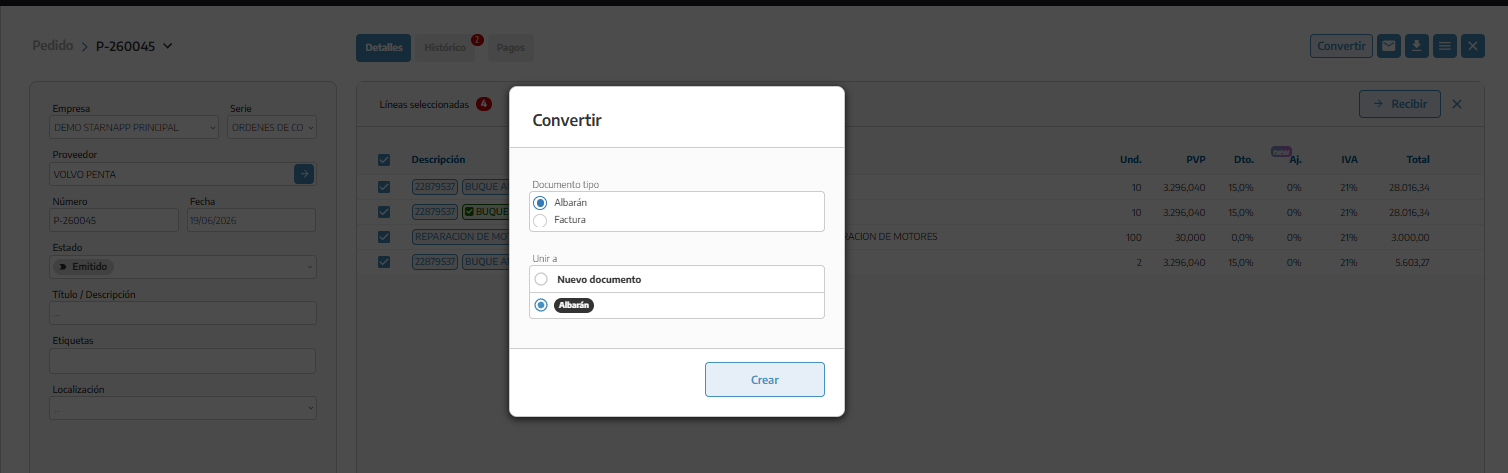
We will open the issued order.
We will select the lines we have received.
We will click Receive.
We will select Purchase receipt.
We will create a new receipt or select an existing one.
We will review the quantities received.
StarNapp will copy the selected lines and maintain the relationship between the order and the receipt.
If we receive only part of the order, we will transfer only the lines received. The order will remain as Partially received until the receipt is complete.
If there is no prior order:
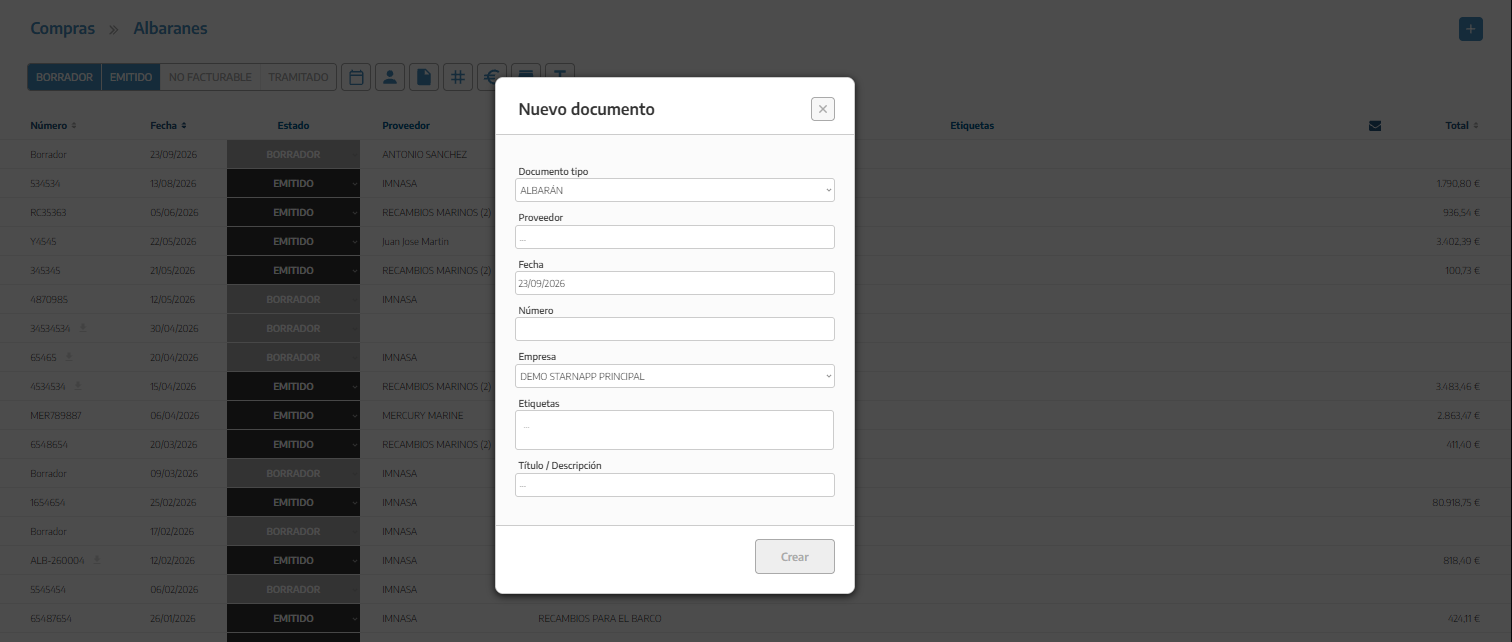
We will access Purchases → Delivery Notes.
We will press the + button.
We will select the company and the supplier.
We will enter the delivery note data.
We will add the materials or services received.
We will save the document.
If we have the original delivery note in PDF or as an image, we can upload it from Purchases → Inbox.
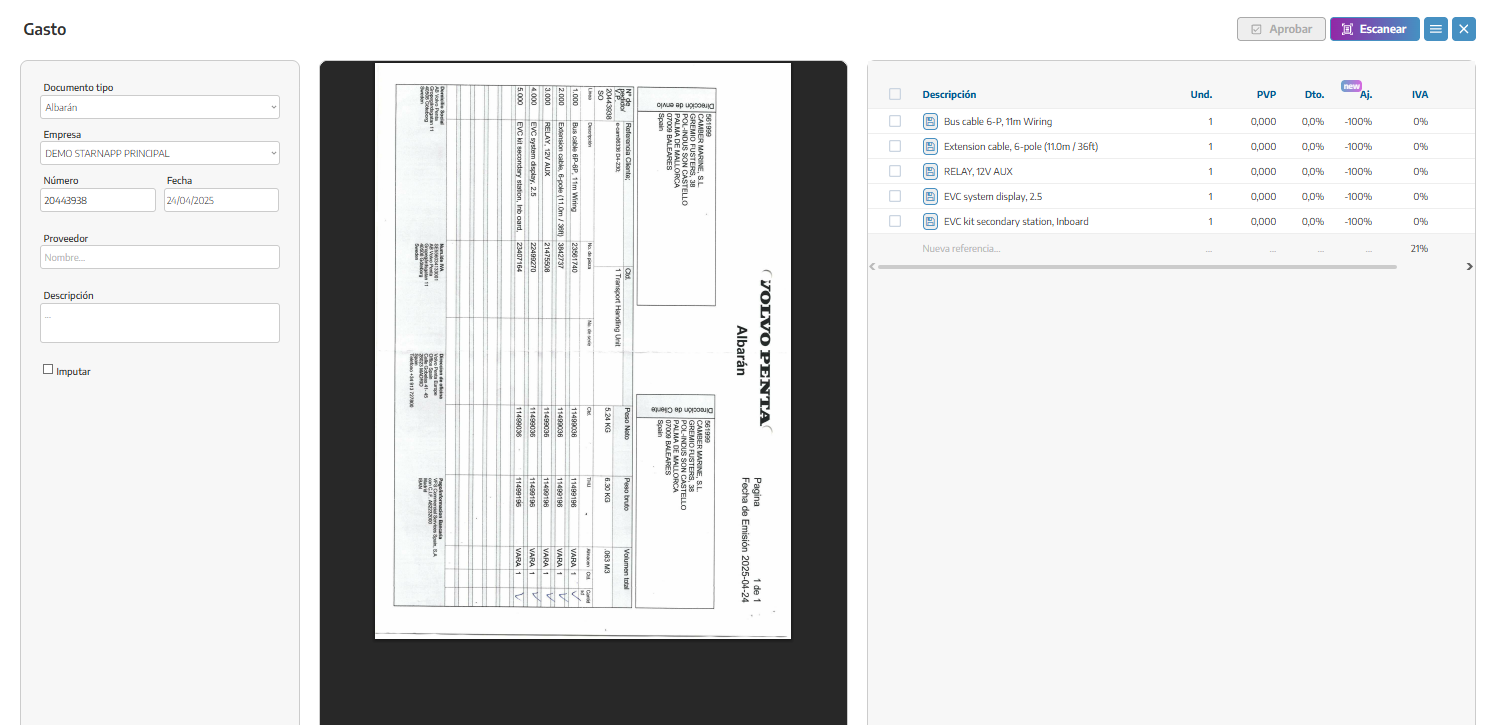
Once processed, we will review the recognized data and confirm its creation as a purchase delivery note.
Automatic recognition can make errors. We must always check the supplier, number, quantities, prices and taxes.
It is the company in our organization that receives the purchase.
It is the contact that has delivered the materials or provided the service.
We will indicate the date shown on the supplier's delivery note.
We will enter the number of the document delivered by the supplier. Unlike other internal documents, this number normally comes from the delivery note itself that was received.
We can use it to identify the content of the document.
For example: Material received for HERMES maintenance.
They allow you to classify and subsequently locate the delivery note using the filters in the list.
In the delivery note lines we will record:
Reference and description.
Quantity received.
Unit purchase price.
Discount.
Adjustment or surcharge.
Tax.
Total amount.
If the delivery note comes from an order, this data will be copied automatically. We must modify it if the actual delivery does not match what was requested.
For example, if we order ten units but the supplier delivers six, we will record only the six units received in the delivery note.
We can upload the PDF or image of the delivery note provided by the supplier using the document's file upload option.
This way we will keep together:
The record created in StarNapp.
The material lines received.
The original document sent by the supplier.
While the delivery note is in Draft, we can modify its data and lines.
Once we have verified all the information, we will click Issue to confirm the document.
The purchase delivery note affects inventory because it certifies that the material has already been received. Therefore, we should not include quantities pending delivery.
After registering the receipt, we can assign the materials to the work order or internal task in which they will be used.
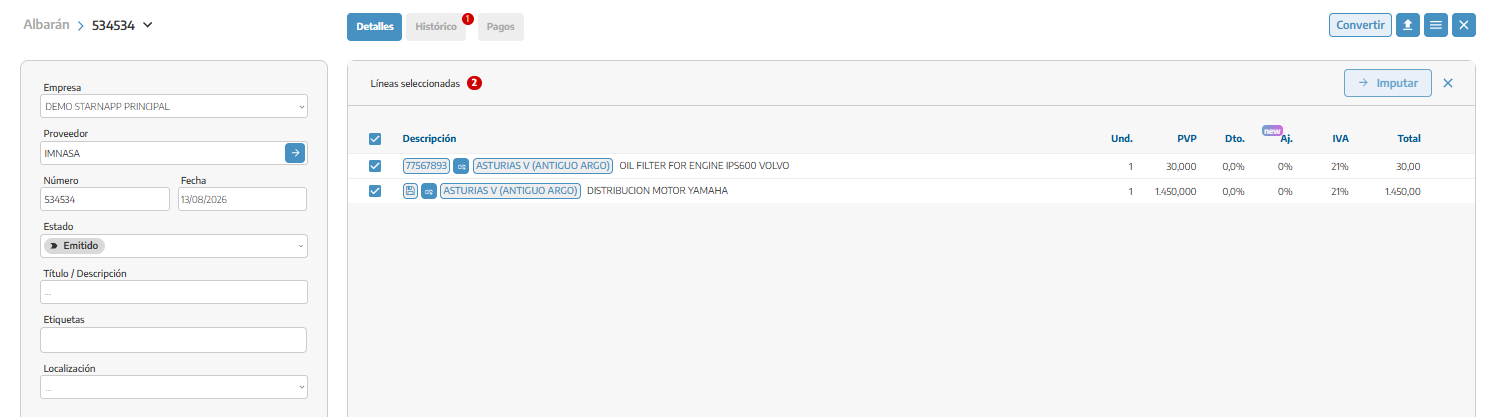
We will select the lines we want to allocate.
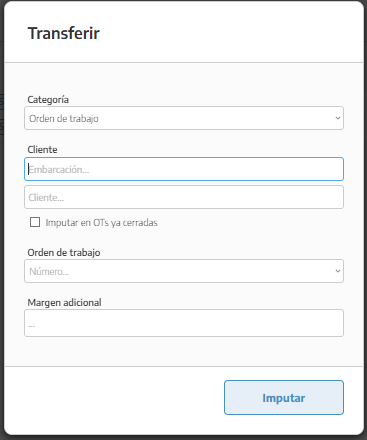
We will click Allocate.
We will choose Work Order or Internal Task.
We will locate the vessel and the corresponding order or task.
We will confirm the allocation.
The allocation is performed on the selected lines, not on the entire delivery note. In this way, the same delivery note can contain materials intended for different jobs.
Allocating does not only mean visually linking the delivery note to an order. StarNapp assigns the selected resources to the corresponding job to control their use and cost.

Next to certain lines, a transfer icon may also appear. This allows you to directly assign the linked resource to your task or work order.
This option is useful when the material was already requested from a specific order and StarNapp knows its destination. Blue means you have not yet transferred it, and green means you have transferred it.
When we receive the supplier's invoice:
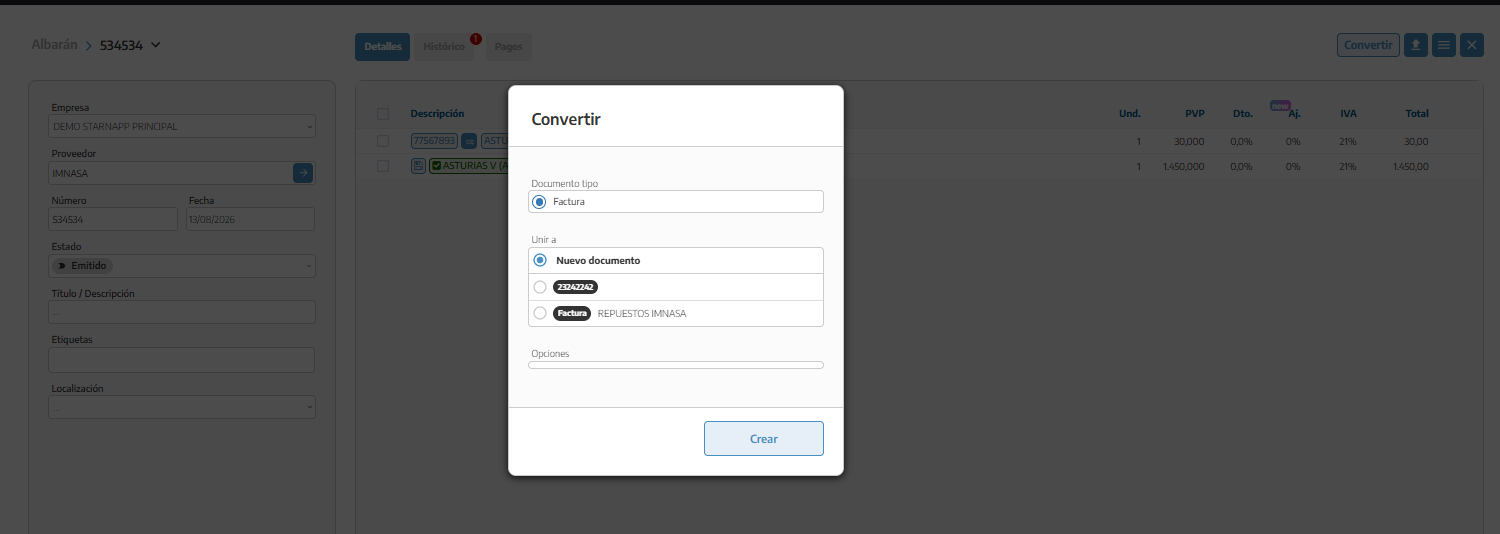
We will open the delivery note.
We will click Convert.
We will select Purchase invoice.
We will create a new invoice or add the delivery note to an existing invoice.
We will review the amounts and taxes before issuing it.
If a supplier invoice includes several delivery notes, we can combine them into a single purchase invoice.
The delivery note will be linked to the resulting invoice, which allows you to consult the complete traceability of the purchase.
Draft: the document can still be modified.
Issued: the delivery note has been confirmed and is pending invoicing or closure.
Non-invoiceable: no subsequent invoice is expected for that delivery note.
Processed: the delivery note has already been incorporated into a purchase invoice.
These statuses are part of StarNapp's functionality and are not customizable labels from Settings.
We will record only the quantities actually received.
If the delivery is partial, we will leave the remainder pending on the order.
We will review the prices and taxes before issuing.
We will charge only the lines used in each work order.
We will not create another manual delivery note if we can already generate it from the order.
We will use Non-billable only when we know that the delivery note will not result in an invoice.
To avoid duplicates, we will convert or link the documents instead of re-entering the same lines.
