The Inbox allows you to upload documents that we receive from our suppliers in PDF or image format.
Once uploaded, you can enter their data manually or use the StarNapp scanner to automatically recognize the supplier, document type, date, number and its different lines.
We will go to:
PURCHASES → Inbox
In the list we can consult:
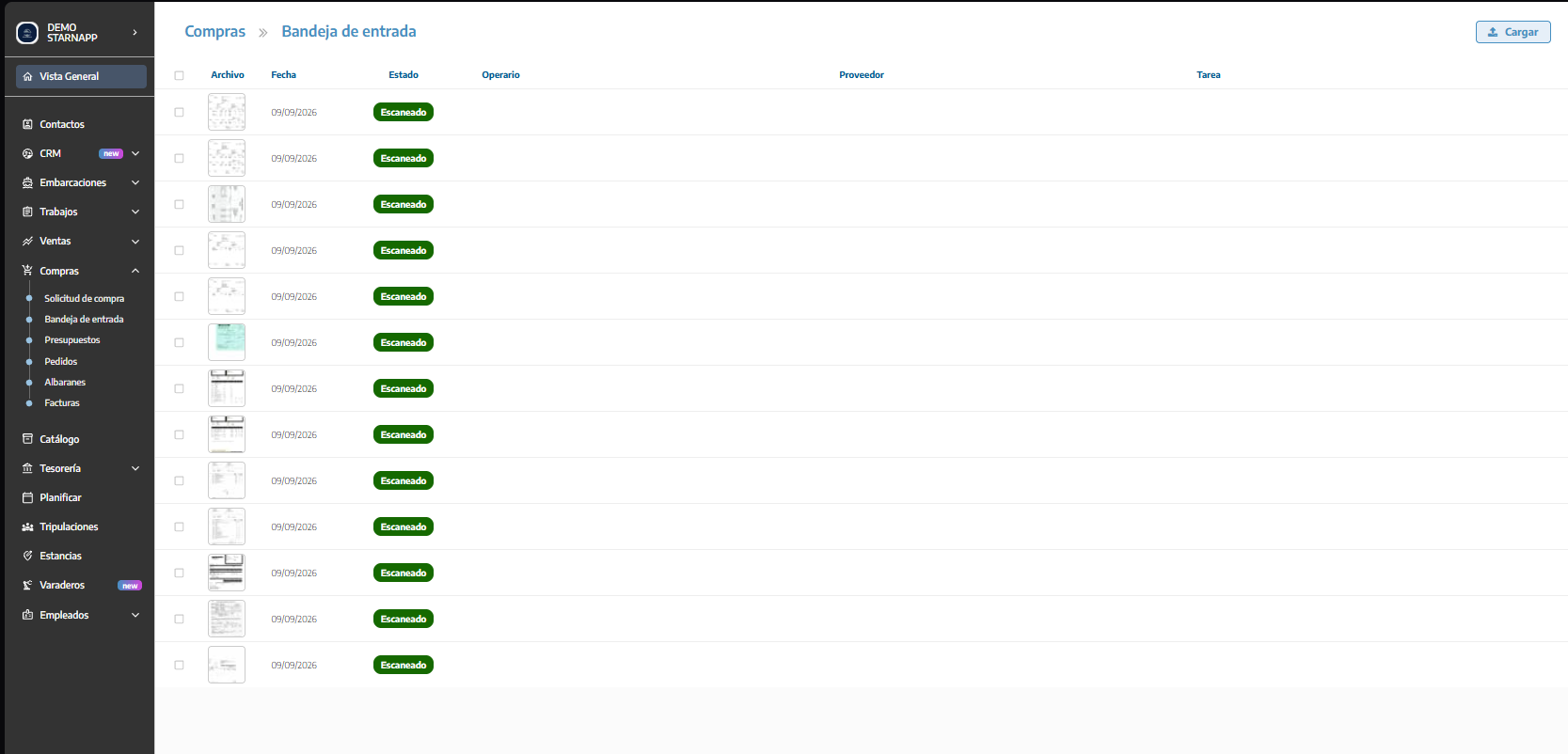
A preview of the document.
The upload date.
The processing status.
The employee who uploaded the file.
The detected or assigned vendor.
The related task or work order.
To add one or more files:
We will press

We will select the documents from our device.
We will wait for the upload to complete.
The files will appear in the Inbox list.
We can upload multiple files at the same time, with a maximum of five per selection.
Uploading the file does not yet register the document as a quote, delivery note, or purchase invoice. We must first review its content and approve it.
To use automatic recognition:
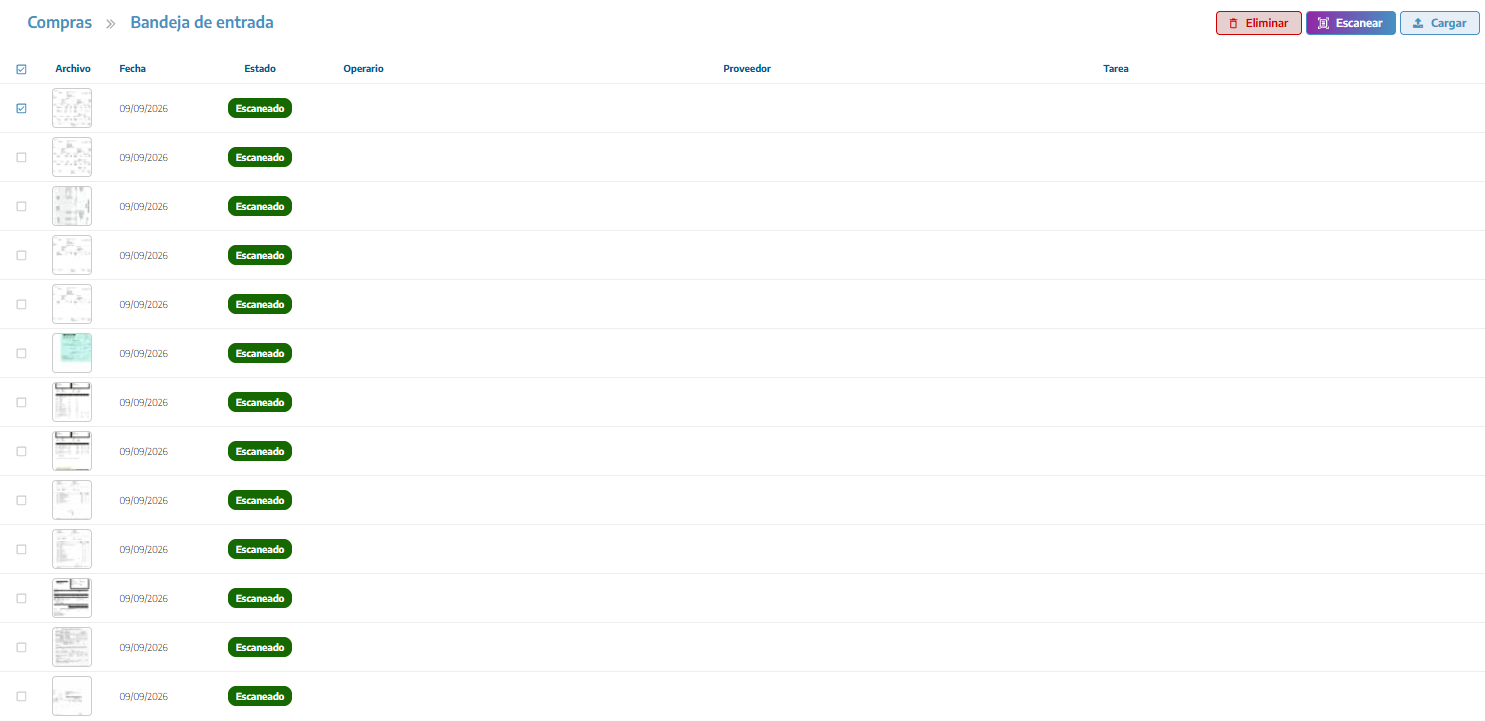
We will check the box located next to the file.
We will press Scan.
The document will move to the Queued status.
StarNapp will process the file and change its status when finished.
We will open the document to review the detected data.
We can also select multiple files and send them to scan in a single action.
🔒 Availability: The scanner is included in the Advanced plan and can also be enabled as an additional feature. If it is not available, the button will appear locked.
The scanner is optional. Even if we do not have this functionality, we will be able to upload the file and manually complete all its data.
Each file can display one of the following statuses:
Pending: the file has been uploaded, but has not yet been scanned.
Queued: the document is waiting to be processed.
Scanned: StarNapp has finished extracting the information.
Error: the file could not be processed correctly.
If the scan produces an error, we can open the document, check the file and try again.
We will click on a row to open its review screen.
In this view we will find:
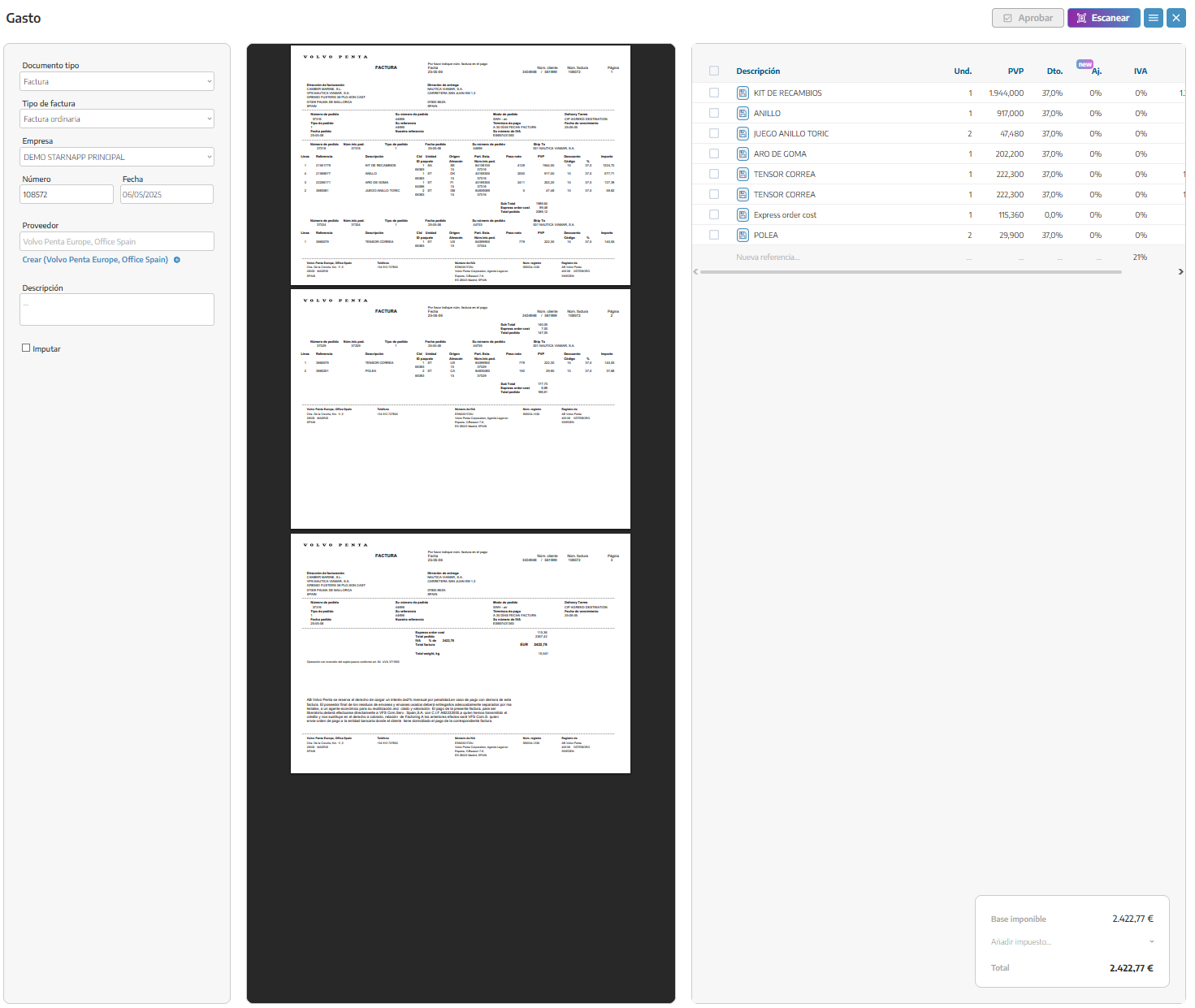
The data detected or manually entered.
A preview of the original PDF or image.
The product or service lines.
The quantities, prices, discounts, adjustments and taxes.
The options to approve, rescan, print or delete (the latter two within the menu button).
We can zoom in and move the images to better check their content. If we need to open the original file, we will use the options menu and press Download.
Before approving it, we must indicate which document we want to register:
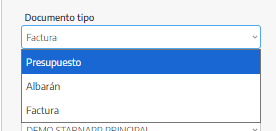
Purchase budget
Purchase receipt
Purchase invoice
The inbox is used to register documents received from the supplier. To create an order that we will send to the supplier, we will use directly Purchases → Orders.
If we select Purchase invoice, we can also indicate its subtype, for example:
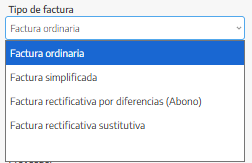
Standard invoice.
Simplified invoice or receipt.
Corrective invoice.
Replacement invoice.
In this way, a simplified invoice is currently registered as a subtype of purchase invoice and not as an independent section of the menu.
We will especially check:
Company: company in our account that receives the purchase.
Number: reference or number shown in the supplier's document.
Date: date the document was issued.
Supplier: company that issued the document.
Description: internal clarification about the purchase.
Automatic recognition can facilitate this data, but we should not approve it without reviewing it.
StarNapp will attempt to locate the supplier using the information found in the document, especially its tax identification.
If the supplier is already registered, we will select it in the search.
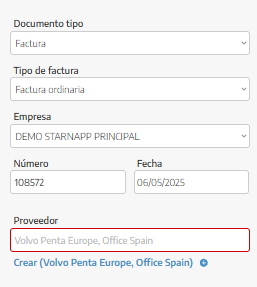
If it does not exist and the scanner has detected your data, the option to create it will appear. When using it, StarNapp can retrieve information such as:
Name or business name.
Tax ID or tax identification.
Address.
City.
Postal code.
Country.
Before creating a supplier, we must verify that it is not registered under another name to avoid duplicate contacts.
On the right side, the recognized products or services will appear.
We must verify that everything is correct.
You can modify the detected lines, delete the incorrect ones, or add others manually.
When a reference matches a catalog item, StarNapp will be able to link it to that item. If it does not find a match, it will keep the document description so we can review it.
The scanner helps you enter the information, but it can make mistakes. We will especially review the numbers, quantities, taxes, discounts, and total.
In documents that record material receipt, the Charge option may appear.
If you activate it before approving the document, StarNapp will allow you to associate its resources with a work order.
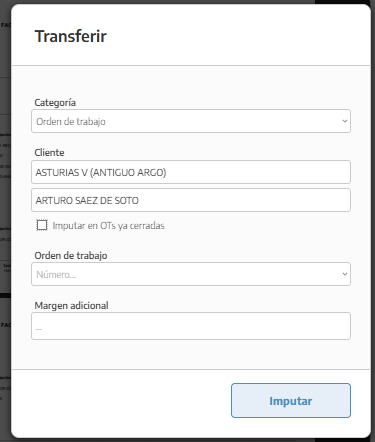
This is useful when the supplier invoices us for materials purchased specifically to repair a vessel.
Charging is not mandatory. You can approve the document without linking it to any work order.
Once you have reviewed all the information:
We will select the document type.
We will verify the company, number, date, and supplier.
We will review all lines and their taxes.
We will activate Allocate if applicable.
We will click Approve.
Upon approval:
It will no longer appear in the Inbox.
It will be saved in the corresponding Purchases section.
The original file will remain linked to the document.
If we have activated allocation, StarNapp will allow us to complete the relationship with the work order.
For example, an approved invoice will appear in:
PURCHASES → INVOICES
We can delete a document in two ways:
By selecting it in the list and pressing Delete.
By opening it and using Menu → Delete.
This action deletes the record from the Inbox and the associated file. We will only use it when we are sure that we do not need to keep the document.
Uploading a file is not equivalent to registering the purchase: we must review and approve it.
The scanner does not replace manual verification.
We will always verify the supplier, number, date, taxes and amounts.
We will avoid creating duplicate suppliers.
Purchase orders are not created from the Inbox.
A simplified invoice is registered as a subtype of purchase invoice.
Approved documents disappear from the Inbox and move to their corresponding section.
The ability to upload, scan, approve or delete documents depends on user permissions.
