Purchase requests gather the materials, products or services that are pending acquisition.
A request is an internal need of the company. It does not yet represent an order sent to the supplier. When we decide to make the purchase, we can select the requests and convert them into a purchase order.
We will go to:
PURCHASES → PURCHASE REQUESTS
This screen shows only the resources pending request that have a planned quantity.
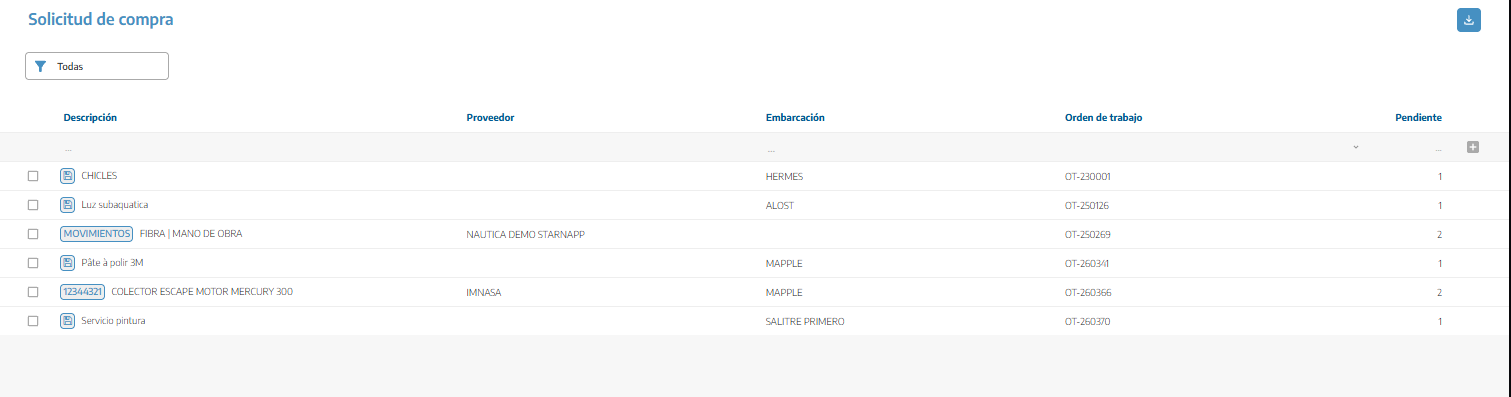
On each line we can consult:
The reference and description.
The supplier associated with the item.
The related vessel.
The original work order.
The pending quantity.
We can generate requests in two ways.
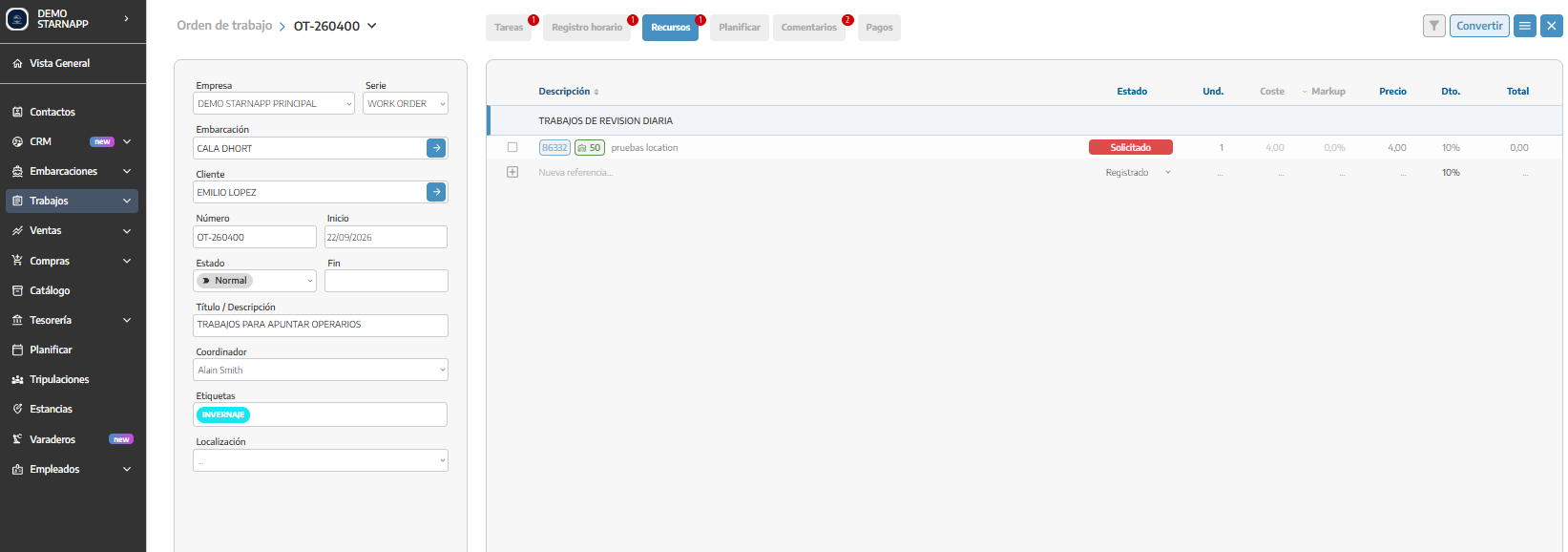
When we add materials to a task or work order, we can select the resources that we need to purchase and use the requested option to register a resource in a purchase request.
Before fully adding the resource to the OT, we have the status box with two possibilities, the default one which is registered (it is already incorporated or used in the OT) or requested (the material is needed, but is still pending purchase). If we select the requested status, the resource will be added to the Purchase Request
We can also register a need directly from this section.
In the line located at the beginning of the list:
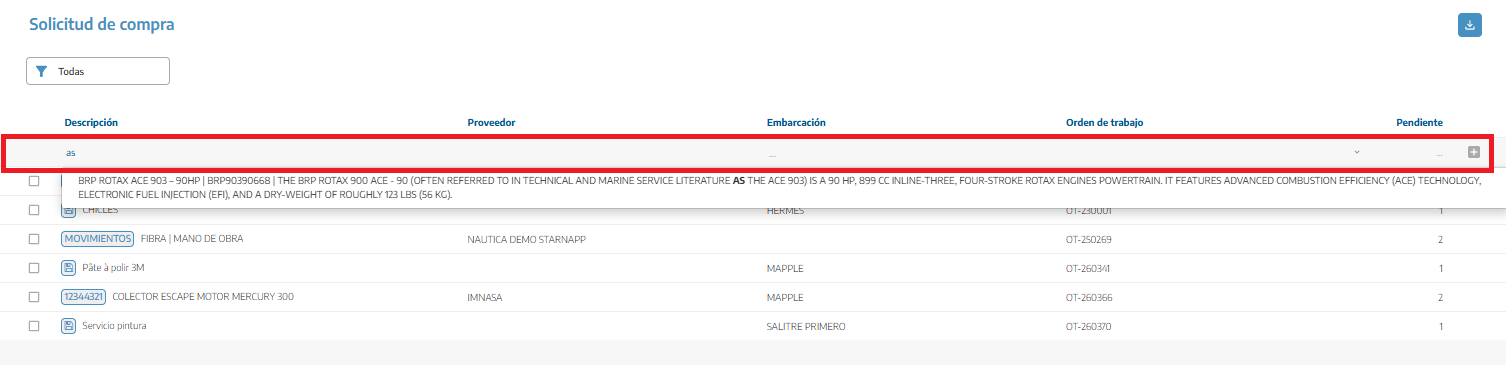
We will search for the item in the catalog field.
We will indicate the vessel, if applicable.
We will select the related work order.
We will enter the required quantity.
We will press the + button to add the request.
The vessel and work order are optional. We can register a general request that is not related to a specific job.
The search field also allows you to write a description that does not yet exist in the catalog.
In that case, StarNapp will create the request using the entered text, but without linking it to a catalog reference.
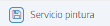
A save icon will appear in the list next to the description. You can press it to subsequently register that item in the catalog and complete its commercial information.
Whenever possible, we will use an already registered item. This way we can automatically retrieve its reference, supplier, purchase price, category and other information.
Some data in the list function as shortcuts:
By clicking the reference, we will access the catalog item.
If the request does not have an associated item, the corresponding icon allows you to start its creation in the catalog.
By clicking the supplier, we will open their contact sheet.
By clicking the vessel, we will open their sheet.
By clicking the work order, we will access the related work.
This allows you to review the origin of the request without having to manually search for each record.
The filter at the top allows you to switch between two views:
Displays each request individually. This is the view we will use to select lines, generate orders, or withdraw requests.
Groups all requests corresponding to the same catalog item.
In this view we will see:
The reference or description.
The associated supplier.
The total quantity requested.
The units available in stock.
If the requested quantity is higher than the available stock, the line will be highlighted to help us detect which items need to be replenished.
This view is mainly informative. To select specific requests and generate an order, we will return to the All view.
When we want to make the purchase:
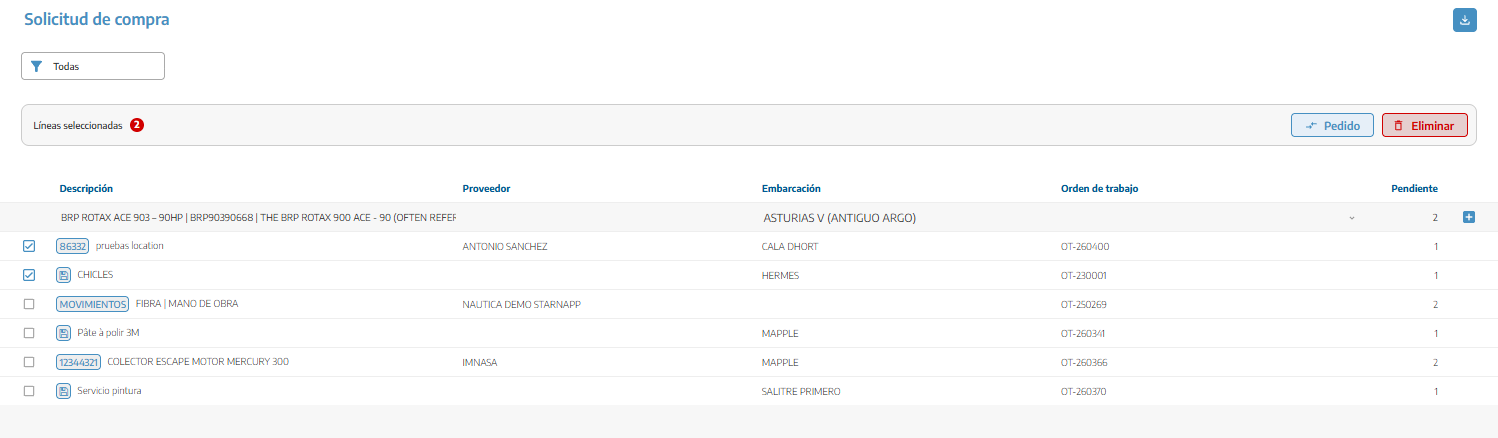
We will activate the All view.
We will check the box next to each request that we want to include.
We will verify the number of selected lines.
We will press Order.
StarNapp will create a new purchase order in draft status.
We will review the supplier, quantities, prices and taxes before issuing it.
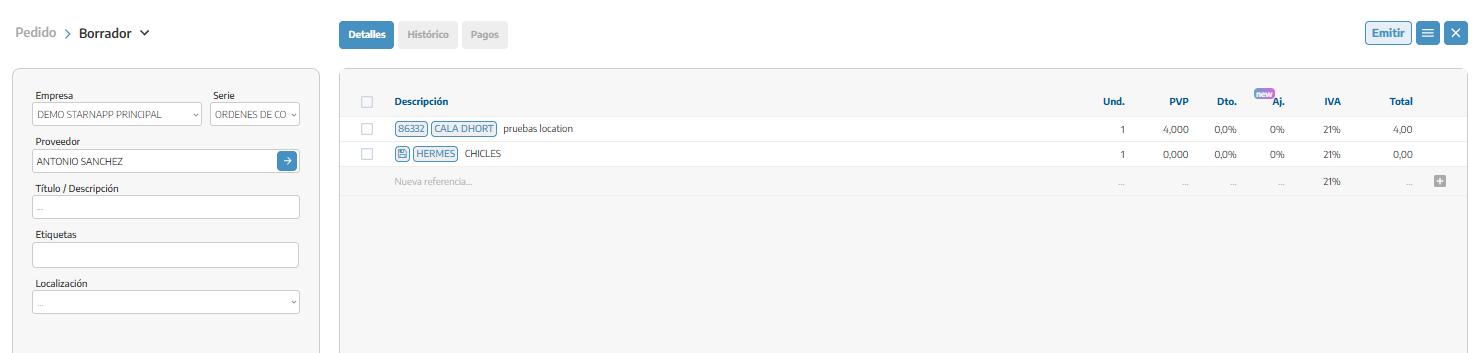
The selected requests will be added as order lines and will maintain their relationship with the original resources.
If the items have an associated supplier, StarNapp can use that information in the new order. However, we must always review the supplier before issuing it.
We recommend creating a separate order for each supplier. We can use the grouped view to check in advance which supplier is associated with each item.
If a request is already included in another purchase document, StarNapp will display a warning and will not generate a duplicate order.
If we finally do not need to purchase one or more materials (it must be kept in draft to be able to delete it):

You will select the corresponding requests.
You will click Delete.
The lines will no longer appear as pending requests.
This action removes the request from the shopping list, but does not delete the item from the catalog, the vessel, or the related work order.
The download icon located at the top allows you to generate an Excel file with the pending requests.
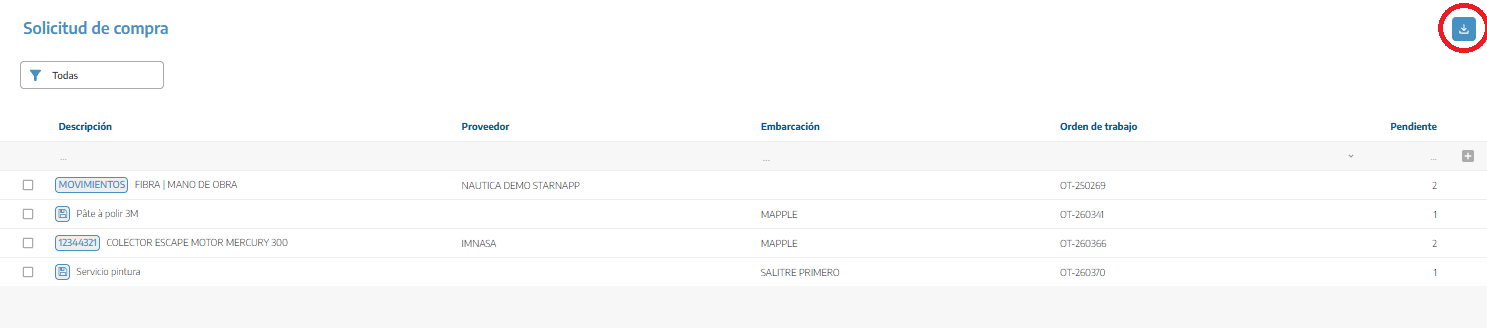
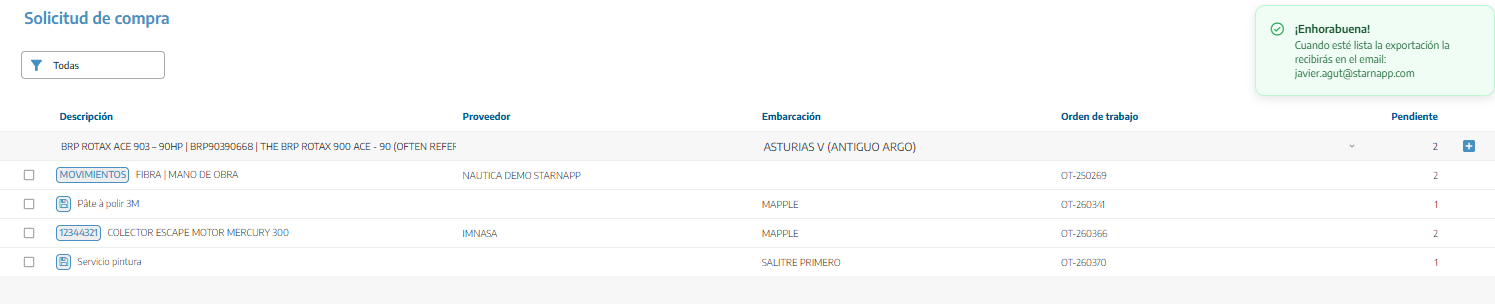
The export will respect the selected view:
In the All view, it will include the requests individually.
In the Group by reference view, it will show the quantities grouped by item and its available stock.
When the file is ready, StarNapp will send it to the user's email.
A purchase request is an internal need; it is not yet an order sent to the supplier.
We can create it from a work order or directly from this section.
The quantity must be greater than zero for the request to appear in the list.
We will select only lines intended for the same supplier before creating the order.
The grouped view is useful for comparing the requested quantity with inventory.
The supplier information comes from the item registered in the catalog.
We must review the order draft before issuing it.
The visibility of the section and the available actions depend on the permissions assigned to the user.
