
We will go to:
JOBS → TASKS
On this screen we will find all the tasks created within the work orders. From here we can locate a task, know its status and access its details.
This list does not show internal, personal or commercial tasks; only tasks linked to a work order.
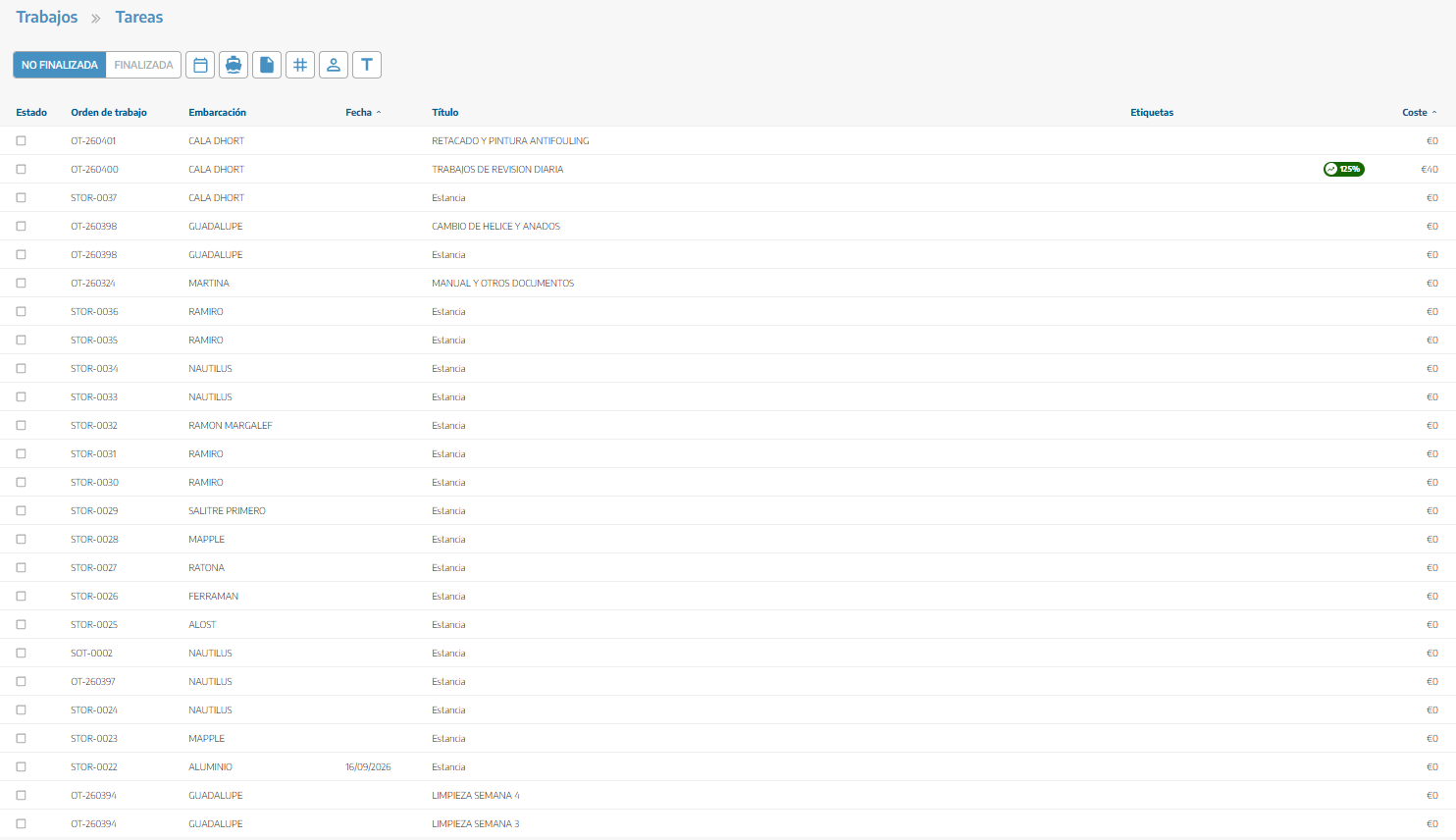
Filter by status
At the top we can select:
Not completed: shows the tasks that are still pending.
Completed: shows the tasks that have already been completed.
We can activate one or several statuses according to the tasks we want to consult. By default, StarNapp shows incomplete tasks.
Use the filters
The buttons located next to the status allow you to filter the tasks by:
Calendar: limits results to a specific period according to its planned date.
Vessel: displays tasks corresponding to a vessel.
Document: searches for tasks from a specific work order.
Tag: filters by work type or assigned tags.
Operator: displays tasks assigned to a specific operator.
Keyword: searches for words included in the task description or title.
Clicking an icon will open the corresponding field. When a filter is active, the icon will change to an X; you can click it to remove it.
List information
Each row displays:
Status: indicates whether the task is completed or pending.
Work order: reference of the WO to which it belongs.
Vessel: ship associated with the work.
Date: date for which it has been scheduled.
Title: brief description of the task.
Tags: classification assigned to the task.
Cost: accumulated cost of resources and recorded hours. When sufficient information exists, a margin indicator can also be displayed.
We can sort the list by date or cost by clicking on the column header.
Open a task
We will click on the row of a task to open its details. From there we can view or modify its information, planning, workers, checklist, work reports, resources and comments, according to our permissions.
We can also click on:
The reference of the work order to open the WO. The WO will open where we can view everything explained in the Jobs
collection.The name of the vessel to access the task details.
If we have not yet created any task, it is recommended to consult the article Create and manage tasks from a work order