The section CRM → Vessels brings together the vessels we want to market. From here we can prepare their sales sheet, set the price, add images and use it to create an opportunity or an offer.
We should not confuse it with Vessels from the main menu:
Vessels: general registry of real boats, our own or clients', on which we perform work.
CRM → Vessels: commercial sheets of vessels that are available for sale.
We will go to:
CRM → Vessels
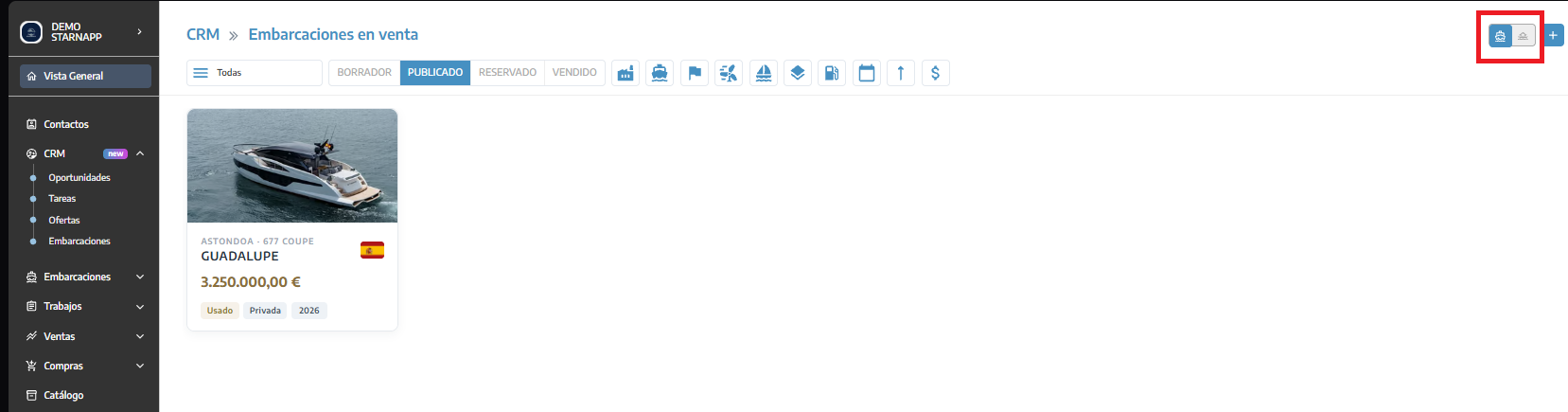
At the top we can switch between two views:
Vessels for sale: shows specific vessels that we are marketing.
Vessel configurator: shows models and commercial configurations that we can use to prepare a sale.
Each listing can display information such as:
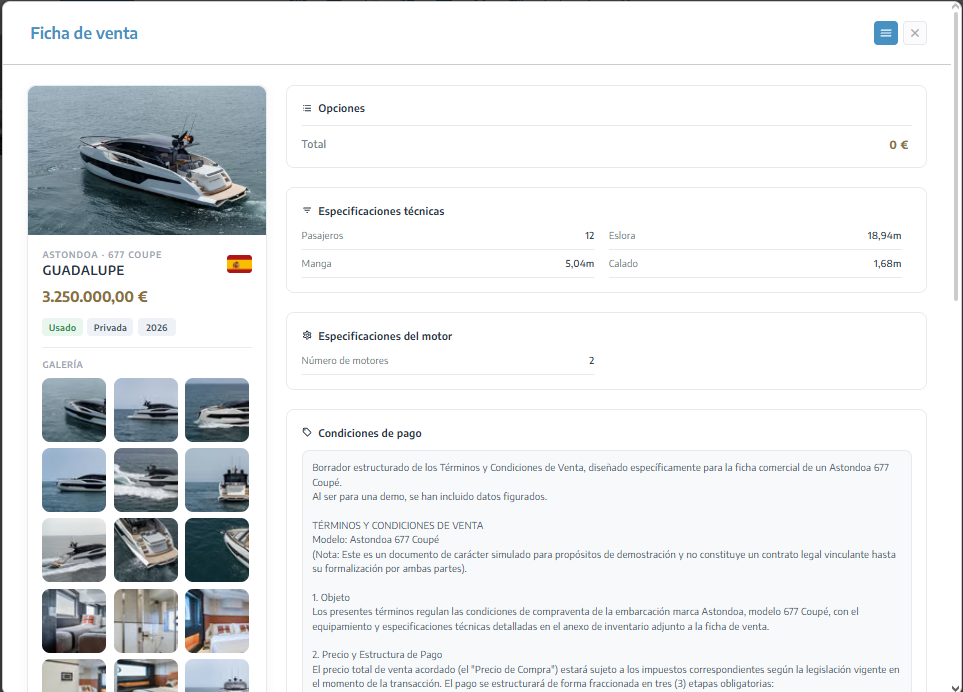
Manufacturer and model.
Sale price.
Vessel condition.
Commercial or private use.
New or used condition.
Year, images, and main features.

We can locate a vessel using the available filters: manufacturer, vessel, flag, propulsion, vessel type, hull, fuel, year, length or price.
We can also filter by commercial status:
Draft: the listing has not yet been published.
Published: the vessel is visible and available for sale.
Reserved: the unit is reserved.
Sold: the vessel has been sold and removed from the market.
We can activate multiple statuses at the same time. When entering this section, StarNapp initially displays published vessels.
To add a vessel to the CRM:
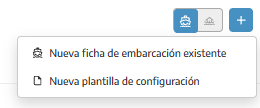
The New configuration template option takes us to the vessel template creation settings section.
We will press the + icon.
We will select New listing for an existing vessel.
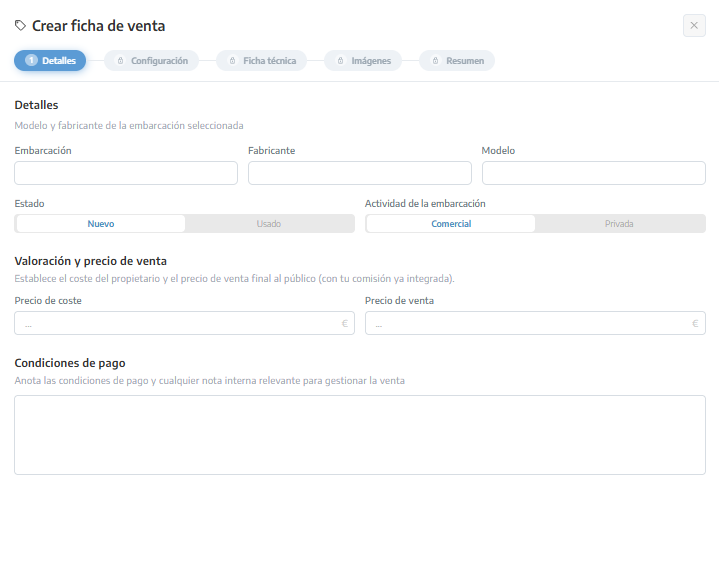
We will choose the vessel we want to market.
We will indicate whether it is new or used and whether its activity is commercial or private.
We will complete the cost price, the selling price, and the payment terms.
We will review its configuration and technical specifications.
We will add the corresponding images.
We will check the summary and press Publish.
If we still do not want to show it as available, we can save it as a draft and continue later.
The cost price is the amount the vessel is worth to the company or owner. The selling price is the final amount offered to the customer, including the commission when applicable.
From the record, we can perform different actions:
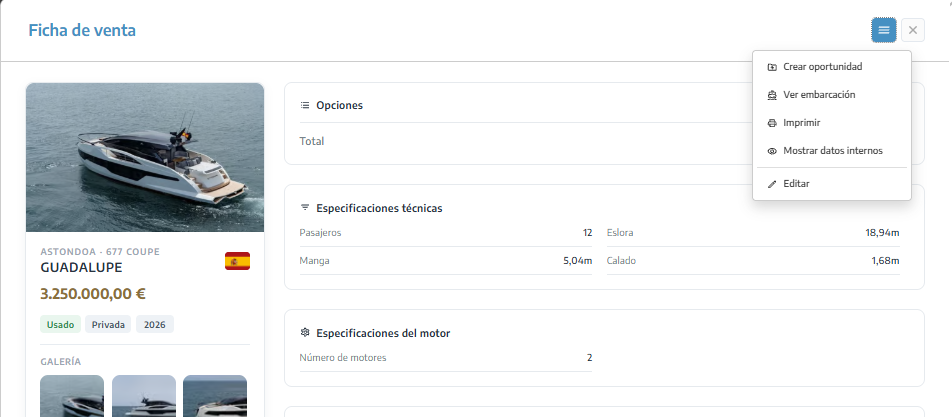
Create opportunity: opens a new commercial opportunity and automatically links the vessel.
View vessel: opens its complete record in the general Vessels section, where you can consult its operational information.
Print: generates and opens the commercial record of the vessel in a document prepared for printing or sharing.
Show internal data: displays information intended for internal management, such as the owner, cost price, commission, and related opportunities. When activated, the option changes to Hide internal data.
Edit: allows you to modify the sales record, including prices, technical configuration, images, and its status. This option depends on user permissions.
For example, if a client is interested in a vessel that has been published, we can open its record and click Create opportunity. The vessel will be associated with the potential deal and we can continue preparing the offer from the CRM.
The templates in Settings → Templates → Vessels represent reusable models or commercial configurations. They do not necessarily correspond to an actual unit.
In contrast, a record in CRM → Vessels represents a specific vessel that is available for sale.
The same vessel can exist in the general registry and also have a sales record in the CRM. The commercial record does not replace the operational record of the vessel.
