Business tasks allow you to organize the necessary follow-up actions to advance an opportunity.
We should not confuse them with the technical tasks of a work order.
We will go to:
CRM → TASKS
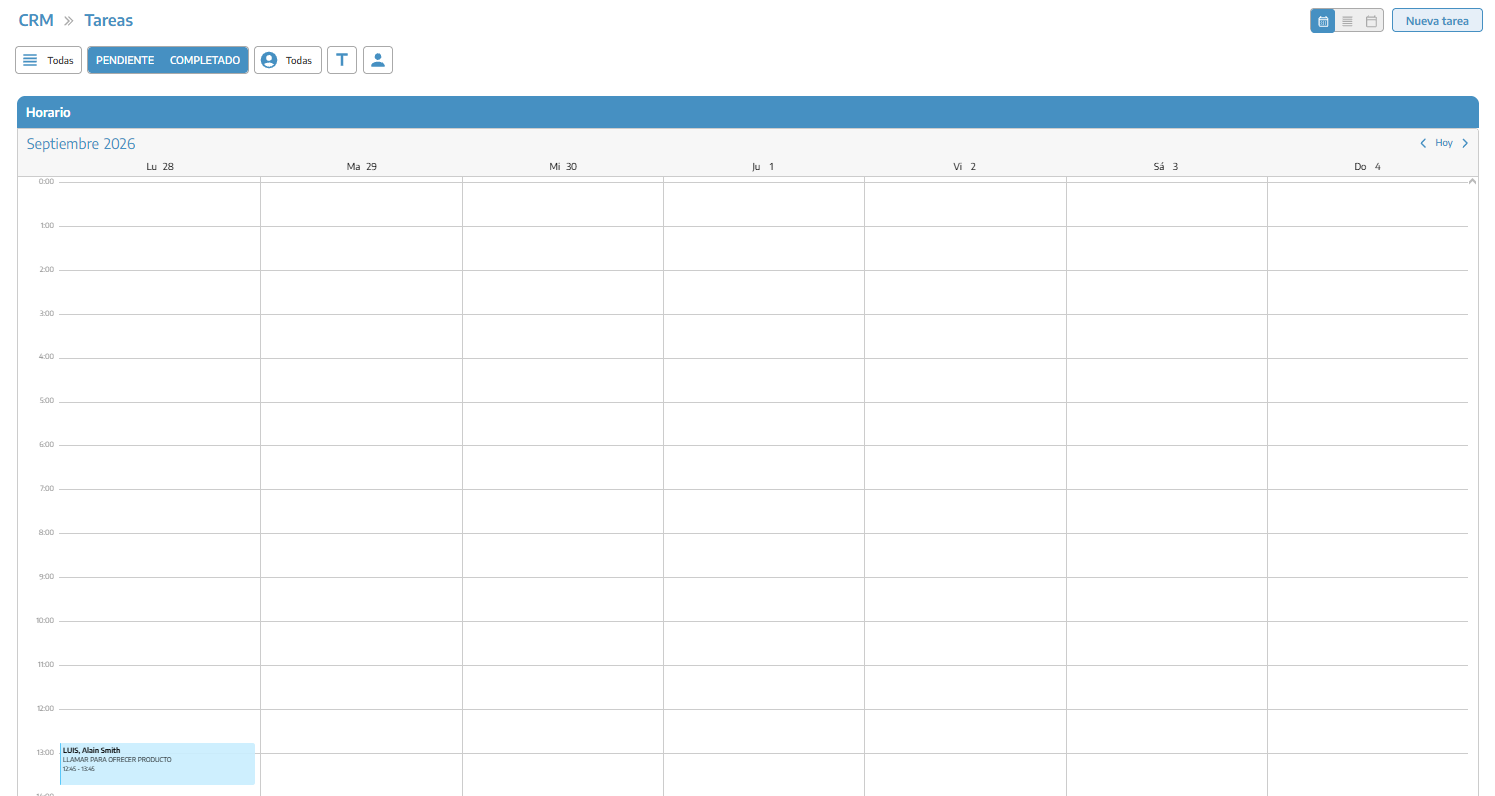
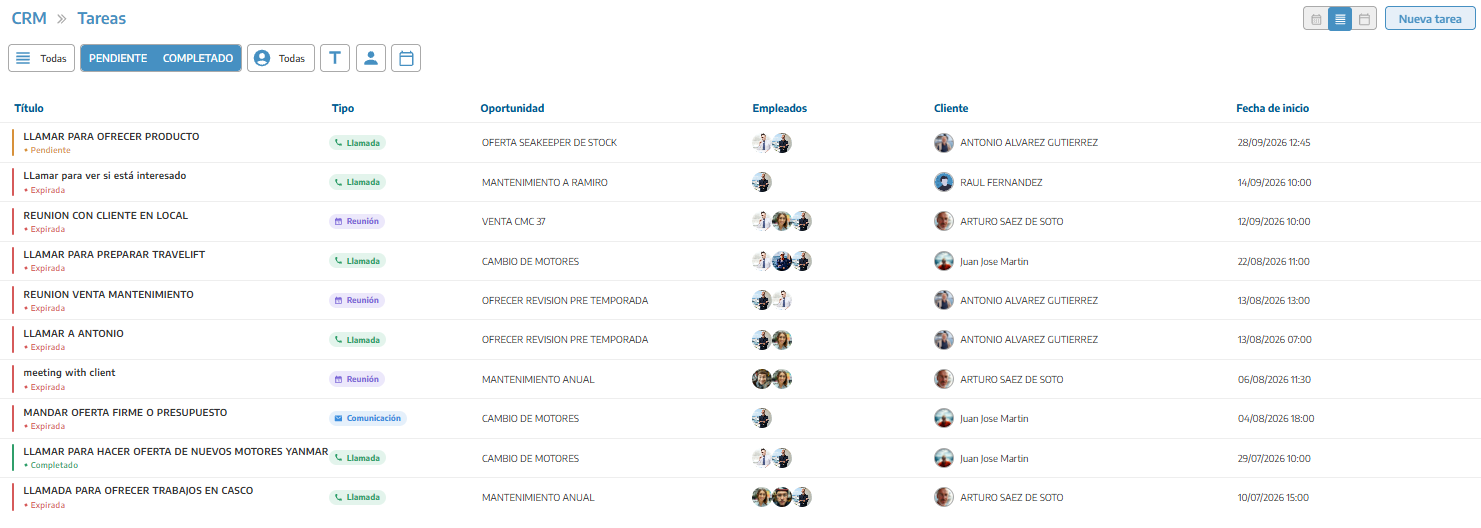
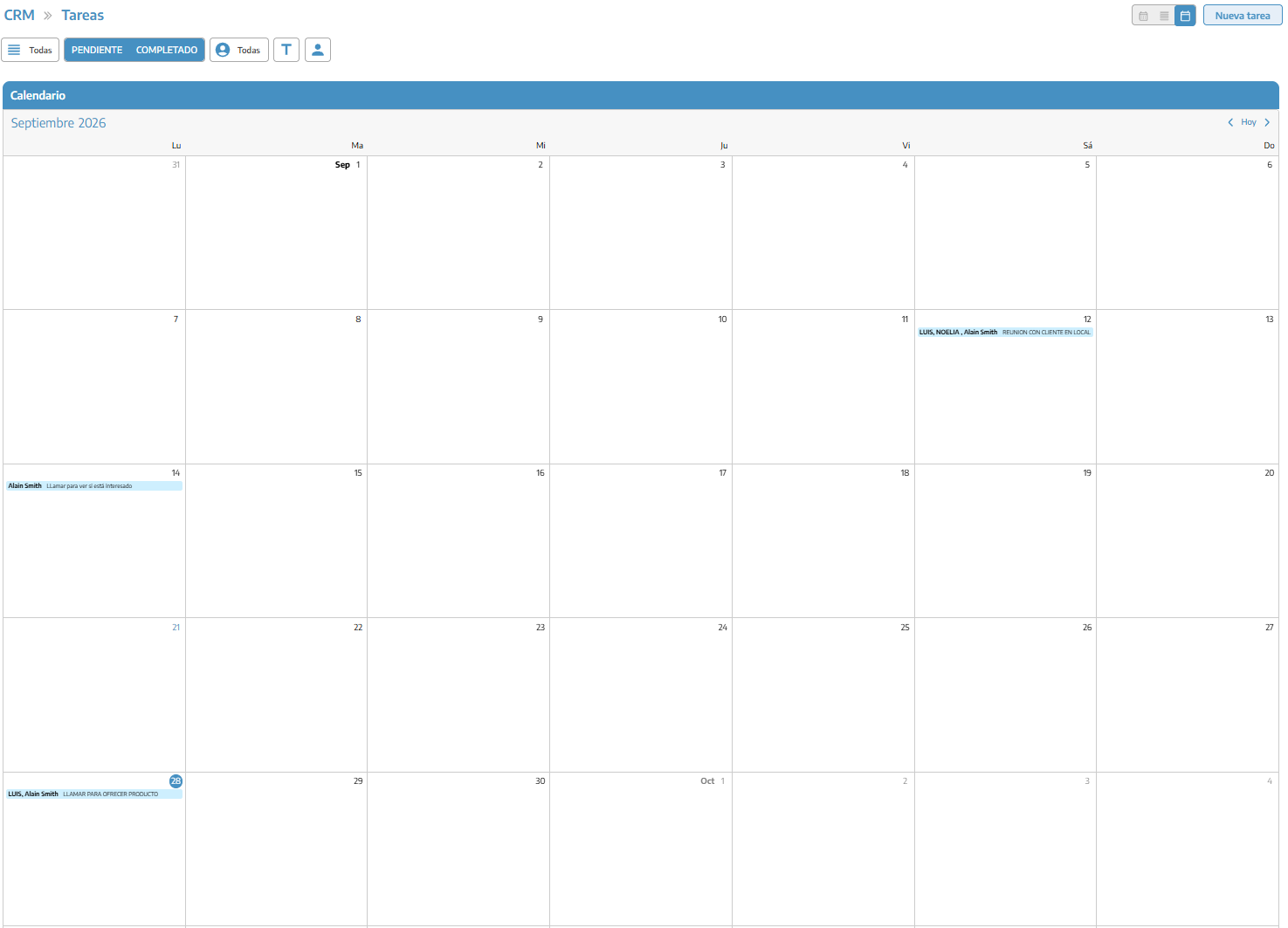
We can view the tasks in three ways:

Schedule: distributes tasks according to their date and time (by weeks).
List: displays the information of each task in rows.
Calendar: offers a monthly view.
We can also filter by type, status, sales representative, contact, keyword, or period.
We will click New task and complete:
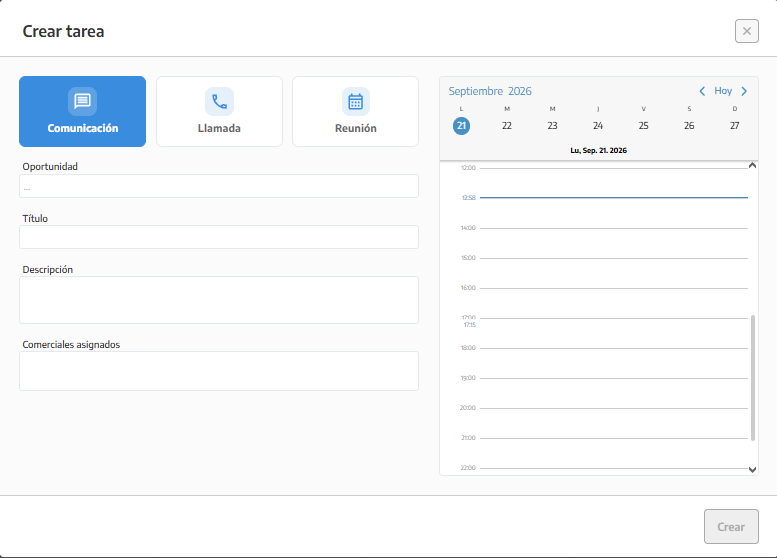
Type: communication, call, or meeting.
Opportunity: related business operation.
Title: action we must perform.
Description: information necessary to complete it.
Assigned sales representatives: those responsible for the task.
Date and time: scheduled moment to perform it.
Finally, you will click Create.
If you create the task from an opportunity record, it will appear selected automatically.
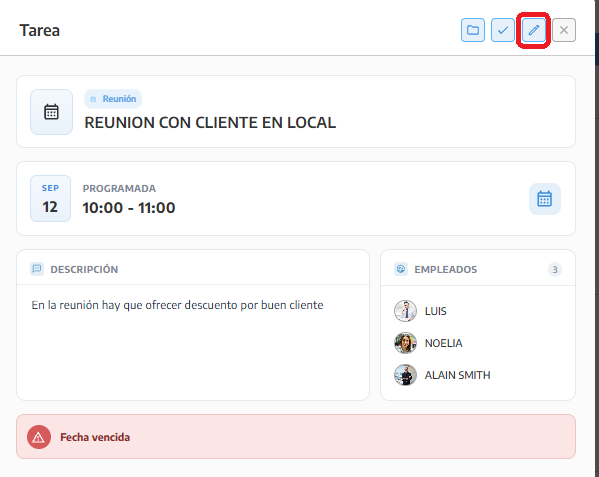
We will open the task, press the edit icon, make the changes and select Update.
We will be able to modify its content, responsible parties, type, date and time. If we want to view all the details of the task opportunity, we will press the folder icon.
Once we have completed the action, we will press Mark as completed (the tick icon next to the edit pencil marked in red).
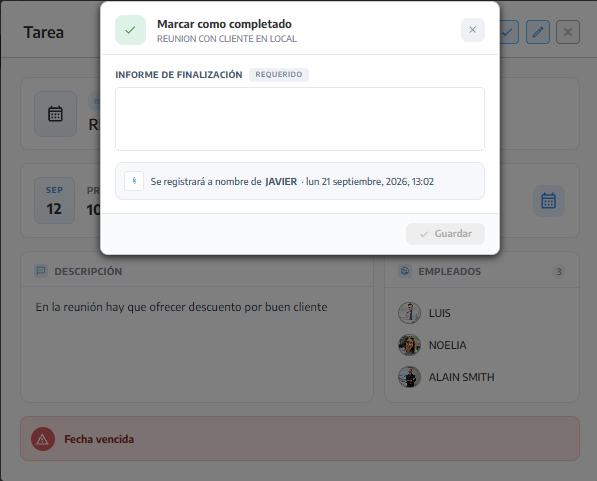
StarNapp will request a brief report with the result. This will be recorded in the opportunity's history along with the user and date.
If we complete it by mistake, we can return it to Pending status.
From the edit view we can press Delete and confirm the operation.
All business tasks must be related to an opportunity.
We will assign at least one responsible person and a date.
Overdue tasks remain pending until we complete them.
Available functions depend on CRM permissions.
