An opportunity represents a possible business transaction that we are still managing.
The opportunity allows us to bring together the client, the responsible sales representative, the needs, and the follow-up before generating a quote or other sales document.
It should be clarified that an opportunity is not a quote. The opportunity is used for sales follow-up and, as the negotiation progresses, we will be able to create the corresponding quote.
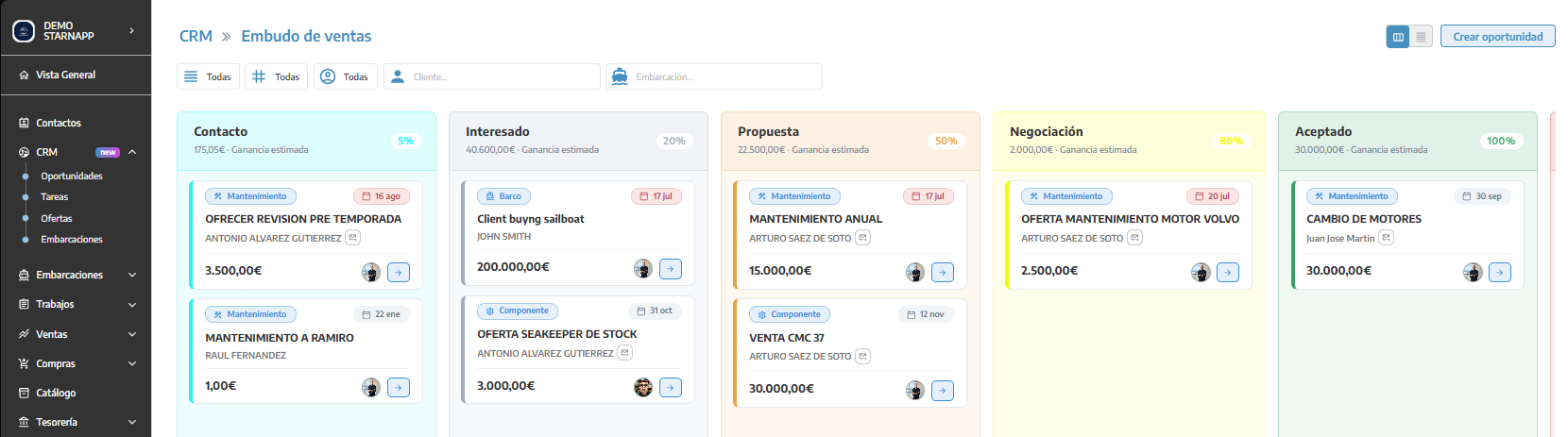
In CRM → OPPORTUNITIES, we have the pipeline view (next to the Create opportunity button in the upper right corner), and it organizes opportunities in columns according to their status.
Each column represents a phase of the sales process. To move an opportunity to a different phase, we can drag it to the corresponding column.
This view allows you to quickly check:
How many opportunities exist at each stage.
What operations are still pending.
Which ones have advanced.
Which ones have been won or discarded.
Which sales representative has each opportunity assigned.
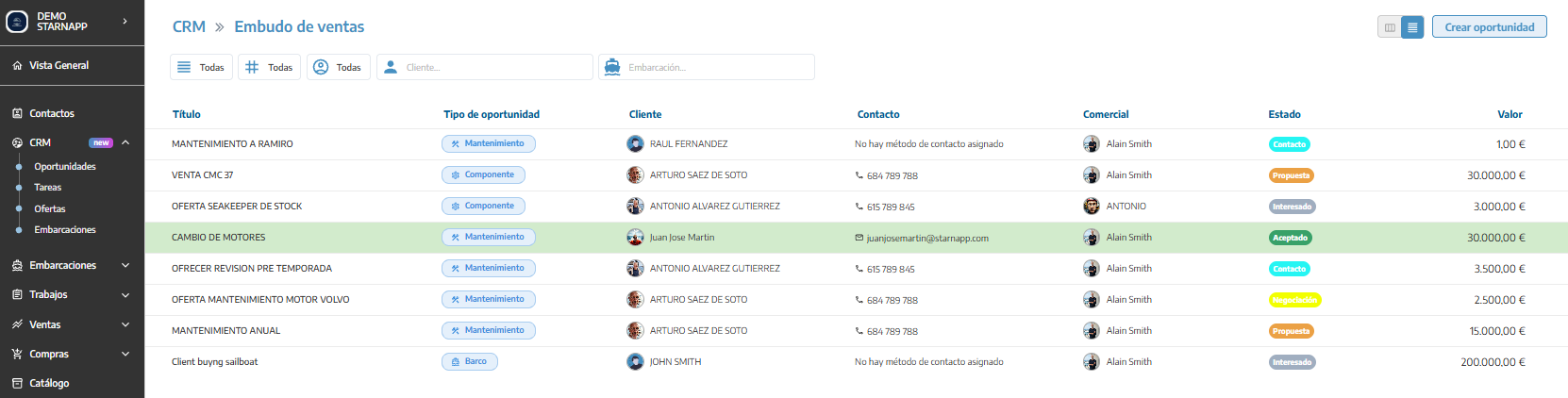
The list view presents opportunities in rows.
It is useful when you want to review more information at once or locate a specific opportunity without going through all the pipeline columns.
You can switch between both views using the icons located at the top.
Changing views does not modify the opportunities; it only changes how they are displayed.
At the top you will find different filters:
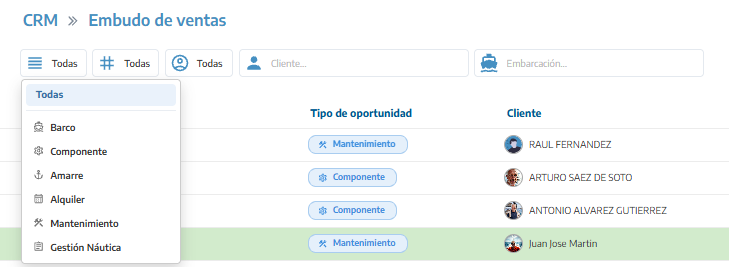
Type of opportunity: displays only boat, component, mooring, rental, maintenance, or nautical management opportunities.
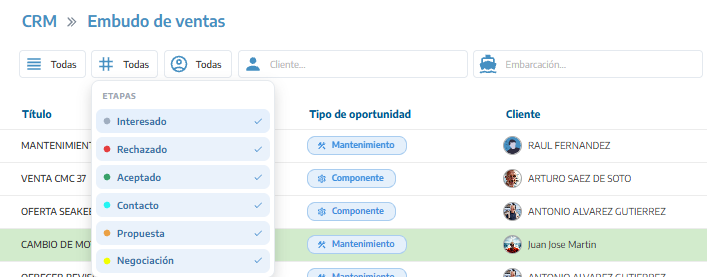
Status: allows you to show or hide certain pipeline stages.
Commercial: filters opportunities assigned to a specific person.
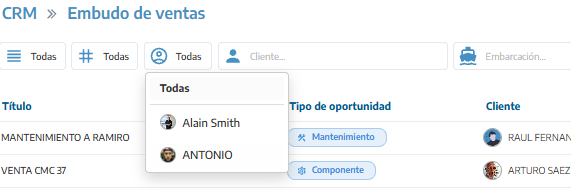
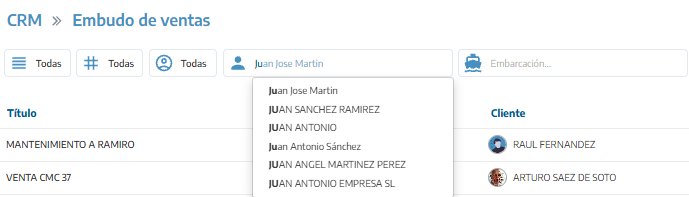
Client: locates opportunities related to a contact.
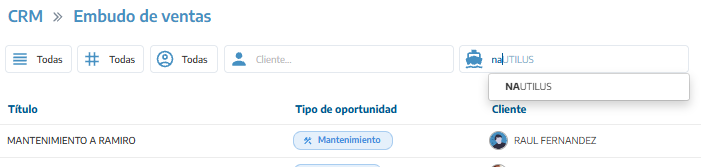
Vessel: displays opportunities linked to a specific vessel.
Filters only modify the results we see on screen. They do not modify or delete opportunities.
To create it:
We will click Create opportunity.
We will select the type of opportunity.
We will complete its general data.
We will add the customer's conditions or needs.
We will click Create.
The type determines what additional information we will be able to record.
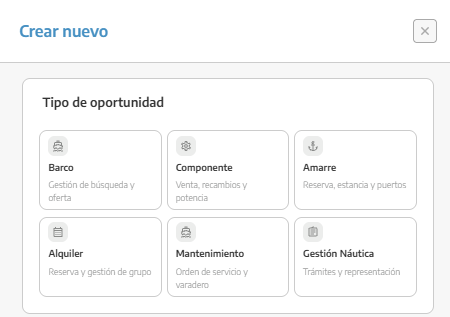
For operations related to the search, purchase or sale of a vessel.
We will be able to indicate preferences such as manufacturer, model, condition, type of vessel, dimensions, engine, year or price range.
For the sale or search of engines, equipment, spare parts or other components.
We can specify the manufacturer, catalog product, propulsion, power and price range.
For requests to reserve or hire a mooring.
We can record the dates, location, required dimensions and estimated price.
For rental or charter requests.
We can indicate dates, location, destination, number of passengers, need for a skipper, vessel model or characteristics and price range.
For customers interested in repair or maintenance work.
We can identify the vessel, indicate the type of maintenance, the services requested and, where applicable, the expected date of entry into dry dock.
For procedures, administrative management or representation services.
We can describe the client's specific need within the opportunity itself.
Depending on the type selected, we will find fields such as the following:
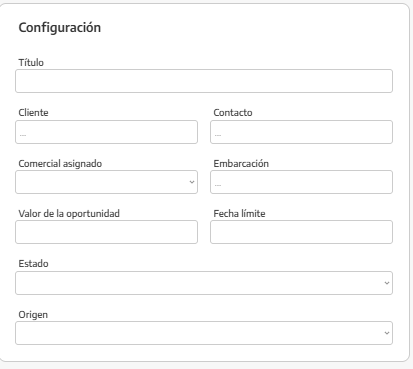
We will write a name that allows us to quickly identify the operation.
For example:
Annual maintenance Nautilus.
Temporary mooring request 2027 season.
Search for 12-meter vessel.
We will avoid overly general titles such as "Information" or "Interested client".
We will select the contact for whom we are managing the opportunity.
If it is not yet registered, StarNapp can offer us the creation of a new entry by entering its data.
We will be able to select a contact person or representative related to the main client when necessary.
For example, if the client is a company, we can indicate which person is handling the negotiation.
We will indicate who will be responsible for following up.
This assignment determines which sales representative will see the opportunity as their own and who must handle its next actions.
We will link a vessel when the operation corresponds to a specific ship.
It will not be necessary in all opportunities. For example, a search for a new vessel can begin without an associated vessel.
We will enter the estimated amount of the operation.
This value is indicative and serves to assess the commercial volume of the pipeline. It does not generate any accounting document nor does it replace the amount of a quote.
It indicates when we expect to resolve or complete the opportunity.
It will help us prioritize operations and detect those that have been open for too long.
We will select the pipeline stage where it should begin.
We will normally use the first stage for new opportunities, unless the operation is already more advanced.
It indicates how the opportunity reached the company.
For example, a referral, a direct inquiry, a campaign, or any other available source.
We can use the additional information to specify the source when necessary.
In Conditions we will record what the client is looking for or needs.
The fields will change depending on the type of opportunity. It is not mandatory to complete all of them: we will add only the known information and update the rest as the conversation progresses.
The more precise the conditions, the easier it will be to prepare an appropriate proposal later.
We will click on an opportunity to open its file and consult its details, conditions, tasks and comments. In addition to these options, we will have the menu of the three horizontal lines with a series of actions:
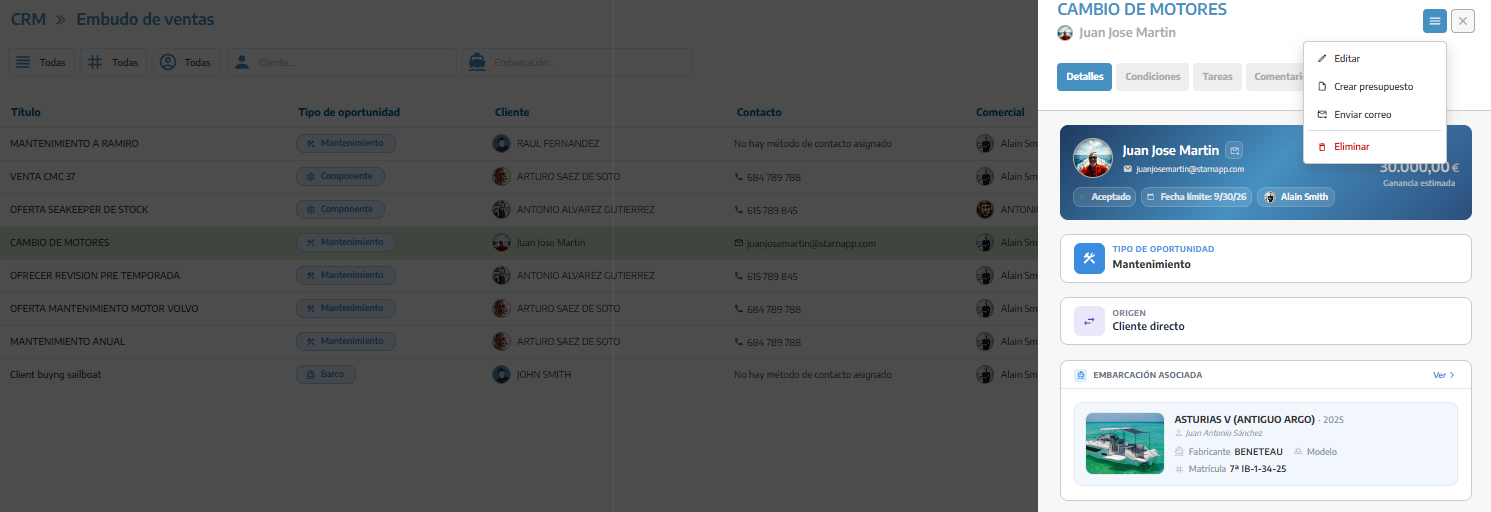
To update it:
We will open the opportunity.
We will click Edit.
We will modify its data or conditions.
We will click Modify.
We can also change its status directly from the pipeline by dragging it to another column.
When the opportunity is sufficiently defined, we can use the Create budget option.
StarNapp will use the information related to the opportunity to initiate the document. Before issuing it, we will review the client, the vessel, the concepts, the amounts and the commercial terms.
The creation and issuance of the document will be explained in the Sales → Quotes section.
From the opportunity we can send an email to the related contact.
We can use it to request information, follow up or communicate progress. If email templates are configured, we can select them during sending.
To delete it:
We will open the opportunity.
We will access its options.
We will click Delete.
We will confirm the operation.
What we should keep in mind
Pipeline stages must be configured in advance from Settings.
An opportunity represents a business possibility, not a confirmed sale.
The status should be updated as the negotiation progresses.
We will always assign a responsible sales representative.
We will use sales tasks to schedule the next follow-up.
The recorded value is an estimate and has no accounting effects.
Available fields change depending on the opportunity type.
Won or discarded opportunities can be kept to maintain history.
The visible information and available actions depend on CRM permissions.
