Note templates allow you to save texts that you use frequently in quotes, delivery notes, proformas and other documents.
You can use them for commercial terms, clarifications about the work, delivery times or any information you want to add without writing it again in each document.
You will go to:
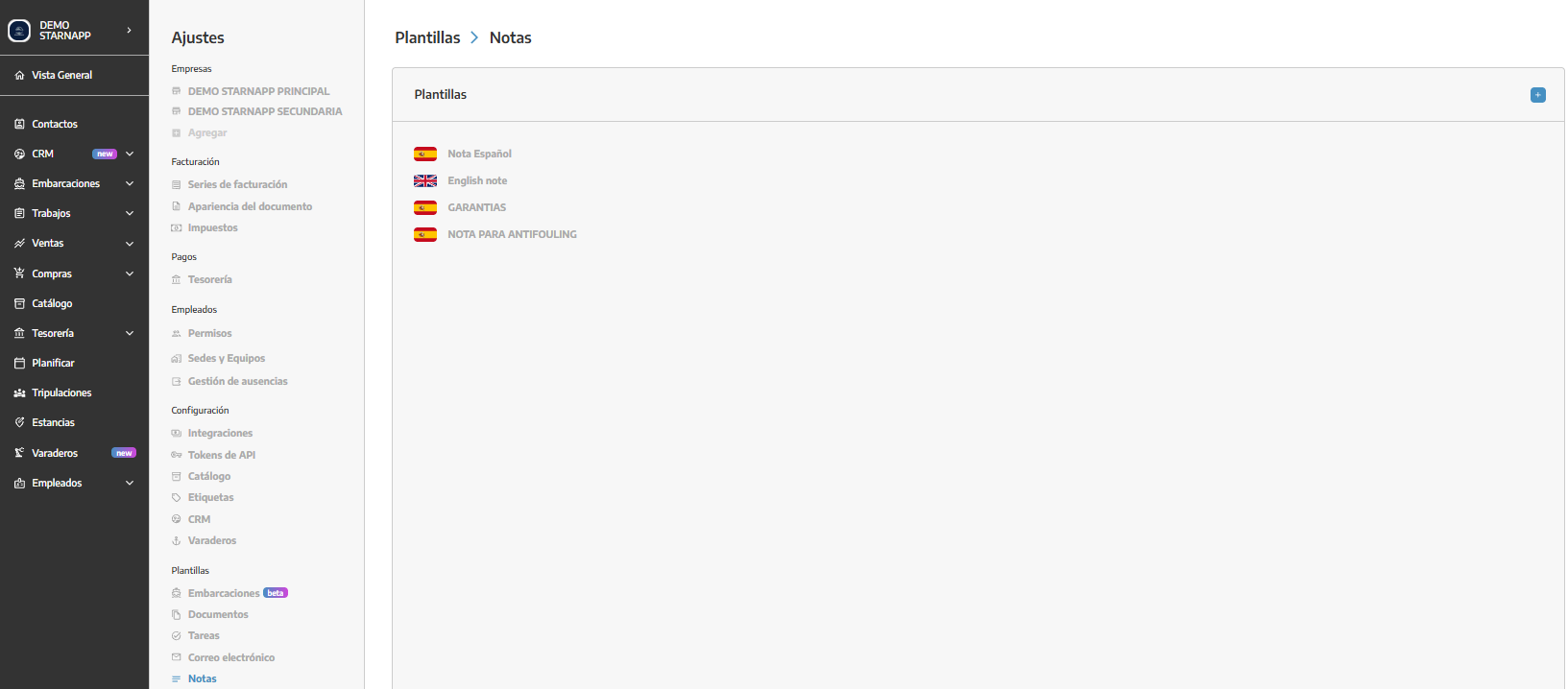
SETTINGS → TEMPLATES → NOTES
On the left side you will see the existing templates and the language of each one. When you select one, you can view or modify its content.
If you want to create one:
You will press the + icon located next to the template list.
You will complete the description, language and content.
You will press Create.
Once saved, the template will appear in the list on the left.
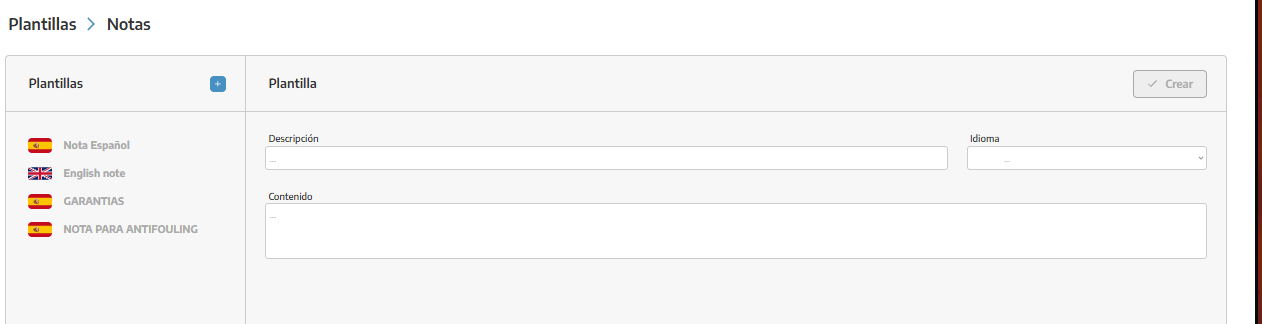
It is the internal name that will allow us to identify the template. It is not necessarily the text that will appear in the document.
Indicates the language in which the note is written. The corresponding flag will appear next to the template to facilitate its identification.
If we work with documents in different languages, we will create an independent version of each note.
Selecting the language does not automatically translate the content. We must write each template in the corresponding language and choose the appropriate one when inserting it.
It is the text that will be added to the document.
We will select the template from the list.
We will modify its description, language or content.
We will click Modify.
If you want to delete the template, then we will click Delete.
The changes will be applied when we use the template again. Notes that have already been inserted in other documents will not be modified or deleted.
We should not confuse both types of notes:
Default notes of the series: they are automatically added to documents created with that series.
Note templates: they are incorporated manually when we need them.
For example, a condition that should appear in all budgets should be configured as a default note of the series. A clarification that we only use in certain jobs is more appropriate as a note template.
Note templates are inserted manually.
We can add multiple notes to the same document.
The inserted text can be edited without modifying the original template.
We must manually select the version corresponding to the client's language.
These templates do not use the dynamic texts available in email templates.
Once the document is issued, its notes are no longer editable.
