Task templates allow you to prepare work that you perform regularly and reuse it without having to enter the same information each time.
When you select this template in a work order, StarNapp will create a new task with all its content.
We will go to:
SETTINGS → TEMPLATES → TASKS
On the left side you will find the existing templates and a search tool to locate them. When you select one, you will see its content in the right panel.
Task template: contains a single job with its materials, services and checklist.
Document template: can contain multiple chapters or complete tasks.
For example:
Oil and filter change would be a task template.
Annual engine maintenance, made up of inspection, oil change, cooling and final tests, could be a document template.
We will write the task name in the field located below the list (line with three dots on the left and + on the right).
We will press the + icon.
The template will open in the right panel.
We will add the materials, services and checklist items.
In the template we can include the resources that are usually used when performing the work.
To add a line:
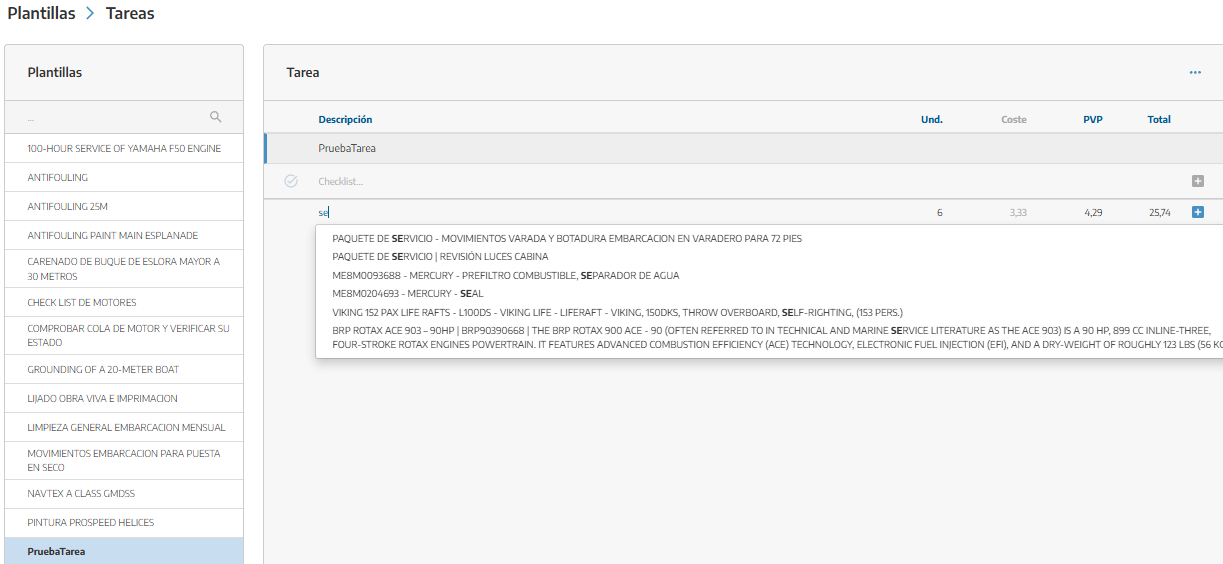
We will search for an existing product or service in the catalog, or write a new description. If it is new, we will proceed with the rest of the steps, but if it is already registered, we will only need to add the line with the +.
We will indicate the quantity.
We will review the cost.
We will enter the selling price.
We will press the + icon.
Each line includes:
Description: product or service that will be used.
Units: expected quantity.
Cost: internal cost for the company.
Unit price: sales amount.
Total: result of multiplying the units by the unit price.
💡 Whenever the product or service exists in the catalog, we recommend selecting it from there. This way, StarNapp will be able to use its information and updated price when creating the task.
We can also modify directly the description, units, cost or price of the added lines.
The checklist allows you to define the steps that must be verified during task execution.
You will write each verification in the Checklist field and press the + icon.
When you use the template, these points will be copied to the new task and can be marked as the work is completed.

You can select one or more lines (check the line box to be able to apply actions) to perform joint actions:
Hide: prevents lines from being included as visible concepts and in totals.
Show: recovers the lines that had been hidden.
Delete: removes the selected lines from the template.
Change the order
You will press the three dots button and select Reorder.
In a task template you can order:
Products and services.
Checklist items.
You will drag each element to the desired position and press the X to exit the ordering mode.
If you need to create a task similar to another:
We will open the original template.
We will click the three dots button.
We will select Copy.
We will change the name and modify the necessary content.
Changes will affect the tasks we create after modifying it.
Tasks that have already been created are independent: changing the template does not automatically modify existing tasks.
To delete it:
We will open the template.
We will click the three dots button.
We will select Delete.
We will confirm the action.
⚠ Deletion cannot be undone. Tasks previously created from that template will not be deleted.
