Document templates allow you to save work that you do regularly so that you do not have to enter its chapters and concepts each time you prepare a new document.
A template is not a quote, a work order, or an actual invoice. It is a structure that we will use as a starting point when creating a new document.
We will go to:
SETTINGS → TEMPLATES → DOCUMENTS
On the left side you will find the available templates. When you select one, you will see its content on the right side.
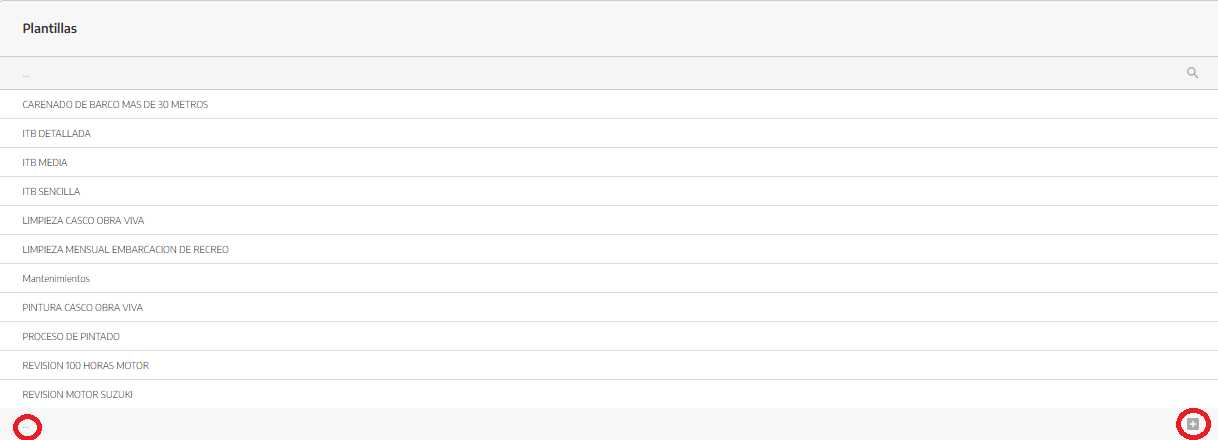
We will write the name of the template in the field located below the list (the three dots).
We will press the + icon.
The new template will open in the right panel.
We will add the chapters, concepts and checks that we need.
We will use names that allow you to easily identify the work.
The name can be changed directly from the top of the template.
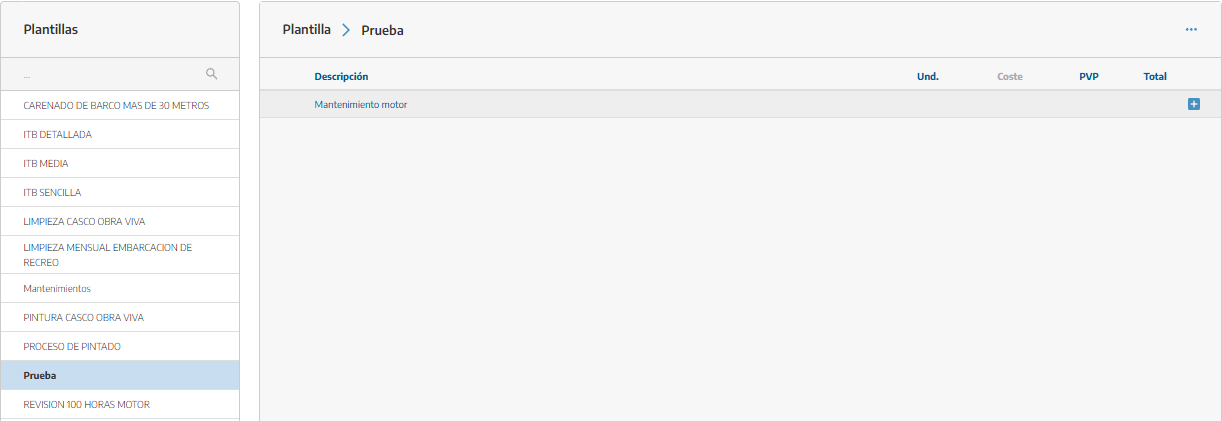
Chapters are used to organize the document by jobs or blocks.
At the bottom we will write the name in New chapter and press the + icon.
For example, a maintenance template could be divided into:
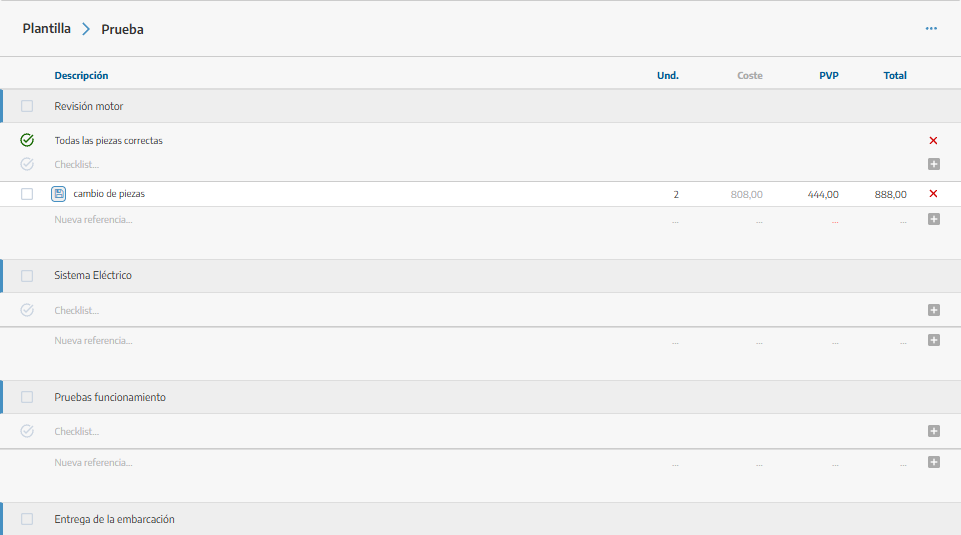
Engine inspection.
Electrical system.
Functional tests.
Vessel delivery.
Within each chapter, you can add concepts (parts replacement) and a checklist.
Within each chapter, you can incorporate the products, materials, or services that will be used regularly.
To add a line:
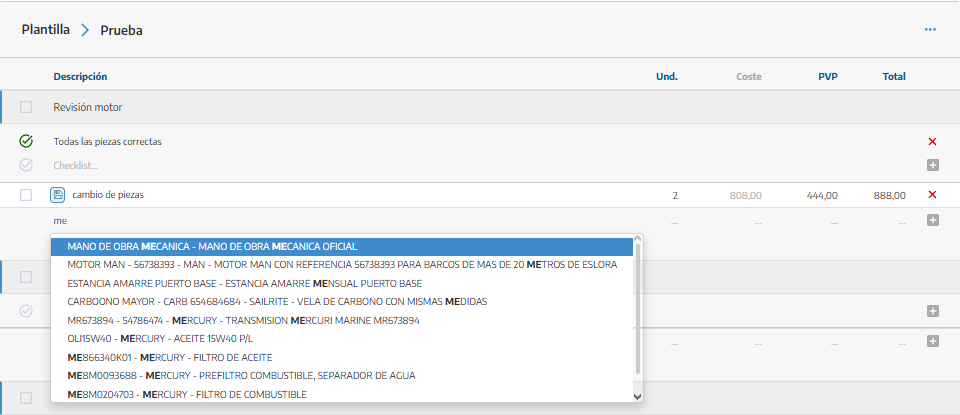
We will search for an existing item in the catalog or write a new description (new would be a change of parts, and from the catalog mechanical labor).
We will indicate the quantity.
We will review the cost.
We will enter the selling price.
We will press the + icon.
Each line shows:
Description: product or service included.
Units: expected quantity.
Cost: internal cost for the company.
Unit price: sales amount.
Total: quantity multiplied by the unit price.
💡 Whenever the product or service already exists in the catalog, it is recommended to select it instead of typing it manually. This way your data and prices remain up to date.
We can also directly modify the description, units, cost and price of the added lines.
Each chapter can include a checklist to remind you of the steps that must be performed during the work.
These checks will be copied along with the rest of the content when we use the template.

When we check the box on the left of the line (or lines) of the template, we can perform joint actions:
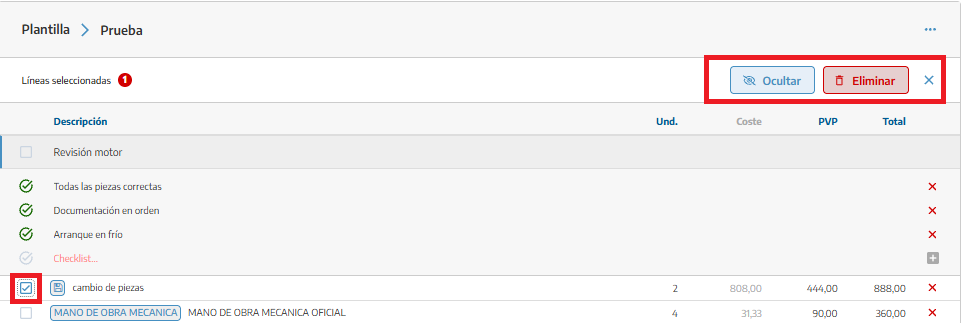
Show: retrieves the lines that had been hidden (if the line is not hidden, the option to hide will appear instead of show).
Hide: prevents lines from being included as visible concepts and in the document totals.
Delete: removes the selected lines from the template.
Hiding is not the same as deleting. A hidden line remains in the template and can be shown again later.
Press the three dots button and select Reorder.
You can reorganize separately:
Chapters.
Lines or concepts.
Checklist.
Then we will drag each element to the desired position. We will press the X to exit the sorting mode.
If we need a template similar to another existing one:
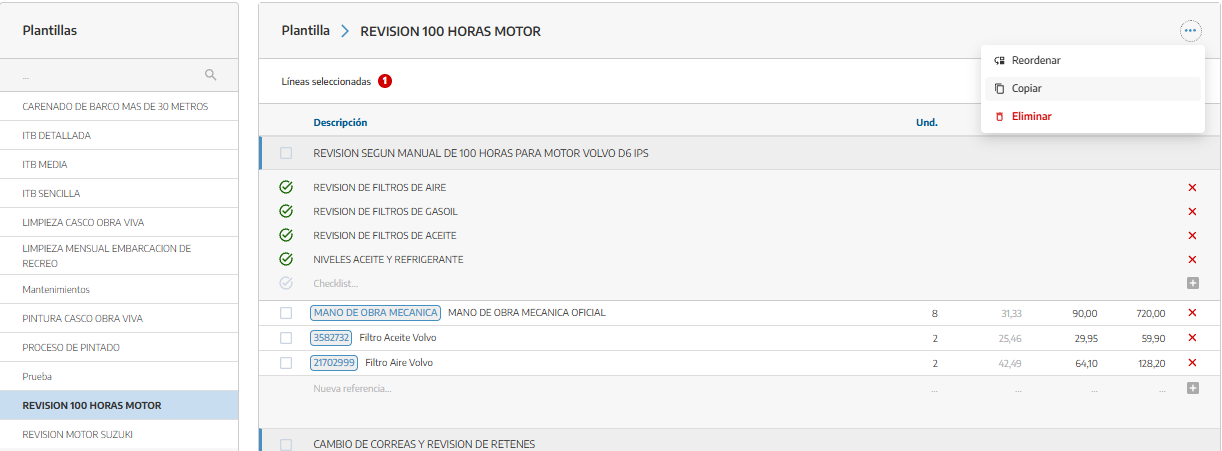
We will open the original template.
We will press the three dots button.
We will select Copy.
StarNapp will create a copy with the same content and add
This option is useful, for example, to create different versions of maintenance for various engine models.
Changes made to a template will be applied when we use it to create new documents.
Previously created documents are independent: modifying the template does not automatically change budgets, work orders, or other documents that have already been generated.
To delete it:
Open the template.
Click the three dots button.
Select Delete.
Confirm the action.
⚠ Deletion cannot be undone. The chapters, lines, and checks that are part of the template will also be deleted, but not the documents previously created from it.
This section configures what content is incorporated into the document: chapters, items, and checks.
It does not determine the PDF design, logo, colors, or information that appears in its header or footer. These elements are configured in the Document Appearance settings.
