This section does not contain customers' actual vessels. It allows you to prepare commercial templates of the models that the company sells or configures.
For example, we can create a template of the model Azimut Atlantis 45, indicate its base price, add photographs and define what equipment it includes and what extras the customer can choose.
How do we access it?
We will go to:
SETTINGS → TEMPLATES → VESSELS
On the left side you will see the created templates. When you select one, you will be able to view and modify its information, images and options.
It is important not to confuse both sections:
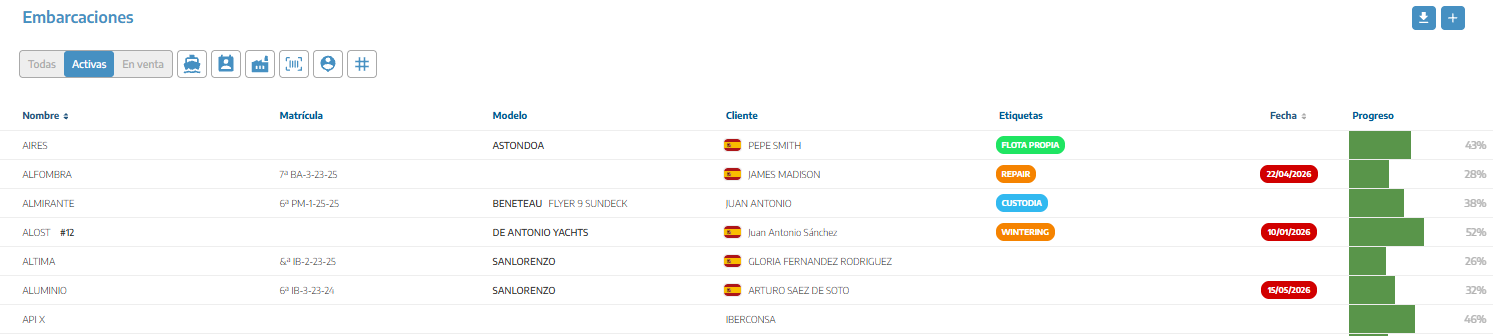
Vessels from the main menu: contains the actual vessels registered in the company, with their owner, registration, documentation, components and work. See Create a vessel.
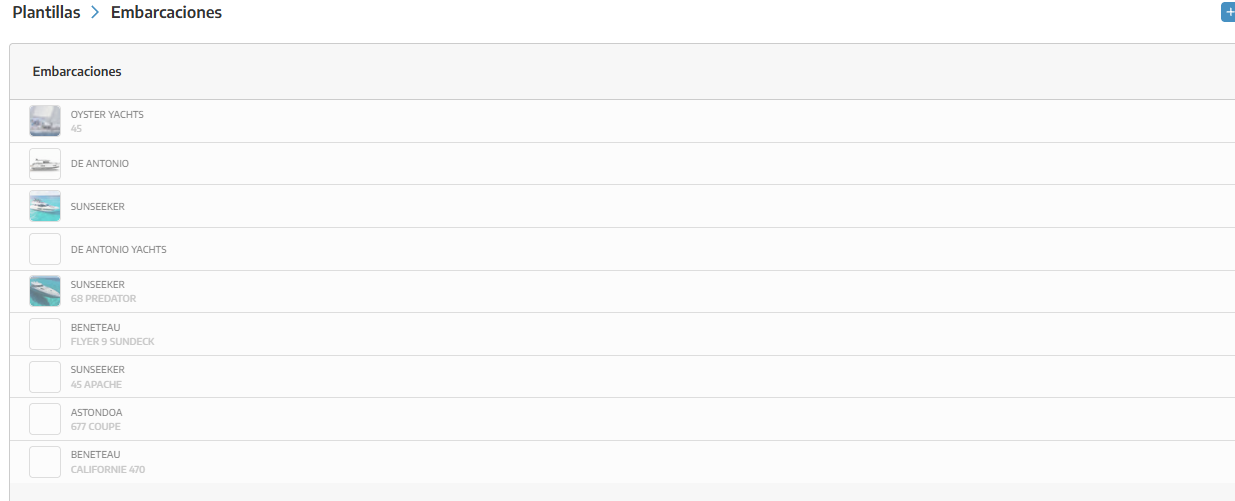
Vessel templates: contains reusable commercial models that can be used to prepare configurations or offers.
A template does not represent a specific unit nor does it belong to a customer.
You will press the + icon and complete the following fields:
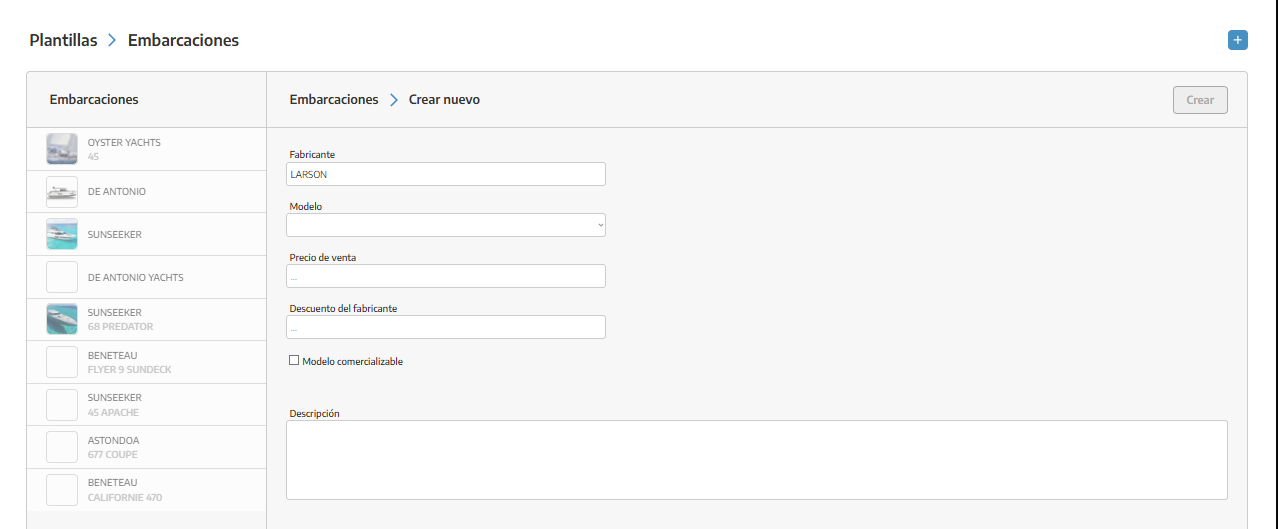
Manufacturer: vessel brand. This will initially be the only field that will appear for you, but once it is filled in, the rest will appear.
Model: model corresponding to the selected manufacturer.
Sale price: base price from which the configuration will begin.
Supplier discount: commercial percentage agreed with the supplier. This is not the discount offered to the customer.
Marketable model: indicates whether the model should be available for commercial use.
Description: general information and main characteristics of the model.
Finally, we will click Create.
The manufacturer and model identify the template and cannot be modified once created. If they are selected incorrectly, it will be necessary to delete the template and create another one.
Within the template, we will select the images section and click Upload.
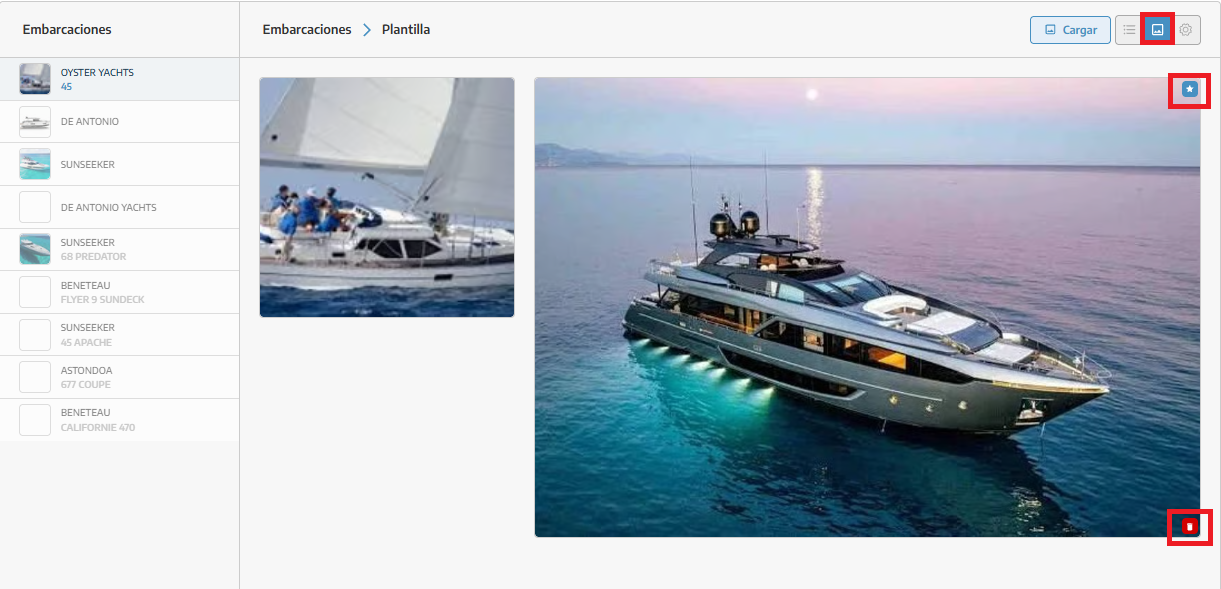
We can add several photographs of the model. One of them will be used as the main image and the others will form part of its gallery.
From this section we can also:
Select another image as the main one. Photos that are not the main image have a star in the upper right corner to set them as the main image.
Delete an image (lower right corner). The main image cannot be deleted.
Add new photographs (the upload button).
We recommend using clear, current images with a uniform format for all models.
In the options section we can indicate which elements are part of the vessel and which ones the customer can add.
Options are grouped by categories. We can select an existing product or service from the catalog or enter a new description.
For each option we will indicate:
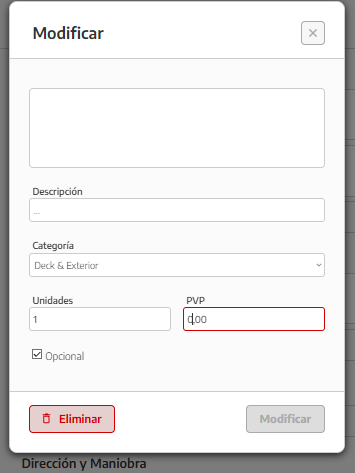
Description: name of the item or equipment.
Category: group in which it will be displayed.
Units: quantity included or available.
Optional: determines whether it is a selectable extra.
Unit price: additional cost of the option.
Image: representative photograph, where applicable.
If we do not mark the option as Optional, the item will be considered part of the equipment included in the model.
If we mark Optional, the customer will be able to add that element to the configuration and its corresponding price will be applied.
💡 Whenever the element already exists in the catalog, it is recommended to select it from there to maintain the same description, image, and price.
We will select the template in the list to modify:
The selling price.
The supplier discount.
Its availability as a marketable model.
The description.
The images.
The equipment and options.
To delete it, we will press Delete and confirm the action.
⚠ Deletion cannot be undone. Before confirming, we will verify that the template is no longer needed.
