The CRM (Customer Relationship Management) pipeline represents the journey of an opportunity from first contact to acceptance or rejection.
We will click on the name of the nautical company, located at the top of the side menu, and we will access:
SETTINGS → CONFIGURATION → CRM
On this screen we can:
Create new CRM stages.
Change their name and color.
Define their closing probability.
Order them according to the sales process.
Delete stages that are no longer used.
If there are no stages configured yet, we will see the message Your sales funnel is empty.
We will click START CONFIGURATION.
StarNapp will automatically create three basic stages:
Standard: intermediate stage for open opportunities.
Rejected: closure of an opportunity that was not achieved.
Accepted: closure of an opportunity that was achieved.
Based on this structure, we can add the intermediate stages we need.
It represents any intermediate point in the sales process. The opportunity remains open and can advance to another stage.
We can create multiple standard stages.
Examples:
New contact
Contacted
Visit scheduled
Quote sent
Negotiation
We will also need closing stages (the stages Accepted and Rejected to correctly classify the outcome of opportunities) representing the maximum and minimum percentage (100% and 0%).
At the bottom of the stages list:
We will write the name of the new stage.
We will click the + icon.
We will select the created stage.
We will configure its title, color, and closing probability.
We will click the save icon.
We recommend using names that describe an action or an easily recognizable situation.
We will select a stage from the list on the left. Its options will appear on the right.
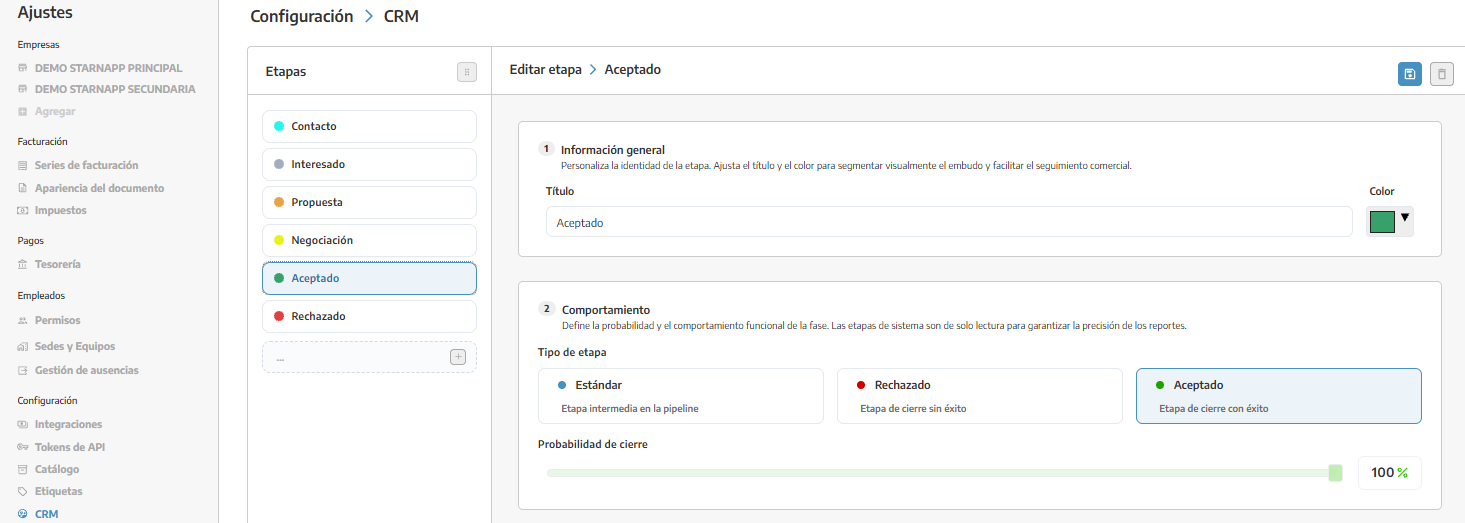
It is the name we will see in the sales pipeline.
It should allow the team to immediately understand what situation the opportunity is in.
Allows you to visually differentiate the stages.
We can use similar colors for related phases and reserve lighter colors for closures:
Green for Accepted.
Red for Rejected.
Intermediate colors for open opportunities.
Indicates the estimated possibility that an opportunity will end up being accepted.
It is not a definitive result, but a business estimate.
The probability should increase as the opportunity progresses through the pipeline.
How do we order the stages?
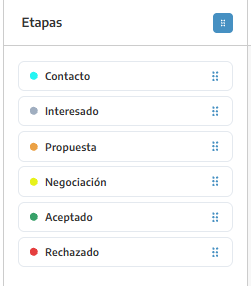
The order should represent the typical journey of an opportunity.
To modify it:
We will click on the sort icon located next to the title STAGES.
We will drag each stage to the desired position.
We will click the icon again when finished to exit sort mode.
The configured order will be the one displayed in the CRM pipeline.
We will select the stage from the list.
We will modify its title, color, or probability.
We will click the save icon.
We will select the stage and click the red trash icon.
We will not be able to delete it if it still has associated opportunities. We will first need to move those opportunities to another stage.
We also cannot delete protected closing stages or leave the pipeline without a standard stage.
⚠ Deletion cannot be undone. If a stage could be reused, it is preferable to rename it or reuse it.
A nautical company that manages boat sales could use:
STAGE | PROBABILITY |
Contact | 10 % |
Interested Client | 25 % |
Proposal | 50 % |
Negotiation | 80 % |
Accepted | 100 % |
Rejected | 0 % |
We will create only the stages that the team uses.
We will avoid ambiguous names like "Pending" without indicating what is pending.
We will order the stages from first contact to closure.
The probability should increase as the opportunity progresses.
We will not use Accepted for operations that still need confirmation.
We will review the pipeline when the sales process changes.
Pipeline configuration does not control who can access the CRM.
To decide which employees can view or edit opportunities, consult Roles and permissions.
Before finishing, we will verify that:
There is at least one standard stage.
The stages follow the actual order of the business process.
Each stage has a clear name.
Colors allow you to differentiate them.
Probabilities progress coherently.
The pipeline ends in Accepted or Rejected.
