Regardless of the document type (quote, work order, delivery note, proforma or invoice), they all share the same internal structure and the same set of actions. This article gathers that common "chrome" — for moving between document types, see Converting documents.
Each document is organised into chapters, and inside each chapter, into lines with their corresponding price, discount and taxes. A chapter can also be marked as OPTIONAL, to present recommended work without its amount entering the total unless the customer accepts it — the full detail of this mechanism lives in Quotes.
We can also add images of the work carried out, from two different places:
Per chapter: pressing that chapter's image icon, for photos linked to that specific item.
From the HISTORY tab: with the paperclip icon, for more general images of the document.
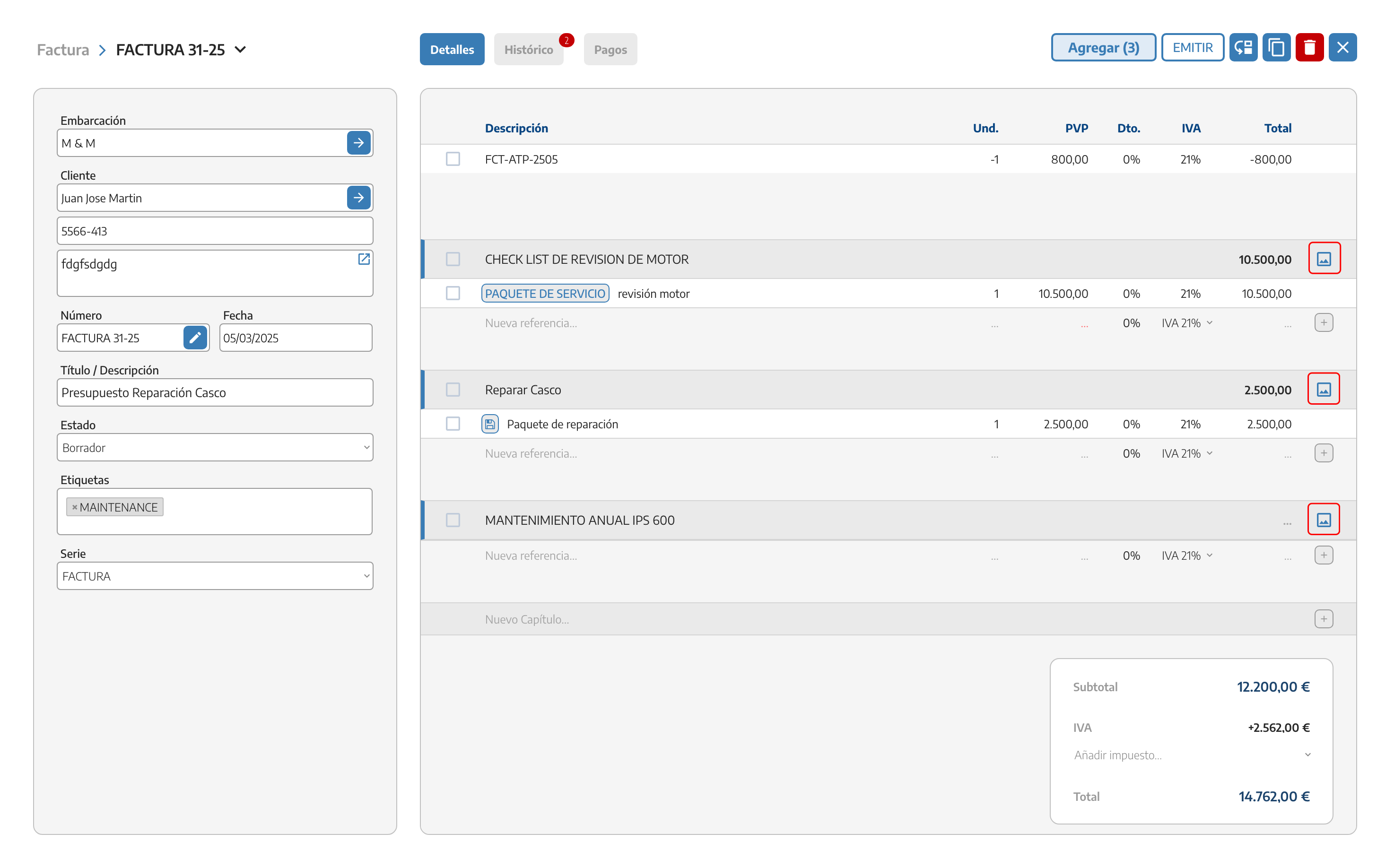
In both cases, images can be uploaded from a gallery already saved on the account or directly from the device, and they're automatically reflected in the document (PDF) we send or hand over to the customer.
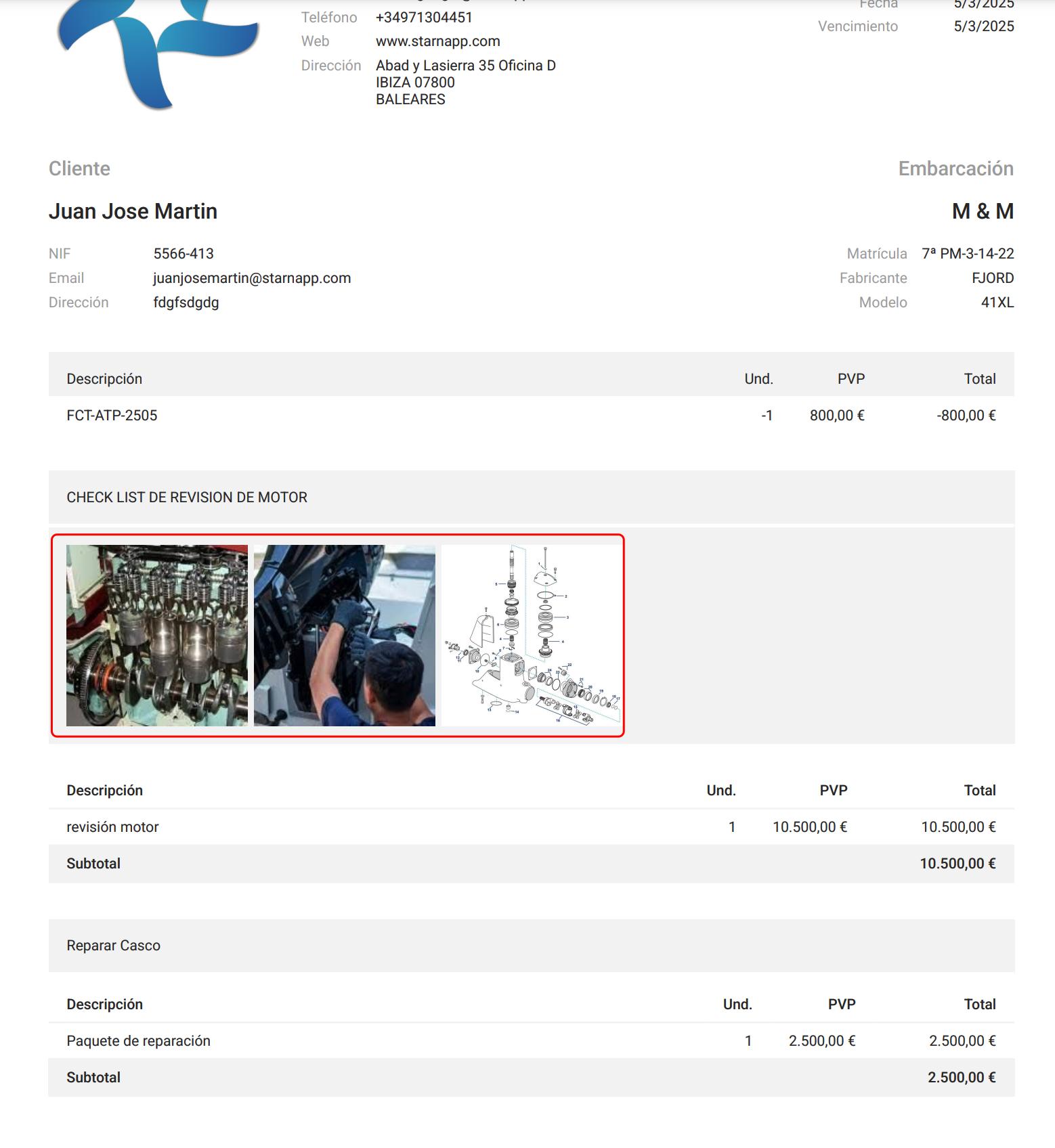
A DISBURSEMENT is an expense we've paid on the customer's behalf that they need to reimburse us for, without the invoice for that expense being made out to our company. We mark it by choosing the line's VAT type and selecting Disbursement instead of a VAT percentage.

The amount is added to the document TOTAL, but it's not part of the taxable base: it doesn't carry VAT or any other tax on top of it. In the document's final summary it appears broken out as its own line item called DISBURSEMENT.
The DISCOUNT column always subtracts and is always positive: it can't be set to a negative value. Next to it there's an arrow that expands an additional column, ADJUSTMENT, with a free sign.

Entering the amount as negative, we discount beyond what DISCOUNT alone allows.
Entering the amount as positive, we apply a surcharge that's added to the line's price.

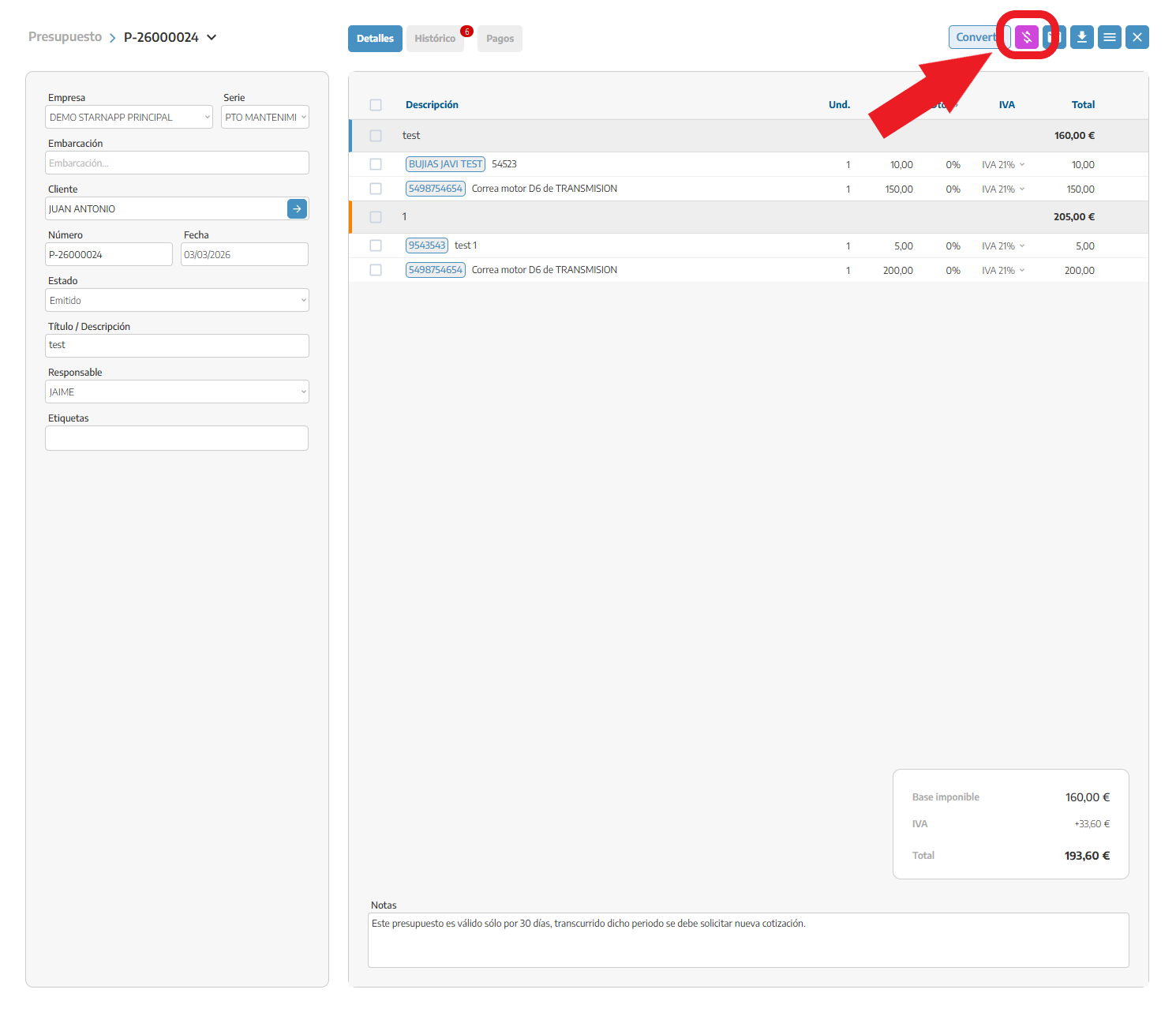
Inside any document — in draft or already issued — there's a dollar icon ($) that hides our internal costs, expenses and margins. It's useful, for example, on a quote the customer is going to see.
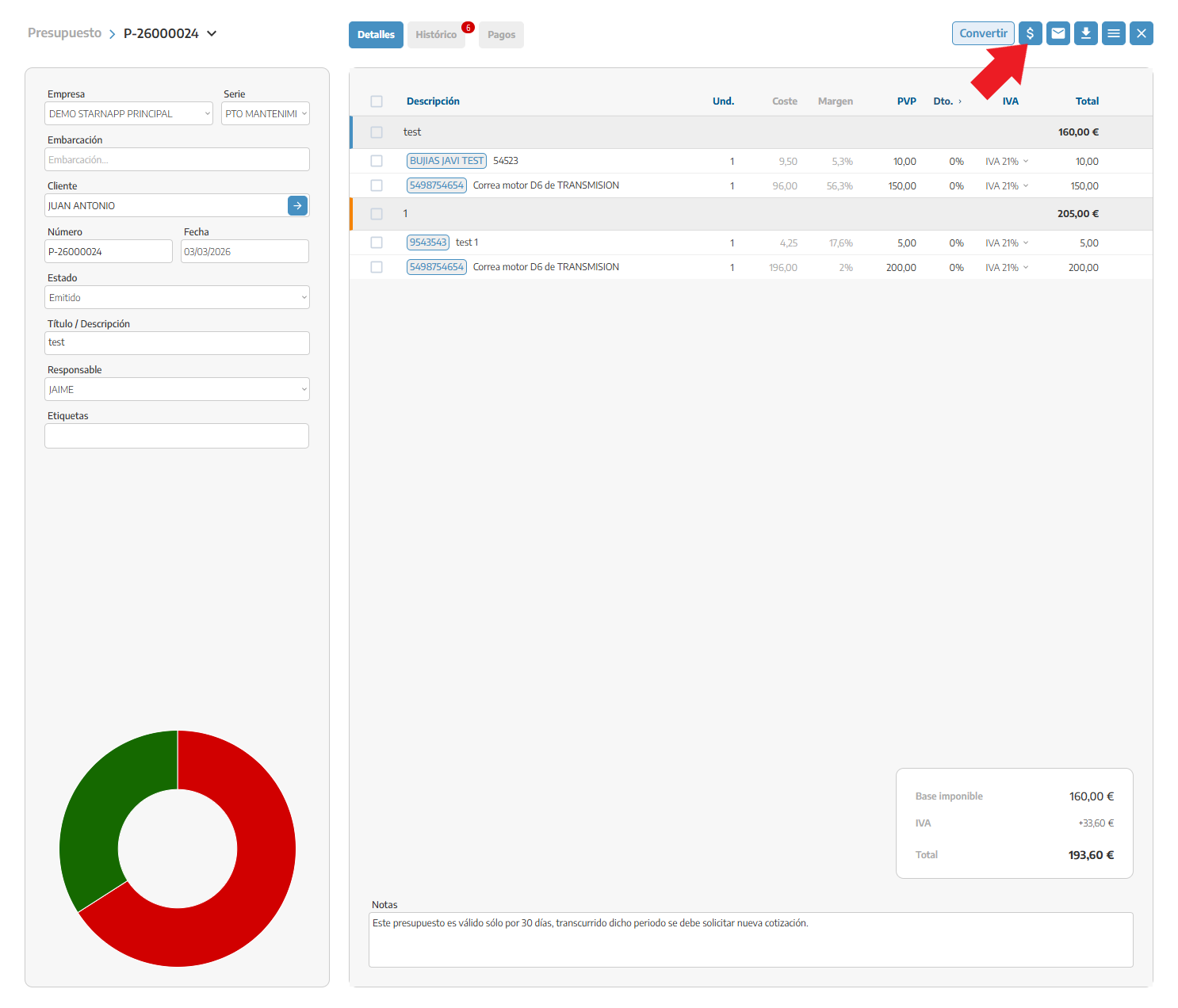
When we press it, those amounts stop showing and the icon turns pink, so we know it's active.
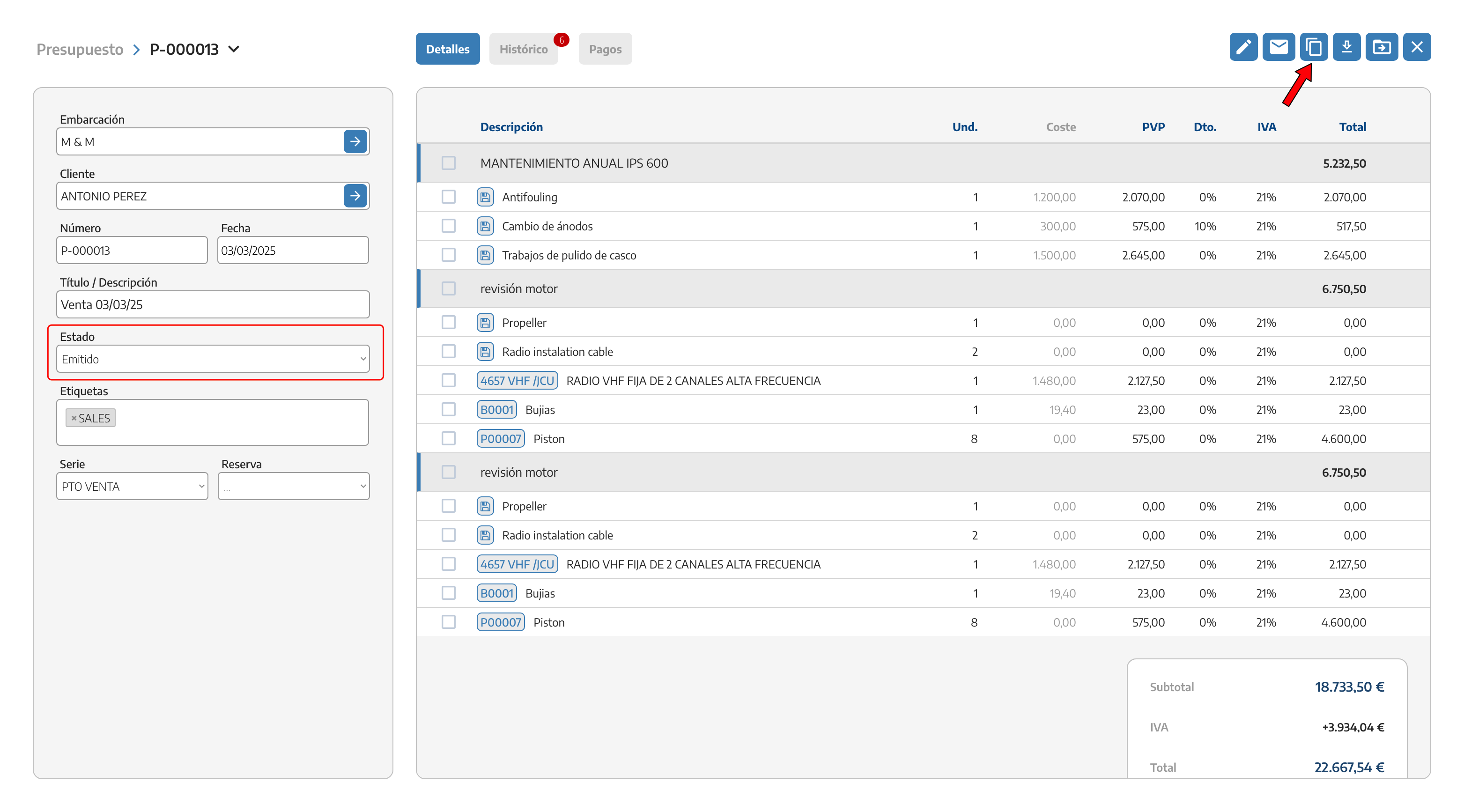
COPY generates a new, independent document from an existing one, for another vessel or customer — without chaining it by conversion to the original (unlike CONVERT, see Converting documents).
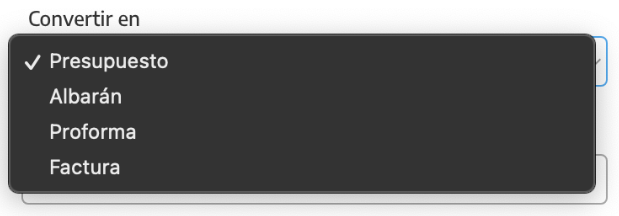
When we press COPY, we choose the document type to generate (it can be different from the original), the destination customer or vessel, whether we update prices in case they've changed in the catalog, and whether we keep the discounts applied or reset them to zero.
The generated document is always created in DRAFT and is fully editable.
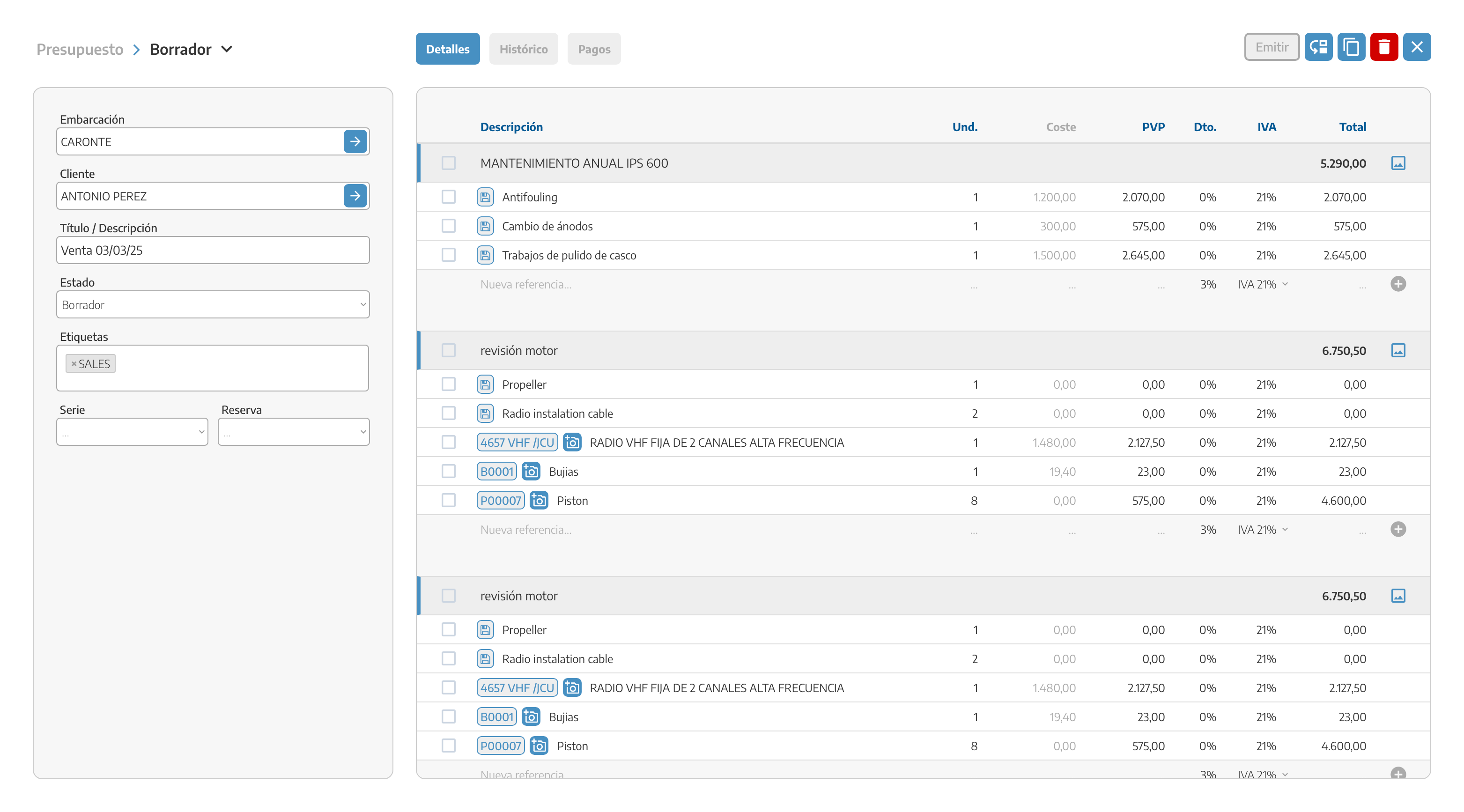
The ISSUE button closes the document in its current state and gets it ready to be sent or printed: we choose the issuing format and, if it applies, the payment due date. Once issued, the document moves to Issued status — for invoices, it also becomes locked for editing (see Invoices and Credit notes and corrective invoices to correct it).
From the document itself we can send it by email to the customer. The status of that email (received, clicked, queued, bounced…) is shown with an icon next to the document — see the full detail in the statuses section below.
At the top right of the document we have the AI automatic translation button.
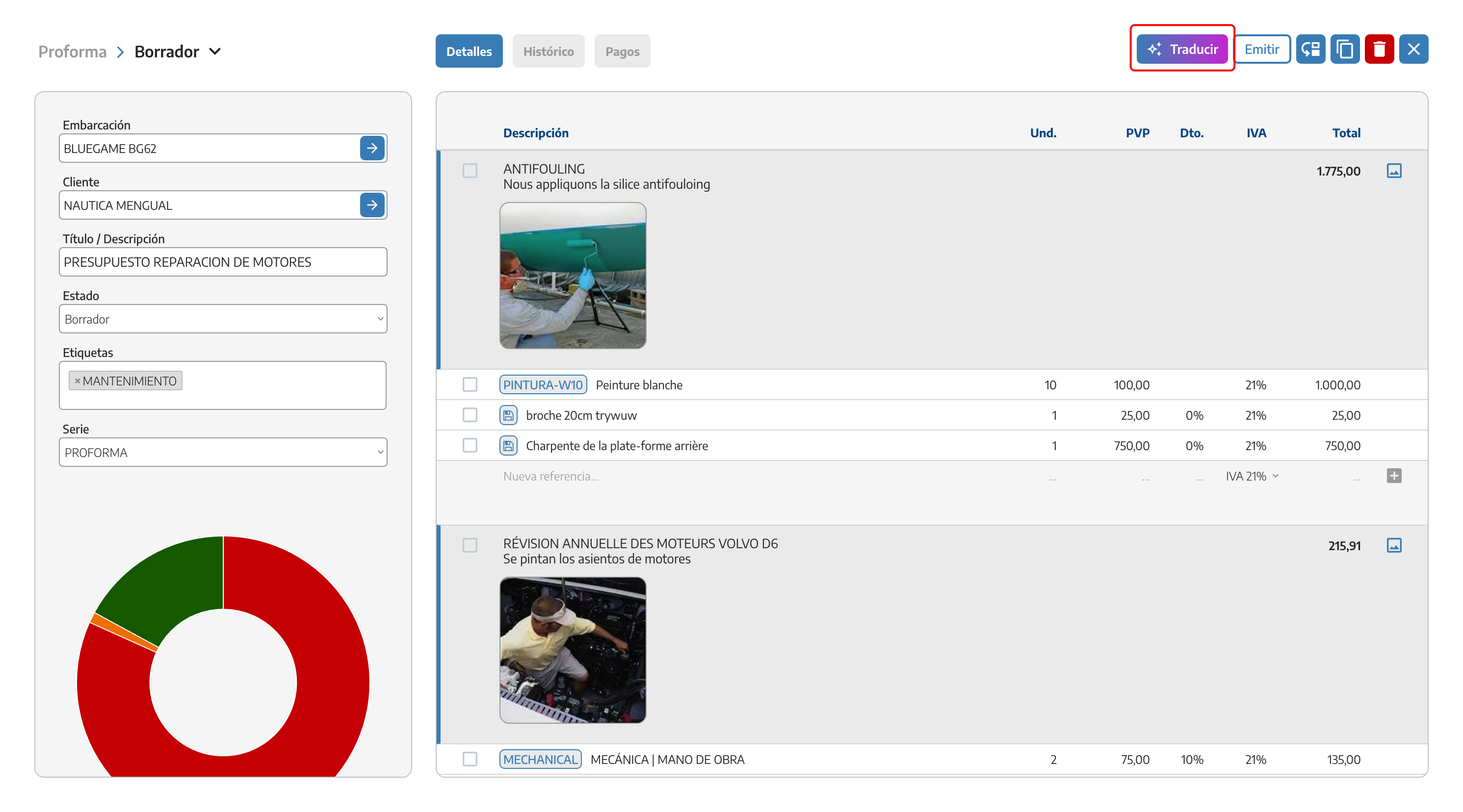
When we press it, we choose one of the languages available in StarNapp and what we want to translate: CHAPTERS, LINES or NOTES.
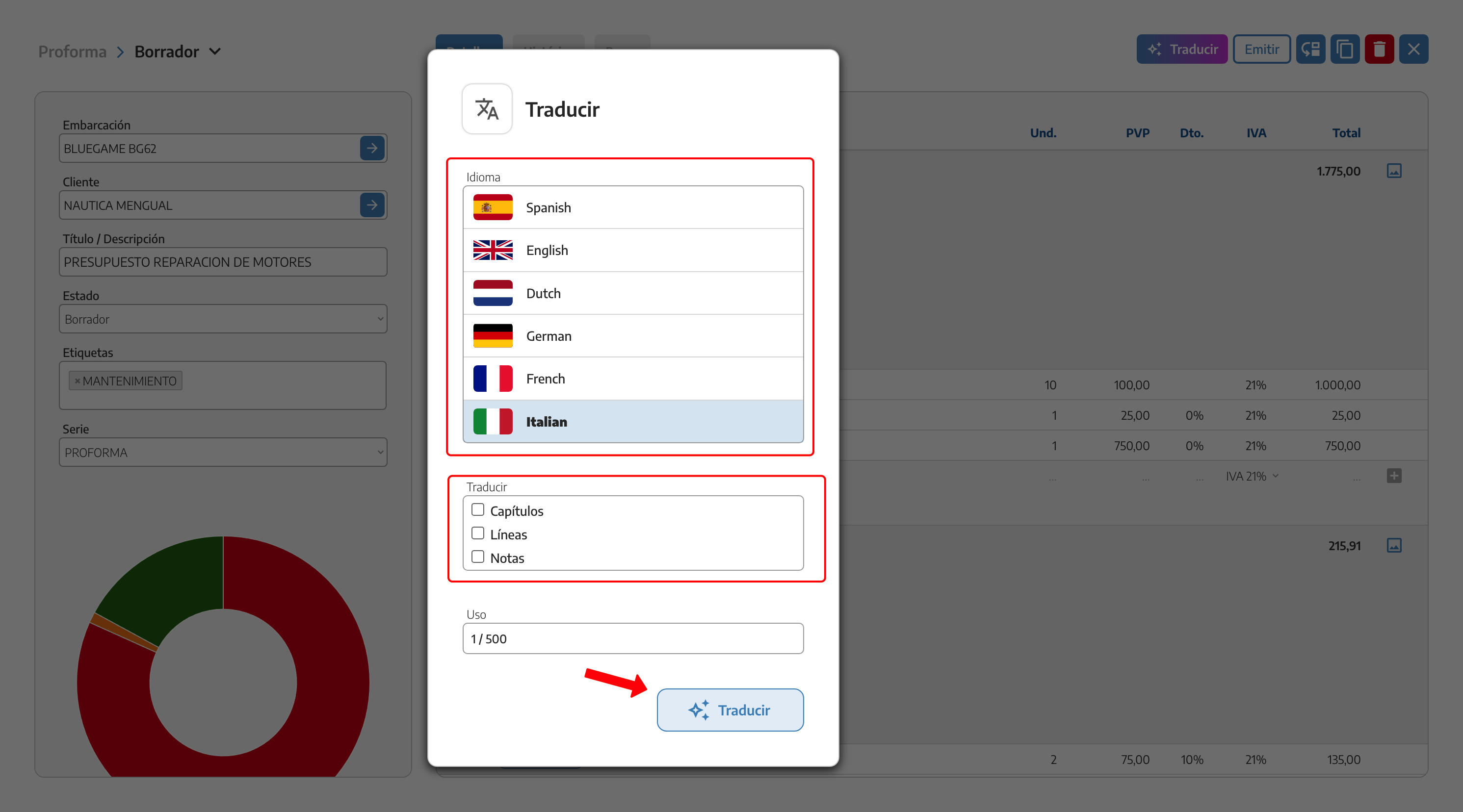
Each translation uses up the available translation count, shown on the button itself. This feature is available both in Sales and in Purchases.
Next to the CONVERT button, at the top of an already-issued document, there's a menu to manually mark it as paid, processed or sent.
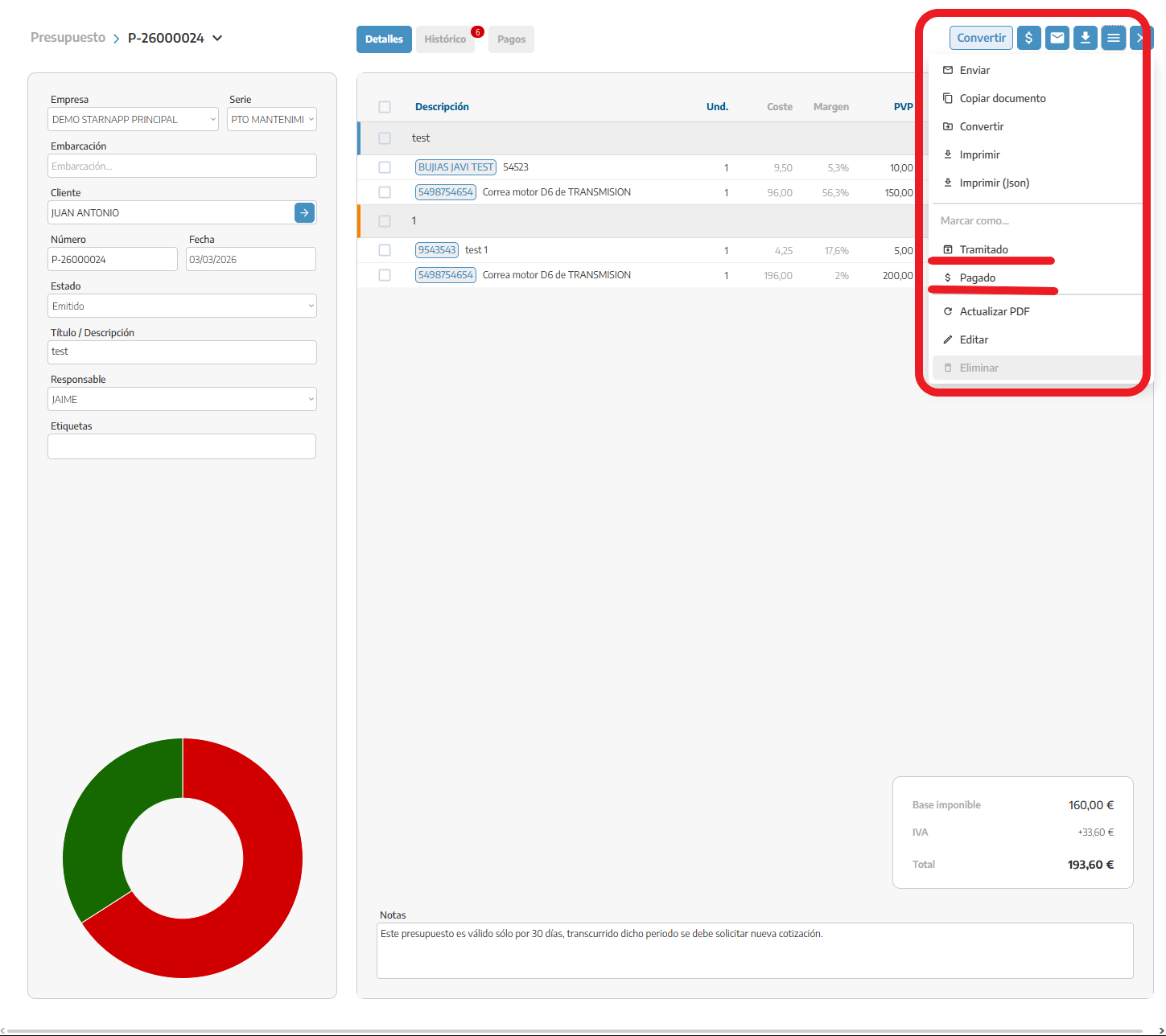
These marks are reflected both inside the document itself and in the statuses shown in the Sales list.
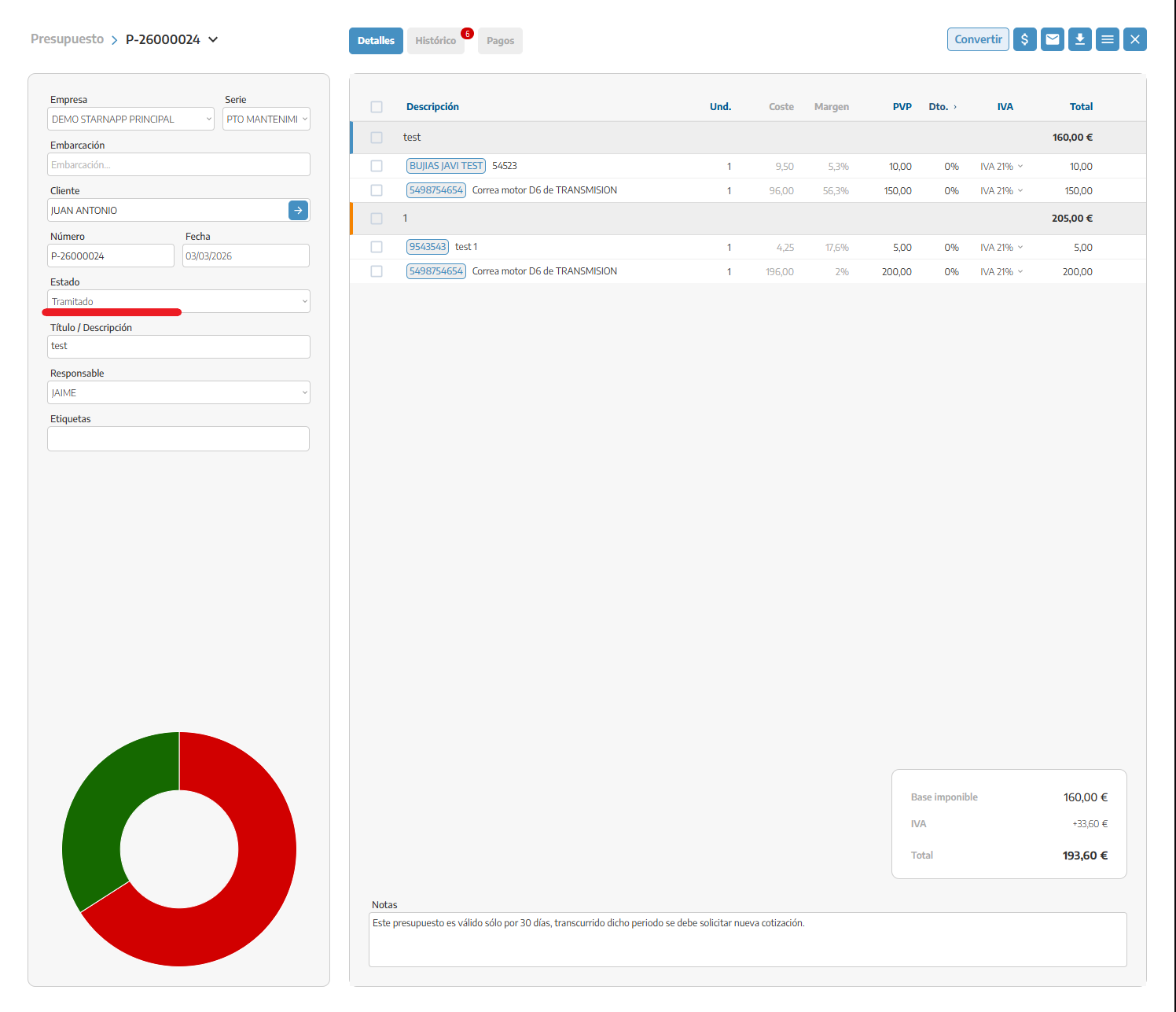
Draft: the content is editable. For invoices, once issued, the content can no longer be edited (corrections need Credit notes and corrective invoices).
Accepted: appears on quotes when the customer approves them.
Rejected: appears on quotes when the customer rejects them.
Issued: the document is finalised and waiting to be sent or collected.
Sent: the document has already been emailed to the customer.
Processed: the document has become linked to another one (for example, a delivery note that has already been invoiced). We can also mark it manually with the menu from the previous section.
Cancelled: specific to invoices; appears when we generate a corrective invoice that replaces the original (see Credit notes and corrective invoices).
Not invoiceable: documents (mainly delivery notes) that we're not going to invoice.
Posted: invoices already sent to the accounting software or, in Spain, to Verifactu reporting.
Icon | Meaning |
|---|---|
| The email has been received by the customer. |
| The email has been sent. |
| The email has been blocked. |
| The customer has opened the email. |
| There's a comment on that section. |
Payment statuses are independent of the document's general status:
Icon | Meaning |
|---|---|
| No collection movements yet. |
| Paid in full. |
| Not paid within the due date. |
| Partially paid. |
The document list also has dedicated filters for these payment statuses.

An optional chapter and its acceptance mechanism are explained in detail in Quotes; here it's only part of the general structure.
A disbursement doesn't carry its own VAT: it's an amount we pass on to the customer as-is, with no margin or extra tax — don't confuse it with a line at 0% VAT, which is still part of the taxable base.
Remember to expand the column with the arrow next to DISCOUNT before you can use ADJUSTMENT.
The hide-costs icon ($) is available both on draft and already-issued documents.
COPY works between any combination of document types; it doesn't need to match the original document's type — and unlike CONVERT, it doesn't chain the new document to the original (see Converting documents).
Manual paid/processed/sent marks always apply to already-issued documents.



