Catalog categories group items so we can filter them and, if the accountant asks, for the ledger split. We set them once in Settings and then pick them on each item. They are not warehouses: they don't say where the part is, but which family it belongs to.
We'll go to SETTINGS → CONFIGURATION → CATALOG. The CATEGORY panel is this article (NAME, SALES LEDGER CODE and PURCHASE LEDGER CODE). The WAREHOUSE panel next to it is in Warehouses.
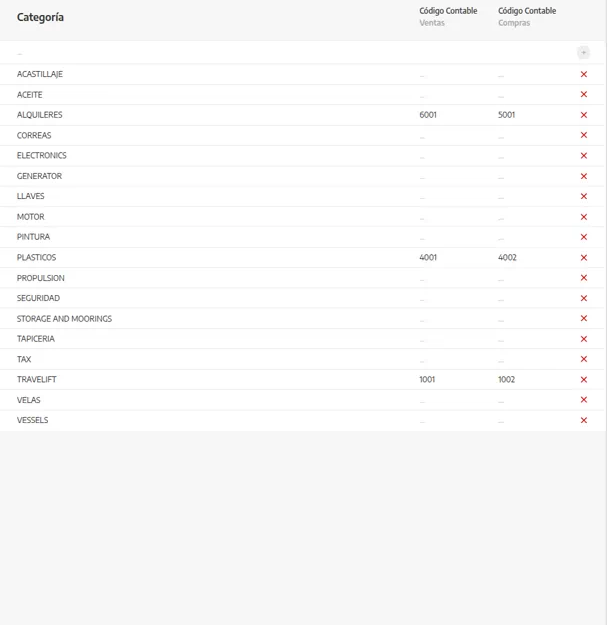
When we create a catalog item, we'll pick one of these categories. It is useful to:
Filter the catalog (all spares, all consumables…).
Group in the accounting export, if we fill in the ledger codes for sales and purchases.
There are three different “categories” in StarNapp. We won't mix them:
What | What it's for | Where it's set |
|---|---|---|
Catalog category (this article) | Item family | SETTINGS → CONFIGURATION → CATALOG |
Item type | Product, labour, internal or external service | On the record when we create the item. See Registering materials |
Labour / professional category | Rate and role when a technician clocks hours | Labour catalog and employee record. See Labour and Default professional category |
Work types on a work order (winterisation, maintenance, repair) are TASKS tags, not catalog categories: Task and project categories.
We'll go to SETTINGS → CONFIGURATION → CATALOG and stay on the CATEGORY panel.
We'll add the families we really use, with a NAME that stores and admin understand the same way. If the accountant asks, we'll fill SALES LEDGER CODE and PURCHASE LEDGER CODE.
When we create or edit an item, we'll assign its category. The create detail is in Registering materials.
💡 Tip: Few categories, with names stores and admin understand the same way. An improvised list doesn't filter.
Changing an item's category does not move stock. Moving units is a Warehouses movement.
If the accountant wants a code per family, we'll agree names and codes with them before we fill the list.
