
In SETTINGS → BILLING → DOCUMENT APPEARANCE we choose how all PDFs look: the visual template. There is no Settings item called “Preferences”. Interface language and document language are set elsewhere; here we only change the layout.
How do we get there?
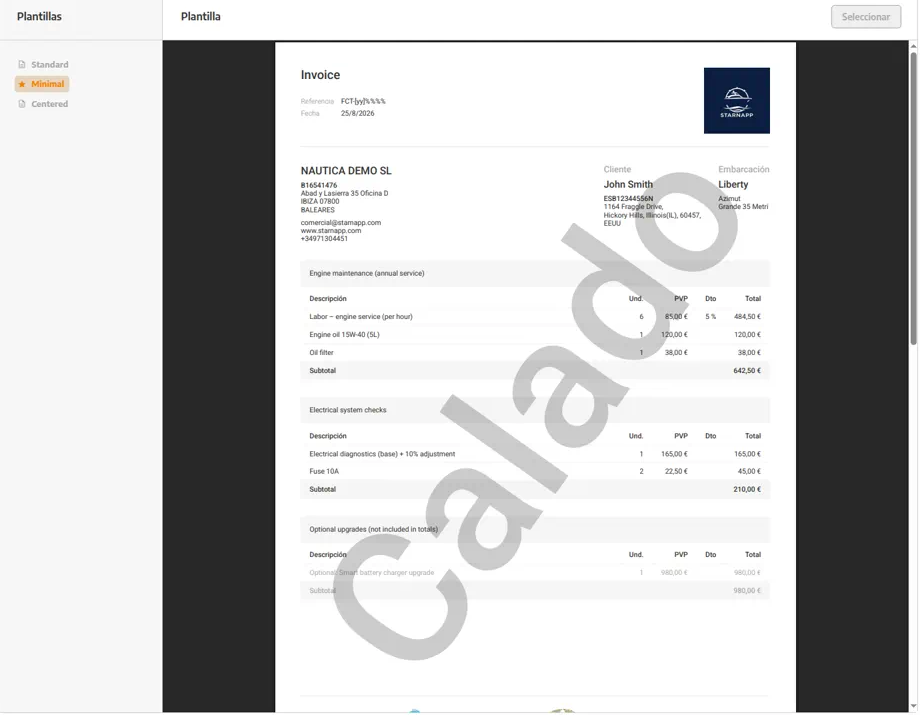
We'll go to SETTINGS (click the account name at the top of the side menu) and, under BILLING, open DOCUMENT APPEARANCE. Templates are on the left; a PDF preview is on the right.
How does it work?
The template decides the PDF layout: margins, logo alignment, density. There are three: STANDARD, MINIMAL and CENTERED. The one with the star is active. It is independent of the series (numbering, company, notes). Series are covered in Billing series and document numbering.
Language is not changed here:
StarNapp interface: each employee chooses it on their profile. See Change language for a user.
Customer PDF: it comes out in the language of that contact record. StarNapp does not translate the text we type on the lines. See Documents in different languages.
Document types (quote, work order, delivery note, proforma, invoice, and purchase types) are listed in BILLING SERIES, in the DOCUMENT TYPE column. They are not a switch on this screen.
How do we pick the PDF template?
We'll go to SETTINGS → BILLING → DOCUMENT APPEARANCE.
We'll press STANDARD, MINIMAL or CENTERED and check the preview (it may take a second to load).
We'll leave selected the one we want for new documents. We'll generate a test quote to see the real PDF before we issue invoices.
What should we keep in mind?
A PDF “in the wrong language” is not fixed here: it's fixed on the contact record or the document, or on the user profile if the problem is the interface.
A PDF with the wrong logo or tax ID is the series / company, not this visual template.
A PDF that looks “too empty” or “too busy” can be the template (minimal vs standard vs centred).
The CRM pipeline is also configured from Settings; it has its own guide: Set up the sales pipeline.