In StarNapp we offer the option to download files to Excel to send these documents to accounting.
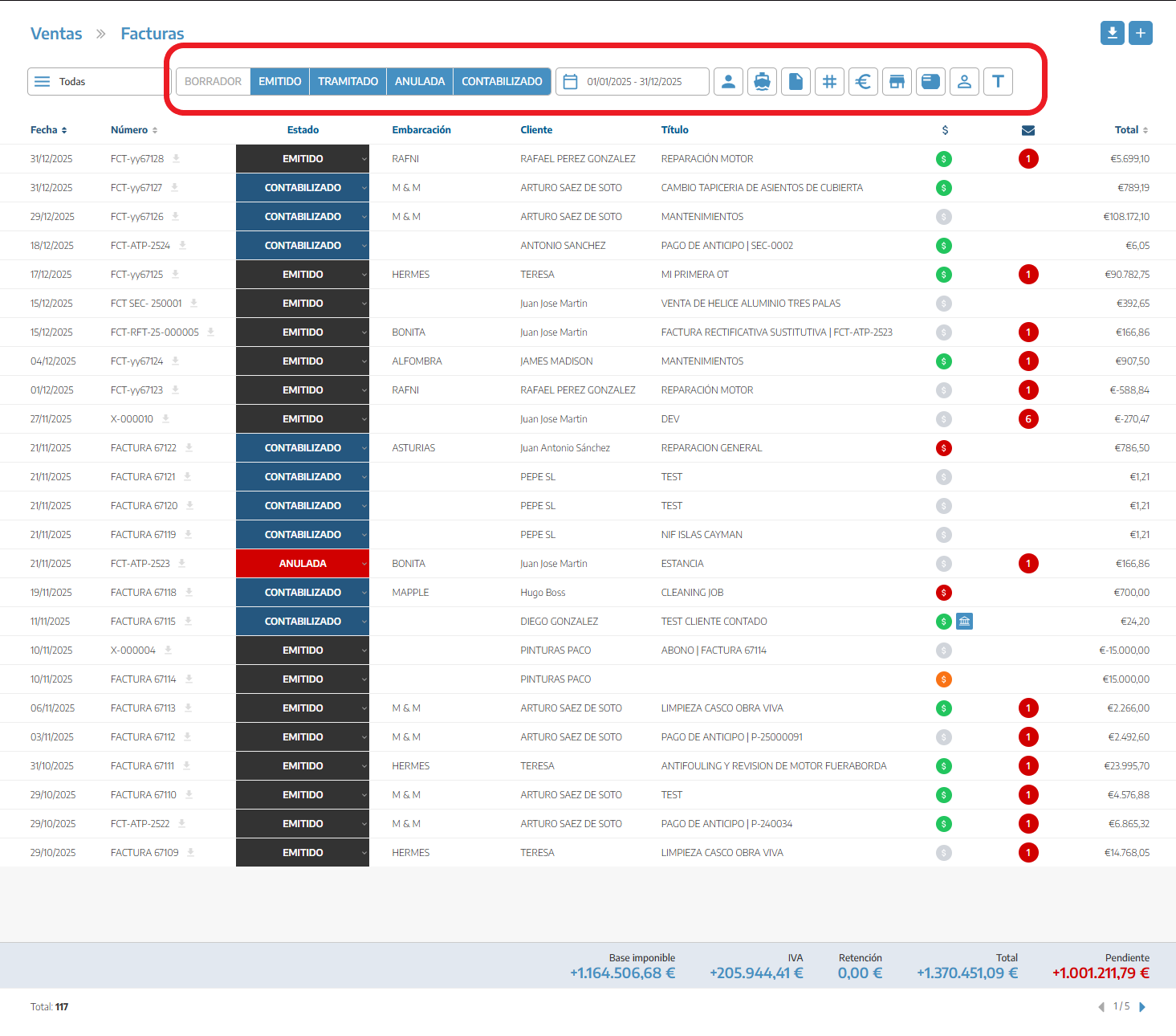
We'll go to the list we need to download — in this case, our sales invoices. First we'll select the status of the documents:
Issued
Processed
Cancelled
Posted
Next we'll select the date range we want: without this range, downloading the documents won't be possible.
Finally we can apply other filters if we need them:
Documents for a specific customer.
For a specific boat.
With a set of tags.
If we have more than one company, which one we want.
By the document's billing series.
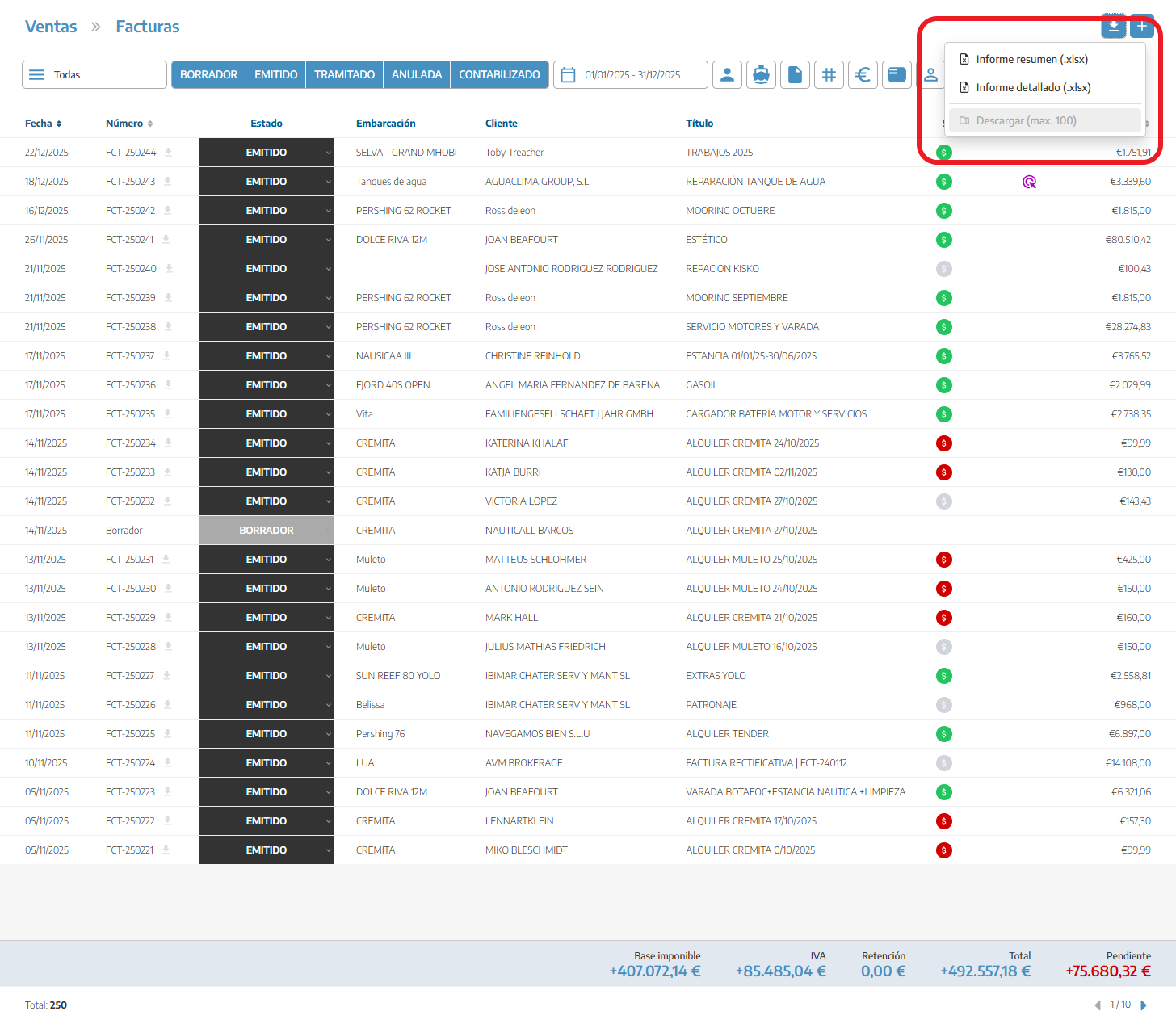
Once all the filters are applied, the download button appears at the top right. We'll have two main report options:
Summary report: exports each invoice separately.
Detailed report: exports a report of all the materials associated with each invoice.
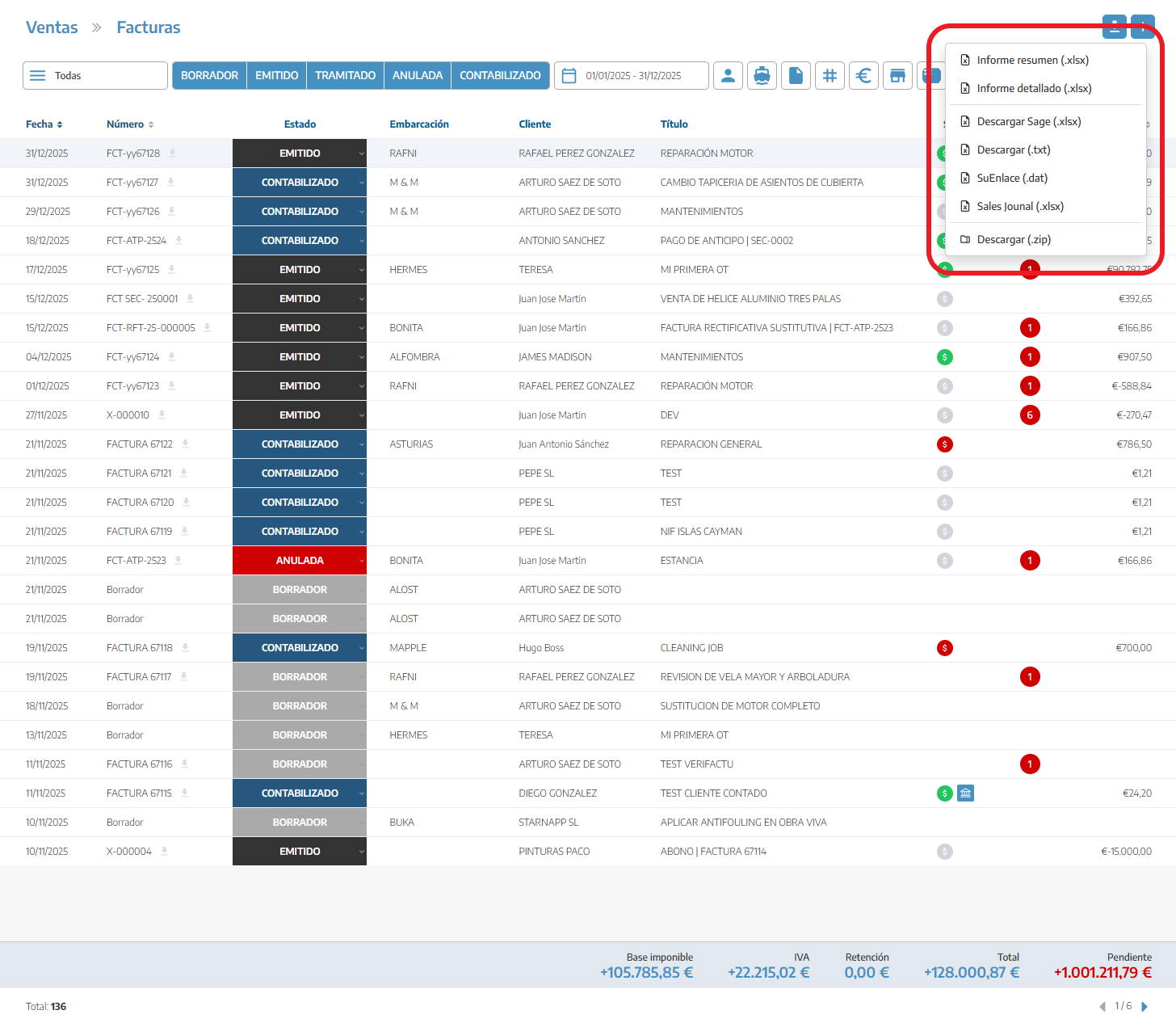
There are also report variations depending on the accounting software we use:
A .xlsx for Sage.
A .txt for A3.
A .dat for SuEnlace.
A .xlsx for SalesJournal.
A .zip with all the files.
⚠️ The file download is limited to 100 documents.
The date range is mandatory: without it the download can't be started.
The same list allows combining several filters at once (customer, boat, tags, company, series).
If your accountant works directly connected to StarNapp instead of receiving these files, see Accounting integrations.
To understand what each status in the list means (Issued, Processed, Cancelled, Posted…), see Working with sales documents.
This screen is used mainly to download sales invoices — see Invoices.
