To get started, go to the app settings. Once there, you’ll need to fill in the basic information of the boat:
Boat manufacturer
Boat model
Sale price
Description
This data will be the basis of your template.
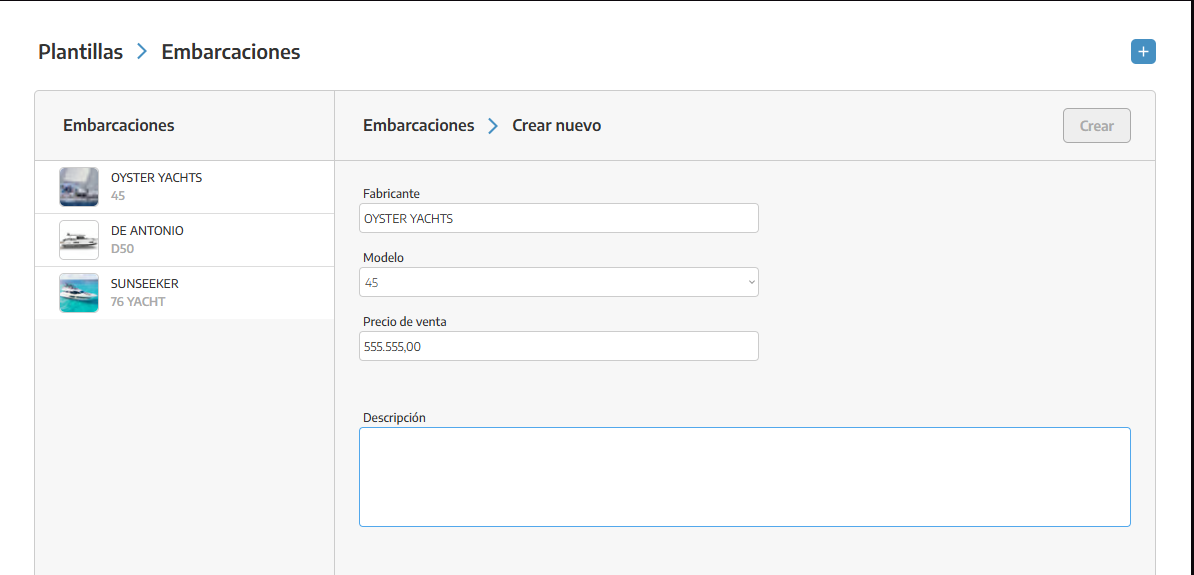
Once you’ve completed the initial information, you’ll be able to fill in the different sections related to the boat:
Hull and structure
Deck
Engines and propulsion
Steering and maneuvering
Electronics and navigation
Others
Within each of these sections you can:
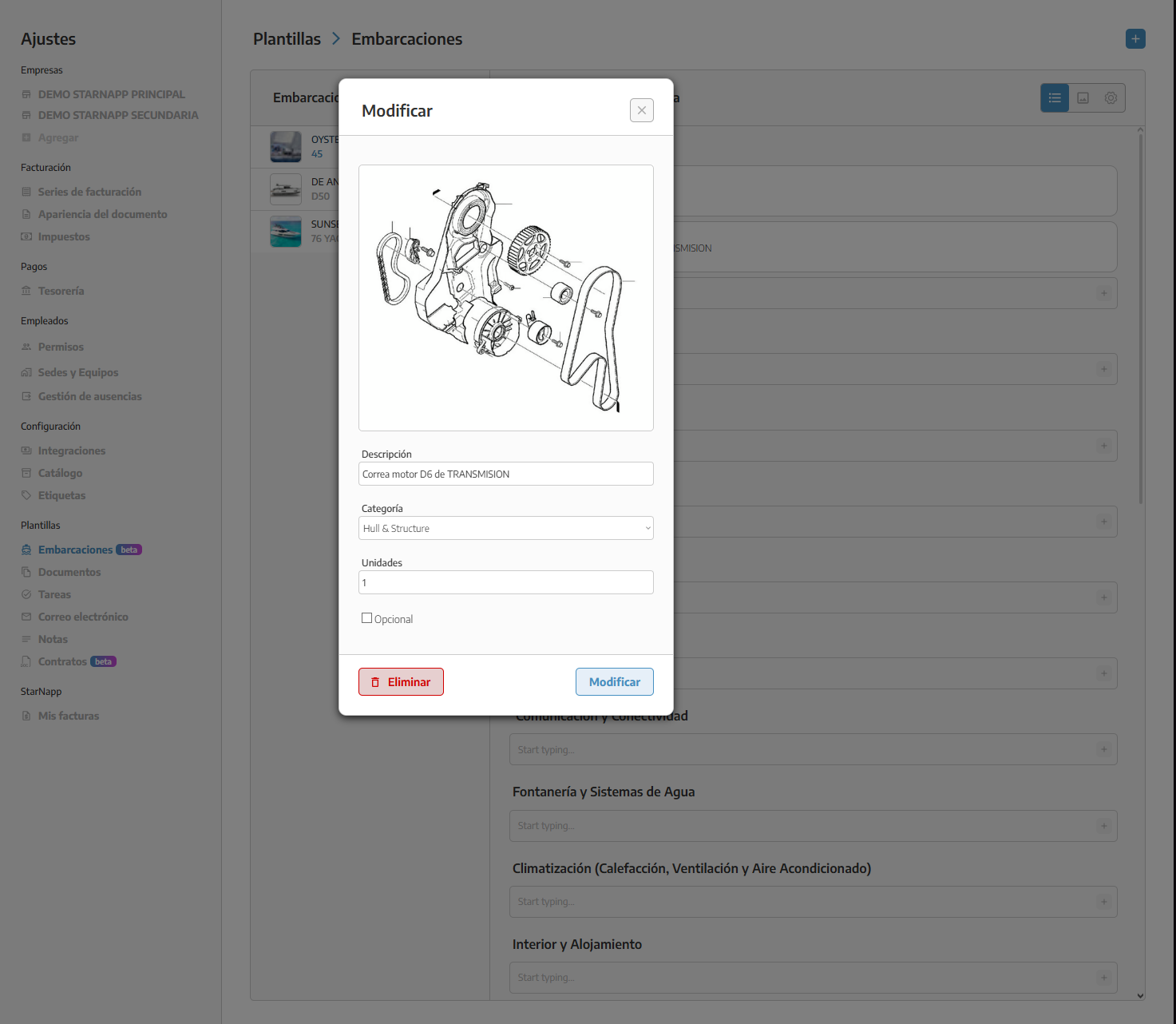
Add resources or elements of the boat
Include images associated with each resource
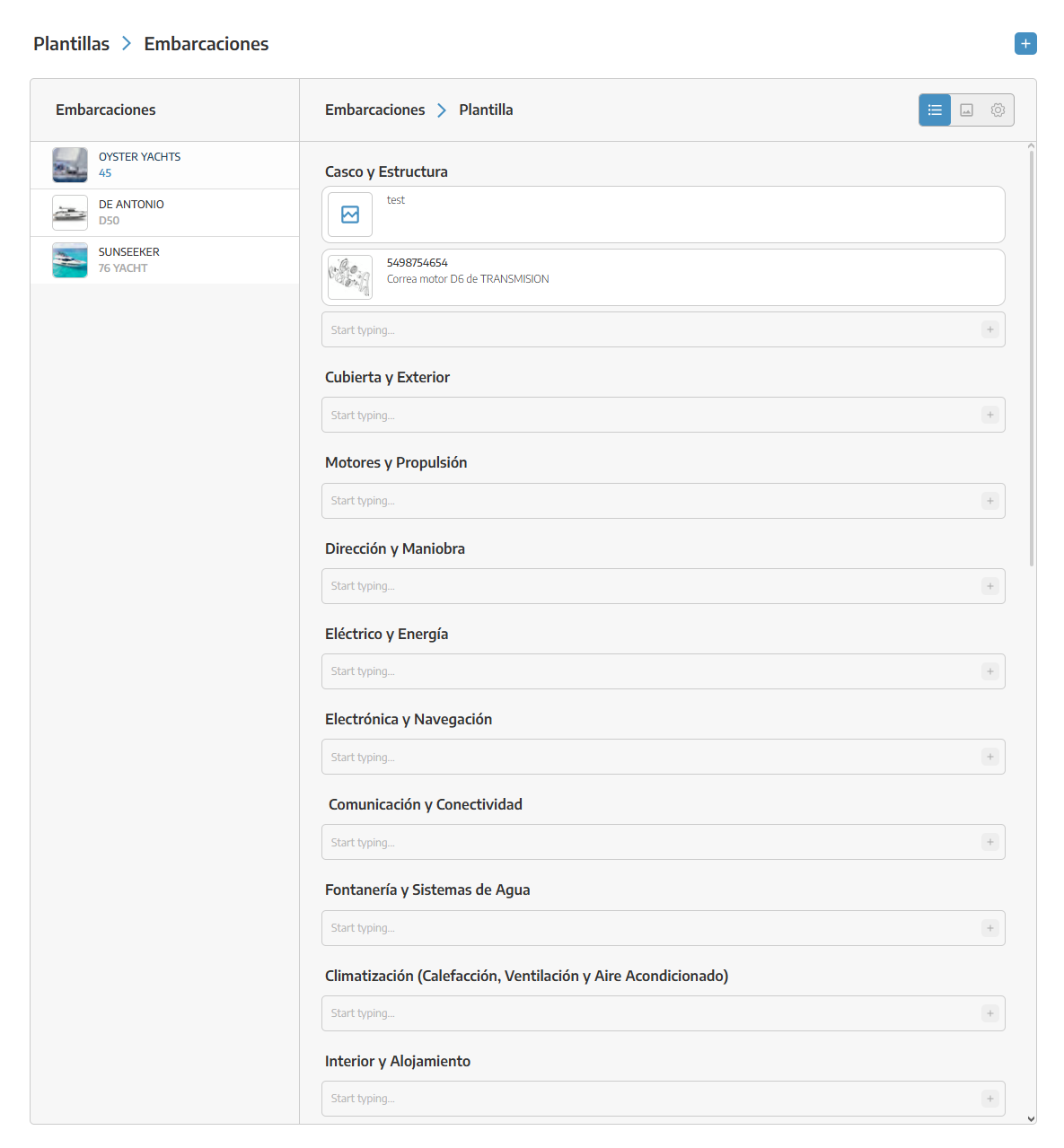
By default, these elements will be marked as not optional. However, you can set them as optional and assign their corresponding sale price (RRP).
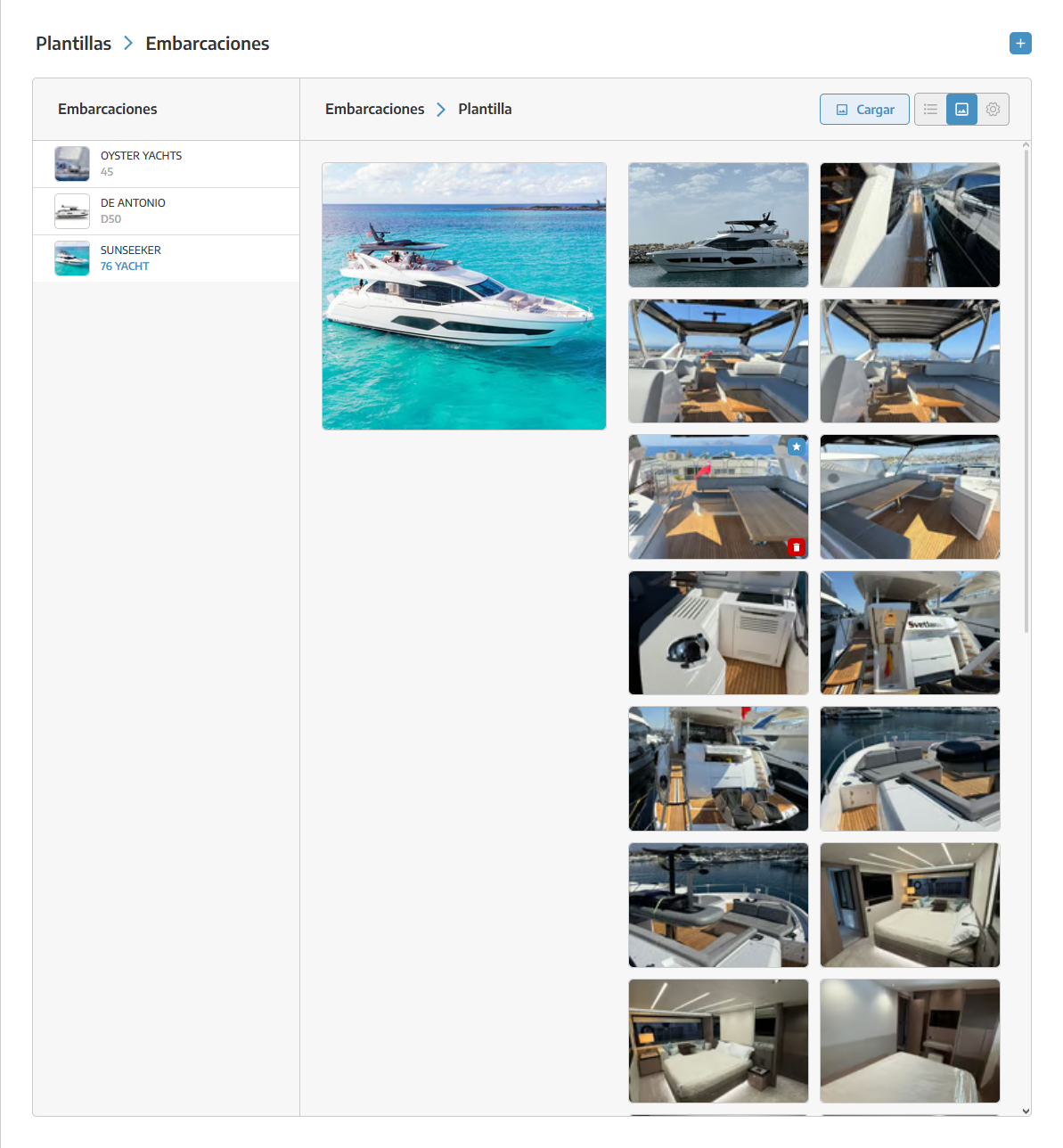
In the Images tab, you can add the general photos of the boat that will be used in the proposal.
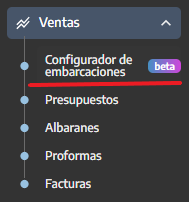
Once the template is created, go to the Sales section and open the Boat Configurator.
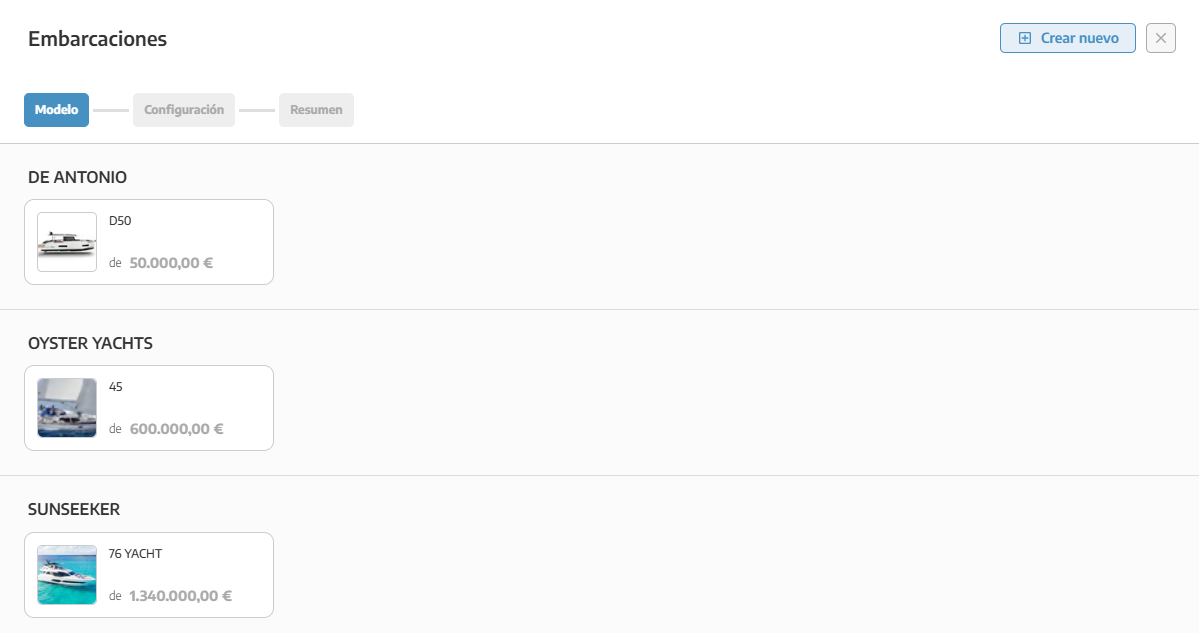
In the MODEL view, select the boat you want to create a quote for.
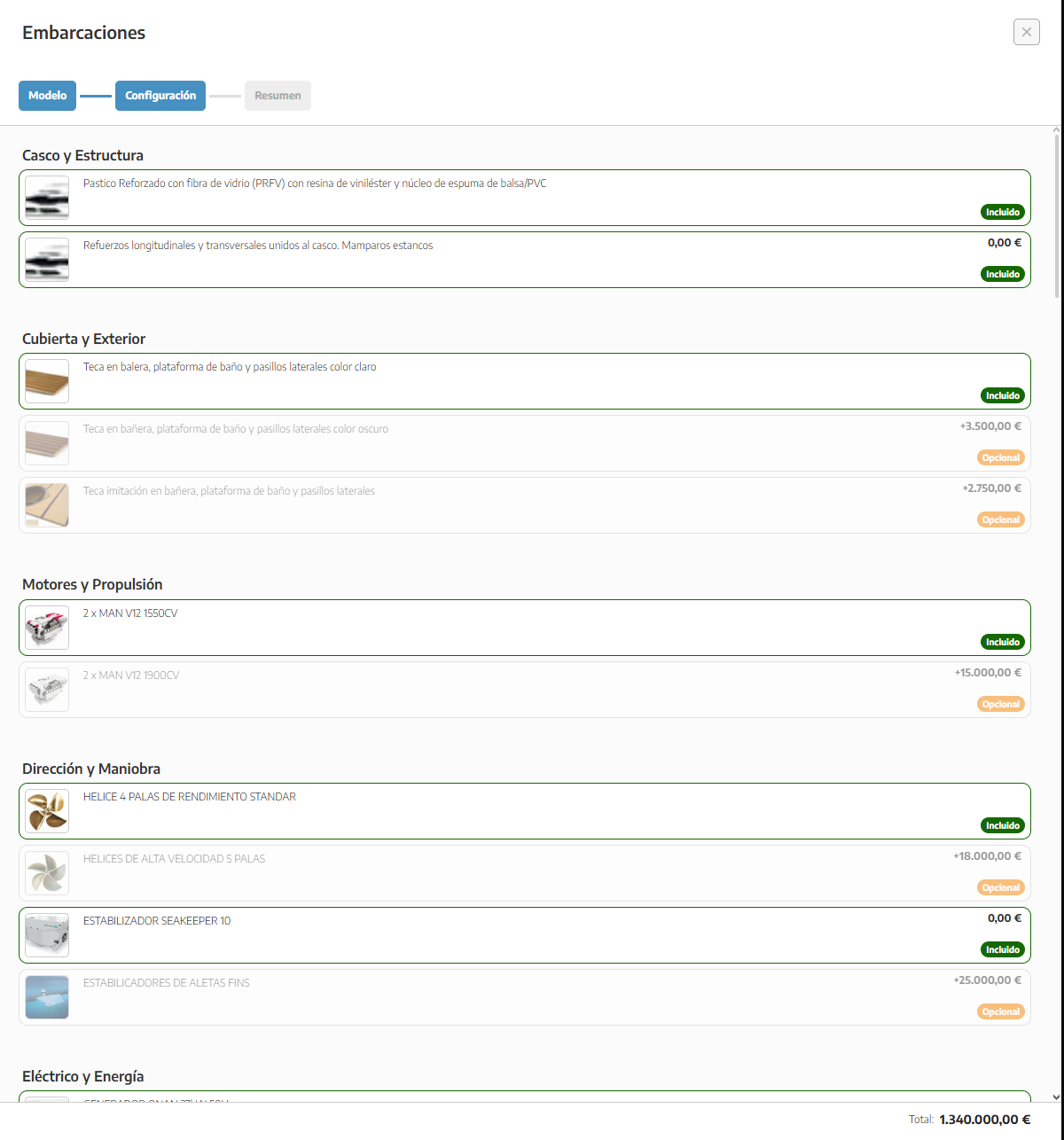
In the CONFIGURATION view, you can:
Include or exclude components
Customize the proposal according to the customer’s needs
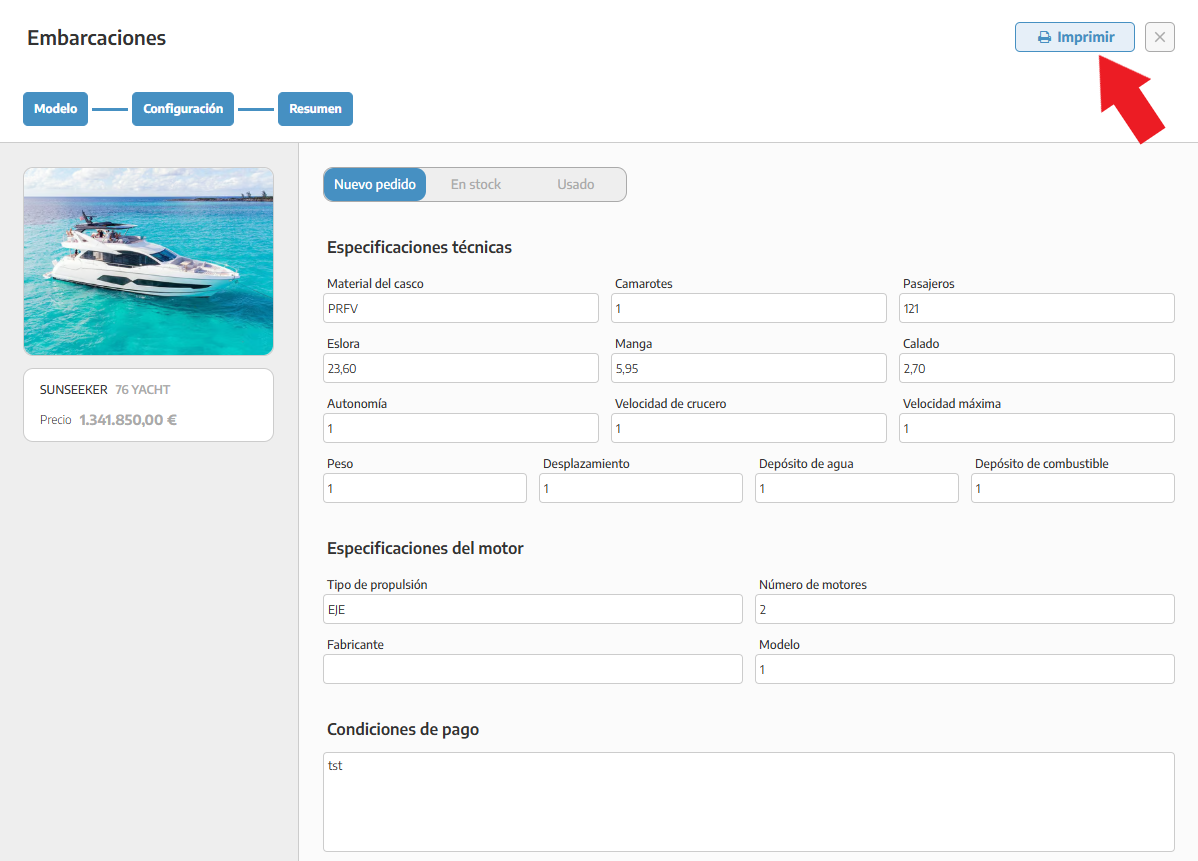
In the SUMMARY view, you must indicate the status of the boat:
New order
In stock
Used boat
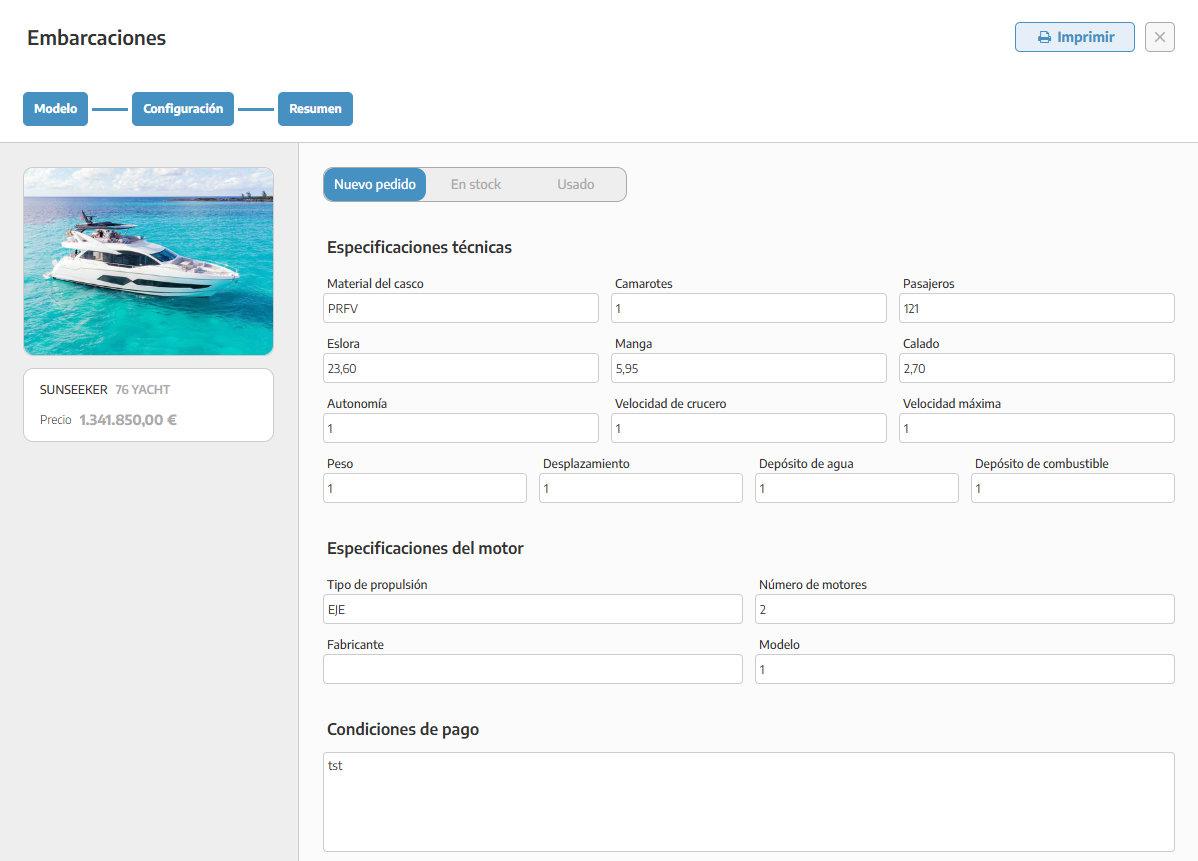
Depending on the selected option, different fields will be enabled to complete the information.
Once the setup is finished, you’ll be able to:
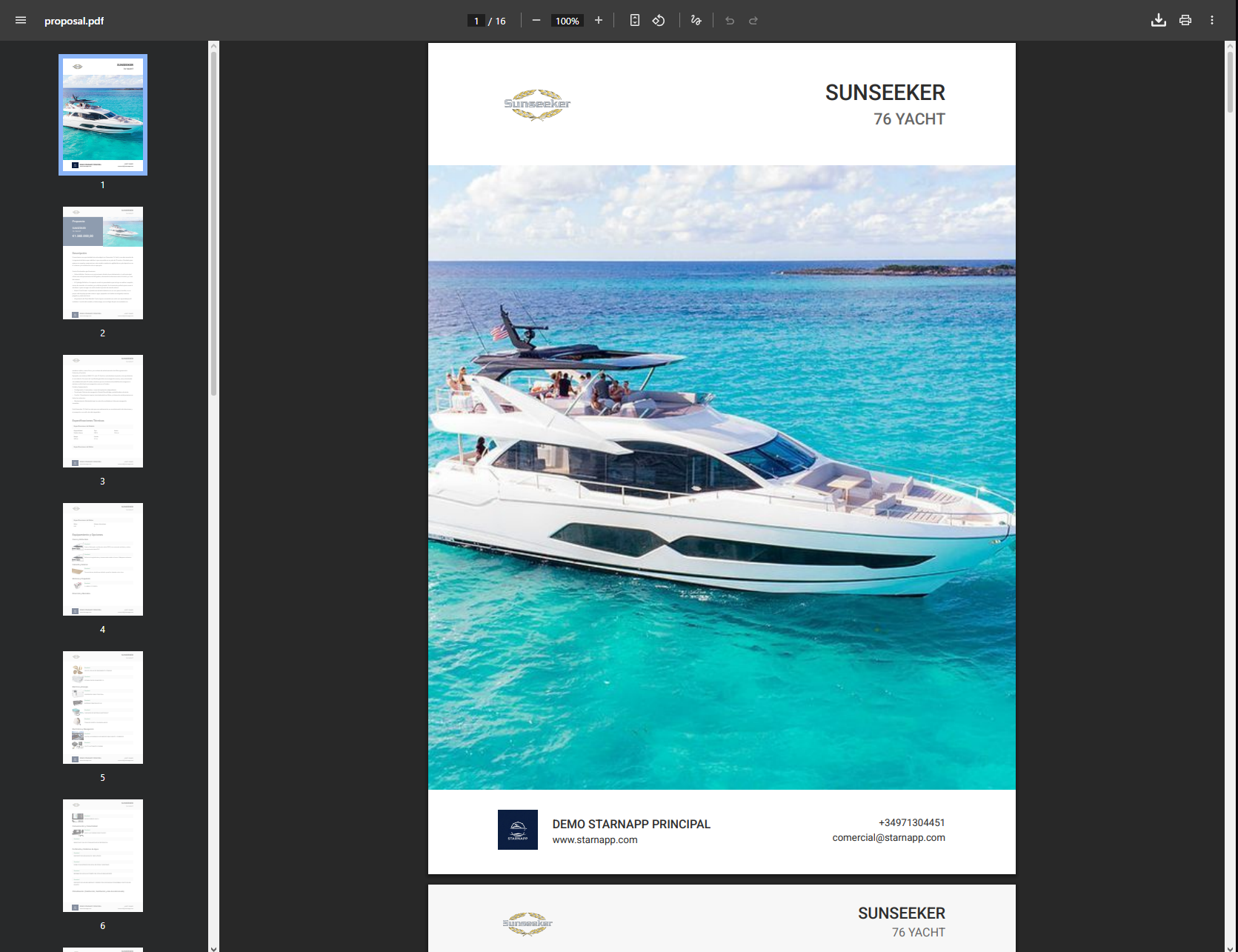
Generate the proposal PDF
Print the document if needed
Always check the prices before generating the PDF
Make sure to include high-quality images
Use the optional elements to offer flexible configurations to your customers
With these steps you’ll be able to create complete templates and generate professional proposals for your boats.