
If the business works in more than one place (a yard and a marina, two harbours) or with several work groups, we'll reflect that in SETTINGS → EMPLOYEES → LOCATIONS AND TEAMS. Creating the location or team here does not assign anyone: we'll link them afterwards on the employee record.
How do we get there?
We'll go to SETTINGS → EMPLOYEES → LOCATIONS AND TEAMS. On this screen we create the company's sites and teams.
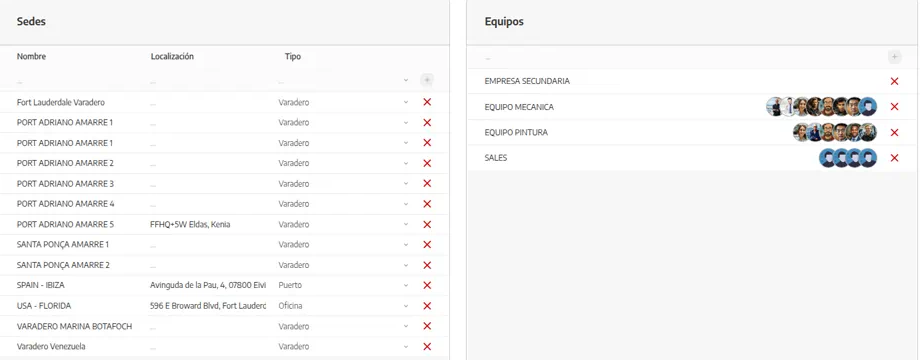
How does it work?
There are two different ideas and we can use both at once:
LOCATION: a physical workplace. In Settings it has NAME, PLACE and TYPE (shipyard, port, office…). When we associate employees with a location, lists and the planner can be filtered by site.
TEAM: a group of people who work together, independently of the location: mechanics, paint, watchkeeping. The list shows people already assigned. It is useful for assigning tasks in bulk and reading the plan by group, not person by person.
An employee can belong to a location and a team. Location answers “where”; team answers “with whom”.
🔒 Availability: Locations and teams are on Advance and Enterprise.
How do we create locations and teams and assign them?
We'll go to SETTINGS → EMPLOYEES → LOCATIONS AND TEAMS.
We'll create each LOCATION with a NAME the team recognises, the PLACE if we use it, and the TYPE.
We'll create each TEAM (mechanics, electrical, dock…).
We'll open the employee record and assign their location and team. Without this step, the location exists but nobody appears when we filter by it.
The full hire process is in Add a user / employee.
What should we keep in mind?
💡 Tip: If we only have one site, we won't create artificial locations. We'll structure when the volume needs it, not before.
Filtering the planner by location is useless if employees have no location on their profile.
Moving someone to another yard is changing their location (and, if it applies, their team) on the record, not creating a new role. Permissions still live in Roles and permissions.
A location does not replace the legal company: one entity can have two locations; two entities are set up in Set up your company information.